How to remove "Buy Now Pay Later"
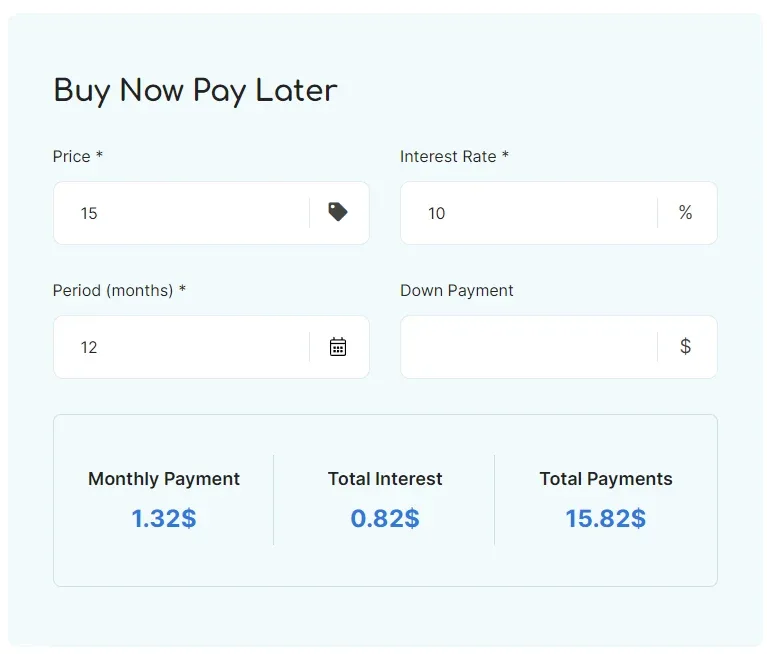
Take the "Buy Now Pay Later" loan calculator off your listing pages by deleting its widget from the single ad template in Elementor — and put it back the same way whenever you want.
1 minute read
In this article we show how to remove this block from the single listing template.
-
1
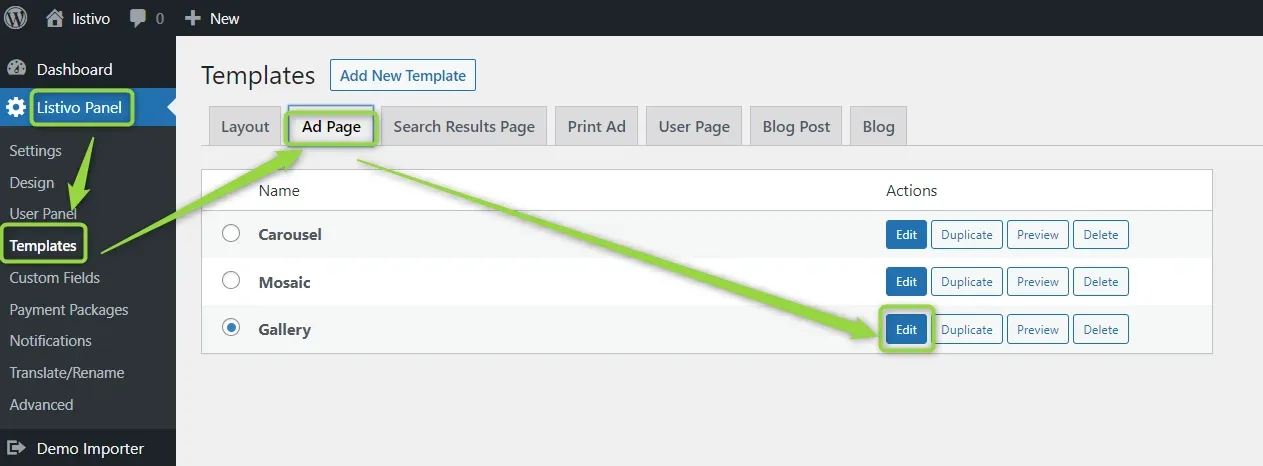
Open the ad template for editing
Go to Wp-Admin > Listivo Panel > Templates and click Edit.
-
2
Delete the block in Elementor
When the Elementor editor is open, right-click the block and remove it.
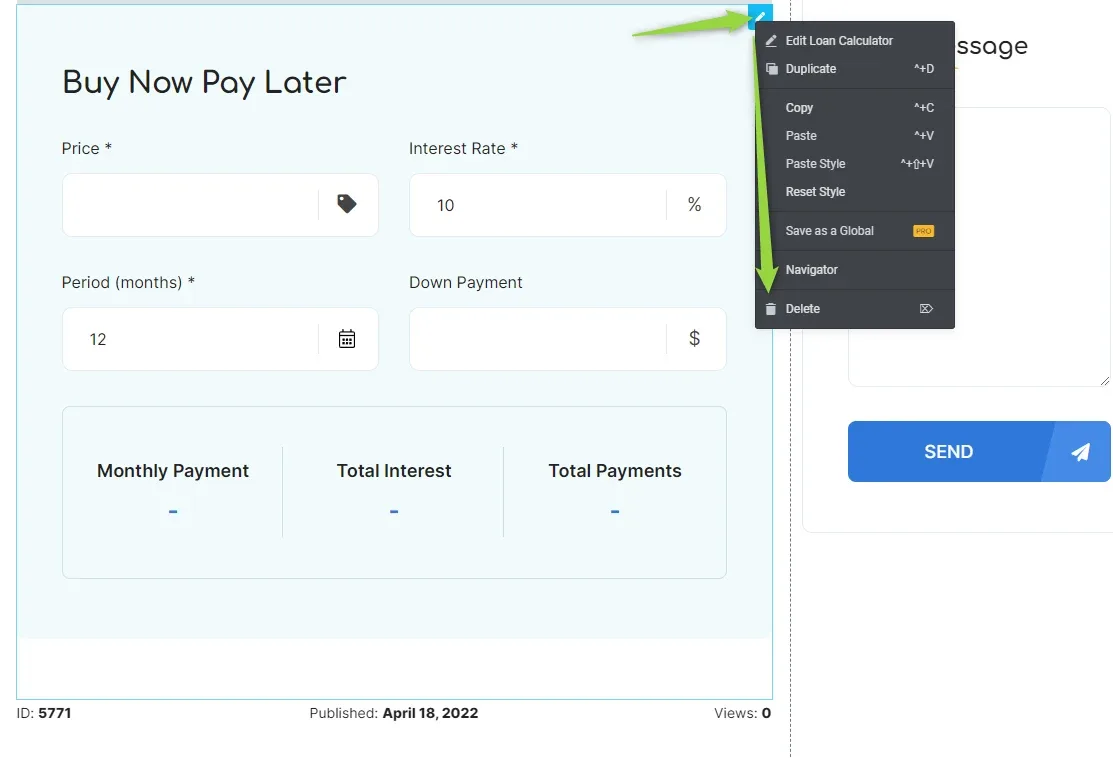
After that, this block and the link at the top will be removed. You can always re-add it the same way.
Ask the people who build Listivo
We answer by email from support@tangiblewp.com. With Premium Support, we also fix your site when something breaks.
We can also run your site for you, or build a new one.
Was this guide helpful?