How to Customize Google Maps with Snazzy Maps Styles
Take a ready-made style from Snazzy Maps and apply it to every Google map in Listivo — map search, add ad form and single ad page — by pasting one block of code.
1 minute read
To customize the map style in Listivo using a style from Snazzy Maps, follow these steps:
-
1
Open Snazzy Maps
Visit https://snazzymaps.com/ to find a variety of custom map styles.
-
2
Pick a style
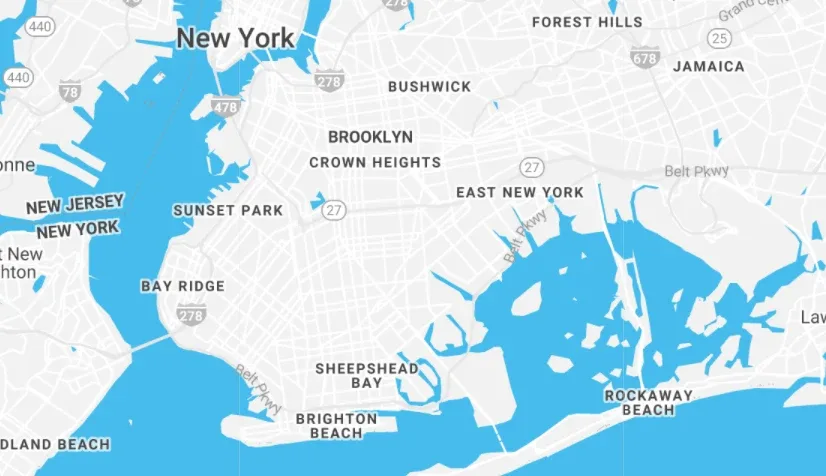
For example, to use the "Blue Water" style, go to https://snazzymaps.com/style/25/blue-water
-
3
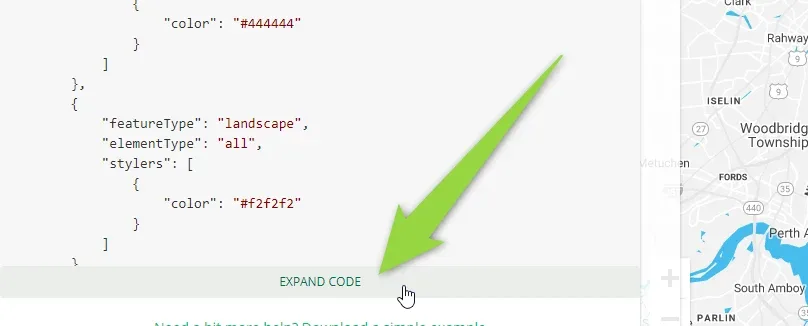
Click "Expand Code"
This shows the whole style code instead of the first few lines.
Your copied code should look like this:
[
    {
        "featureType": "administrative",
        "elementType": "labels.text.fill",
        "stylers": [
            {
                "color": "#444444"
            }
        ]
    },
    {
        "featureType": "landscape",
        "elementType": "all",
        "stylers": [
            {
                "color": "#f2f2f2"
            }
        ]
    },
    {
        "featureType": "poi",
        "elementType": "all",
        "stylers": [
            {
                "visibility": "off"
            }
        ]
    },
    {
        "featureType": "road",
        "elementType": "all",
        "stylers": [
            {
                "saturation": -100
            },
            {
                "lightness": 45
            }
        ]
    },
    {
        "featureType": "road.highway",
        "elementType": "all",
        "stylers": [
            {
                "visibility": "simplified"
            }
        ]
    },
    {
        "featureType": "road.arterial",
        "elementType": "labels.icon",
        "stylers": [
            {
                "visibility": "off"
            }
        ]
    },
    {
        "featureType": "transit",
        "elementType": "all",
        "stylers": [
            {
                "visibility": "off"
            }
        ]
    },
    {
        "featureType": "water",
        "elementType": "all",
        "stylers": [
            {
                "color": "#46bcec"
            },
            {
                "visibility": "on"
            }
        ]
    }
]
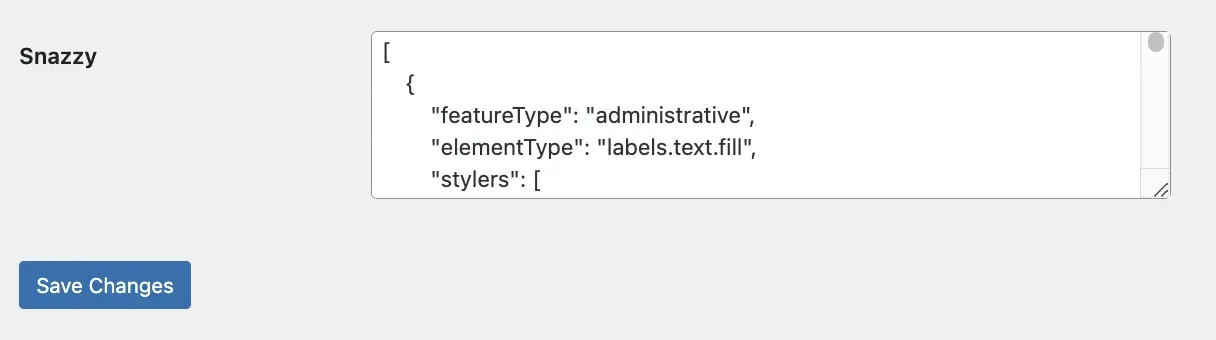
Paste the copied code into the Google Map Element, or navigate to Listivo Panel > Maps > Snazzy and input the code there.
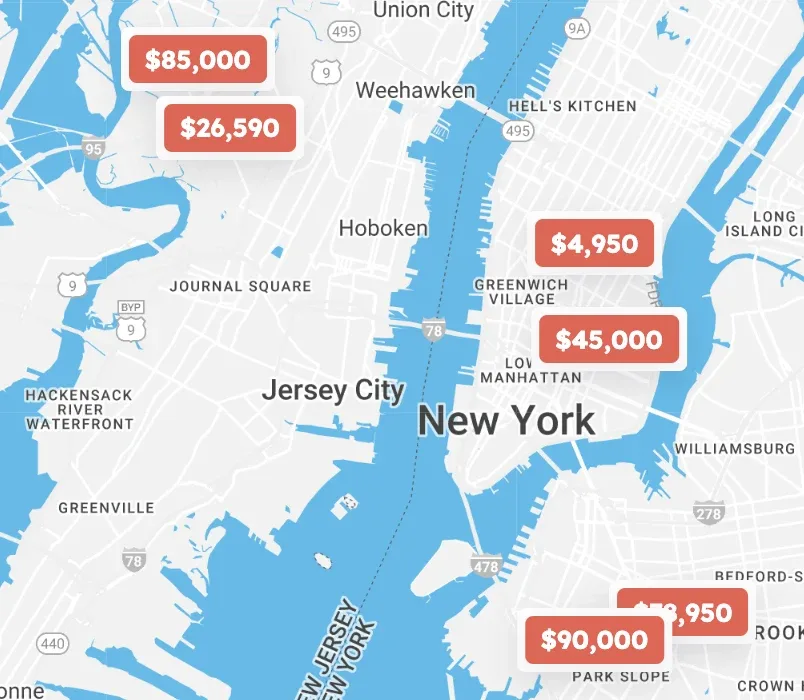
After applying the code, the new style will be applied across all Listivo Google Map integrations, such as Map Search, Add Ad Form, and Single Ad Template.
Ask the people who build Listivo
We answer by email from support@tangiblewp.com. With Premium Support, we also fix your site when something breaks.
We can also run your site for you, or build a new one.
Was this guide helpful?