How to change currency and price format?
Set which currency your listings are priced in and how the number itself looks — name, sign, sign position and format — from the Listivo Panel.
1 minute read
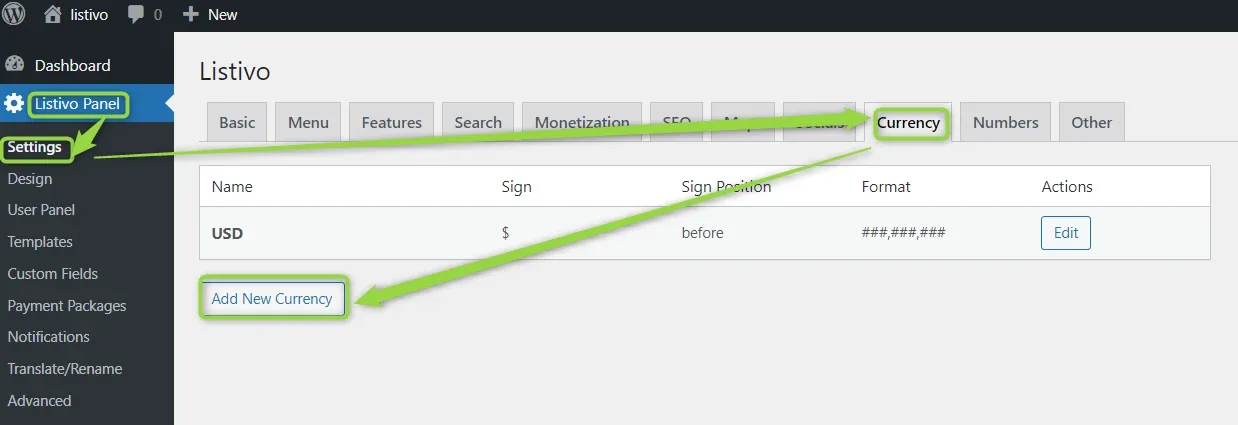
You can set your currency in /wp-admin/ > Listivo Panel > Basic Setup > Currencies.
-
1
Open the currency settings
In /wp-admin/, go to Listivo Panel > Basic Setup > Currencies.
-
2
Choose what to change
You can change the currency name (e.g. GBP), the currency sign (e.g. £), the sign position (before or after the number) and the format.
-
3
Find your currency sign
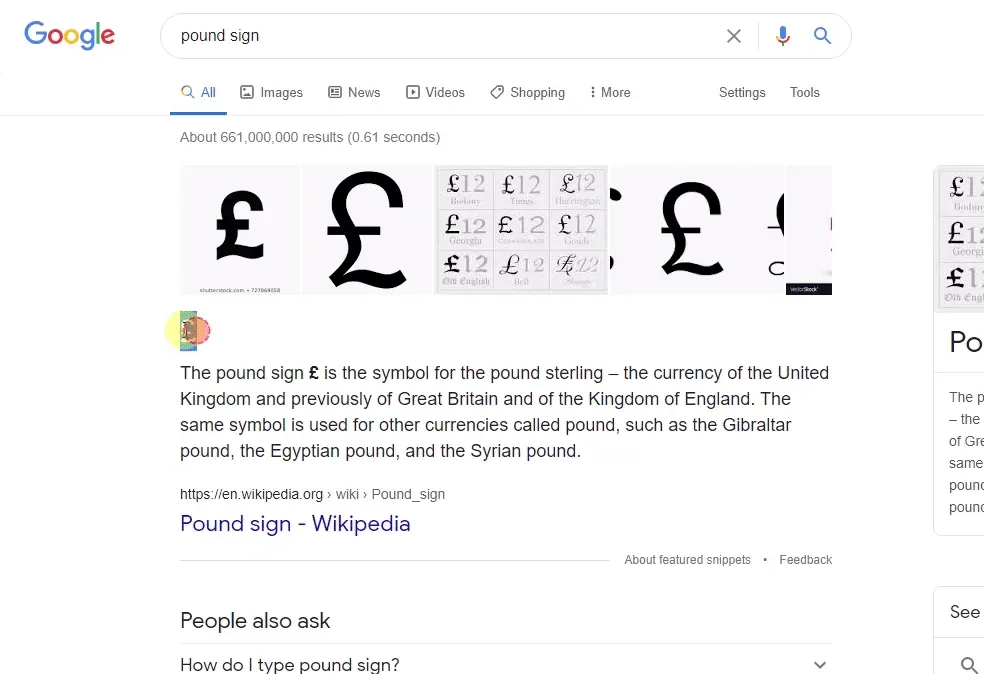
The easiest way to get a sign such as £ is to search for it in Google and copy/paste it into the Listivo Panel (e.g. search for pound sign).
-
4
Configure the currency
Click the Edit button on the currency row.

Where the new format shows up
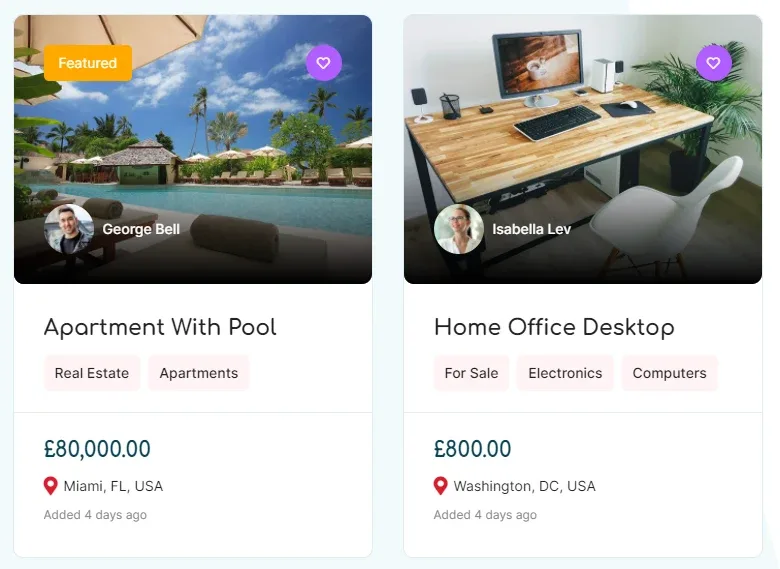
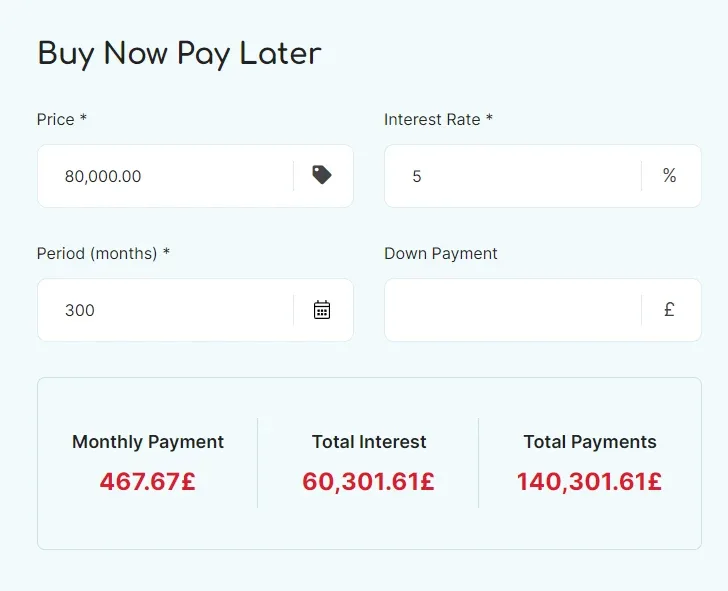
The new price format is used everywhere on your website, for example on listing cards and in the loan calculator.
Ask the people who build Listivo
We answer by email from support@tangiblewp.com. With Premium Support, we also fix your site when something breaks.
We can also run your site for you, or build a new one.
Was this guide helpful?