How to add text after / before price e.g. /month
Show a suffix or prefix next to your prices — /month, per day, "from" — by editing the Price custom field, and add extra price fields for rent or other rates.
1 minute read
This article explains how to add text after the price, for example /month, like this:

Add the text to the price field
-
1
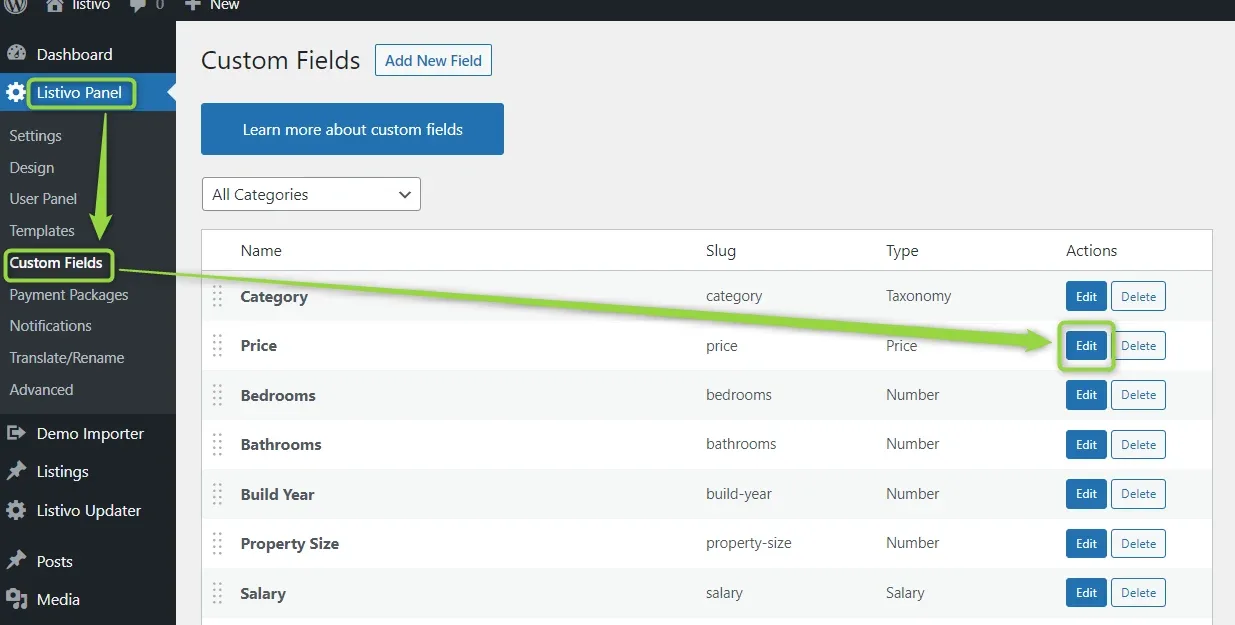
Open the Price field
Go to Listivo Panel > Custom Fields and edit the “Price” field.
-
2
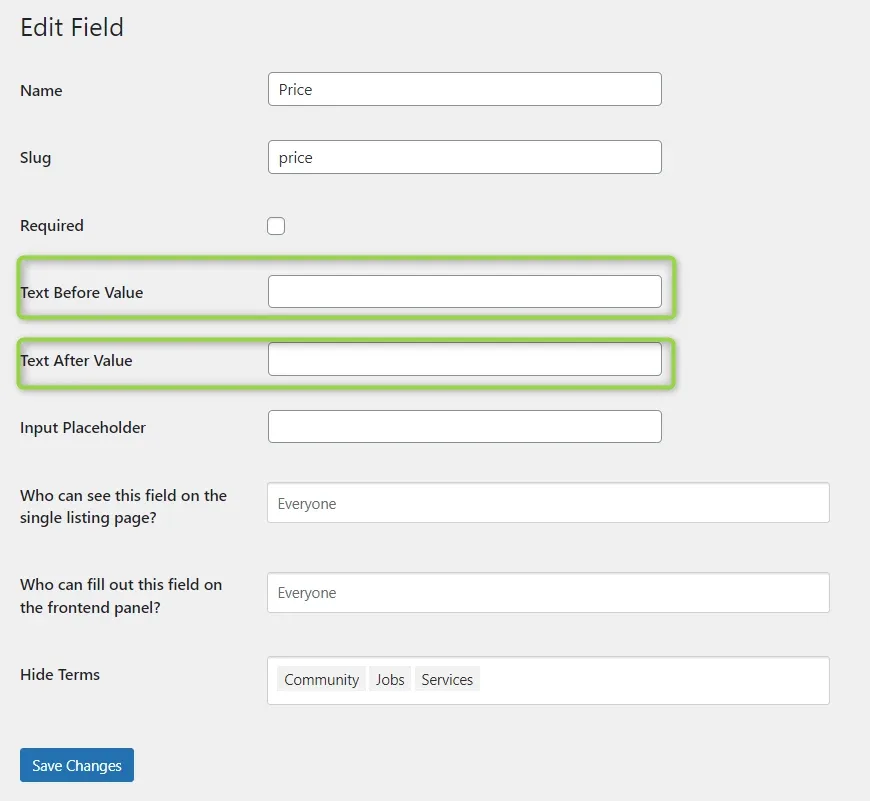
Set the text before or after the value
Fill in “Text before value” and “Text after value”, for example “/month”, then save changes.
Use more than one price field
You can also have several price fields, e.g. one for the full price, one for monthly rent, one for a day rate. Add a new Price field this way:
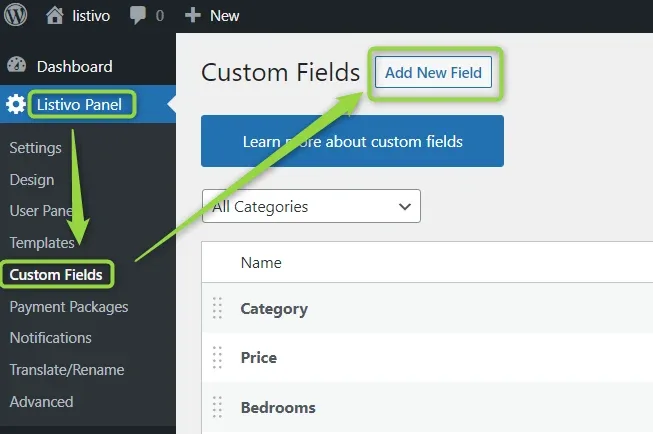
It will then be available on the submit listing form and elsewhere.
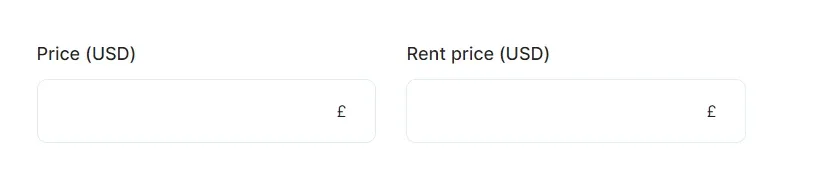
You can also add it to the search form, the same way as any other field.

Ask the people who build Listivo
We answer by email from support@tangiblewp.com. With Premium Support, we also fix your site when something breaks.
We can also run your site for you, or build a new one.
Was this guide helpful?