Customizing Texts for Custom Fields, Their Options, and Placeholders
Field labels, the options inside them and the placeholder texts are three separate settings in Listivo. This article shows where each one lives, so you can rename or translate all of them on the search form and the add ad form.
2 minute read
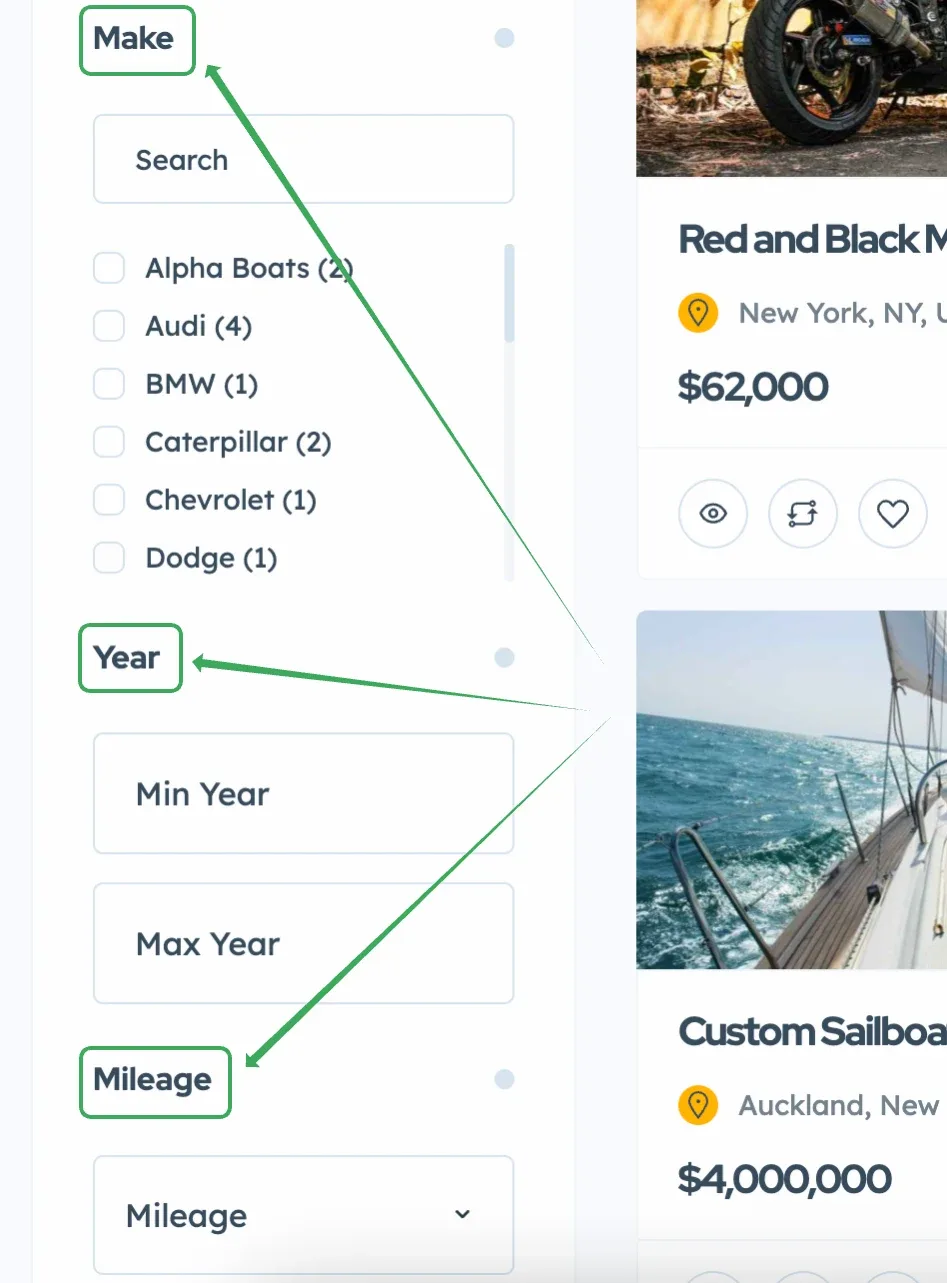
This article explains how to customize texts for custom fields (e.g., Category, Price), their placeholders (e.g., Choose Category) on the search form and add ad form, as well as taxonomy options (e.g., "Cars" for the "Automotive" category).
Field names
To change field names:
-
1
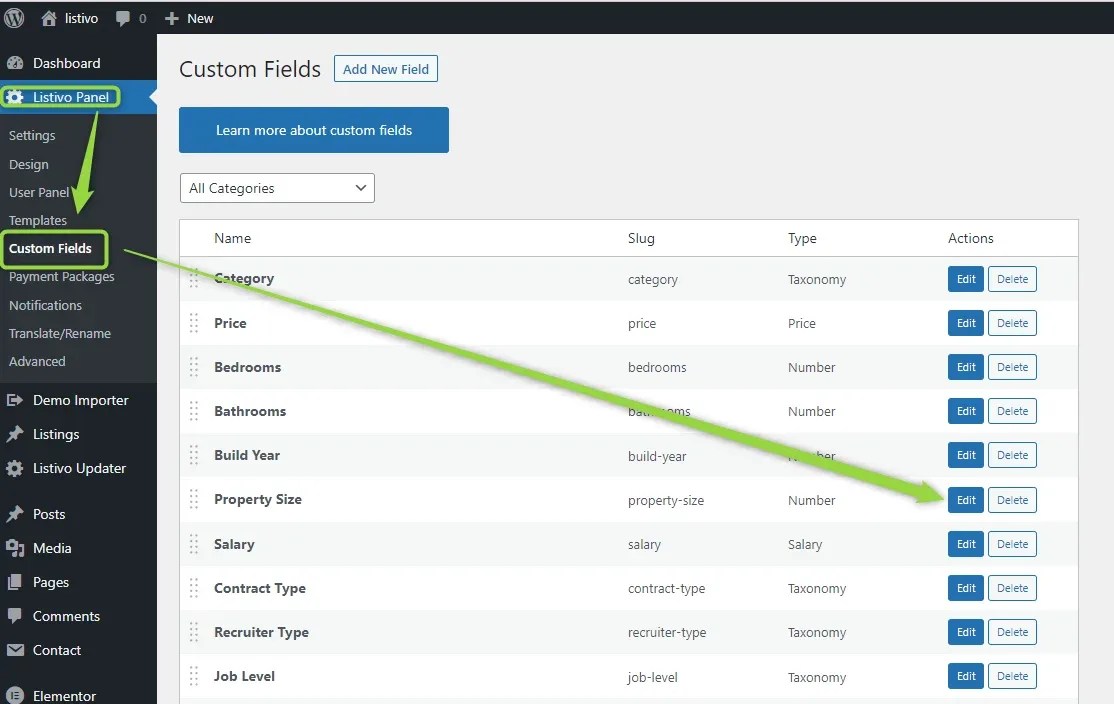
Open Custom Fields
Visit Listivo Panel > Custom Fields and edit each field.
-
2
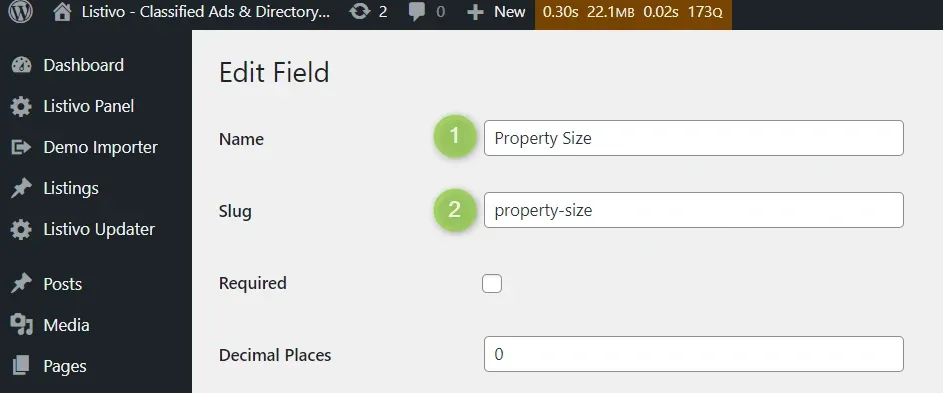
Rename the field
You will see options to change the name and to change its slug (part of the URL).
Field options
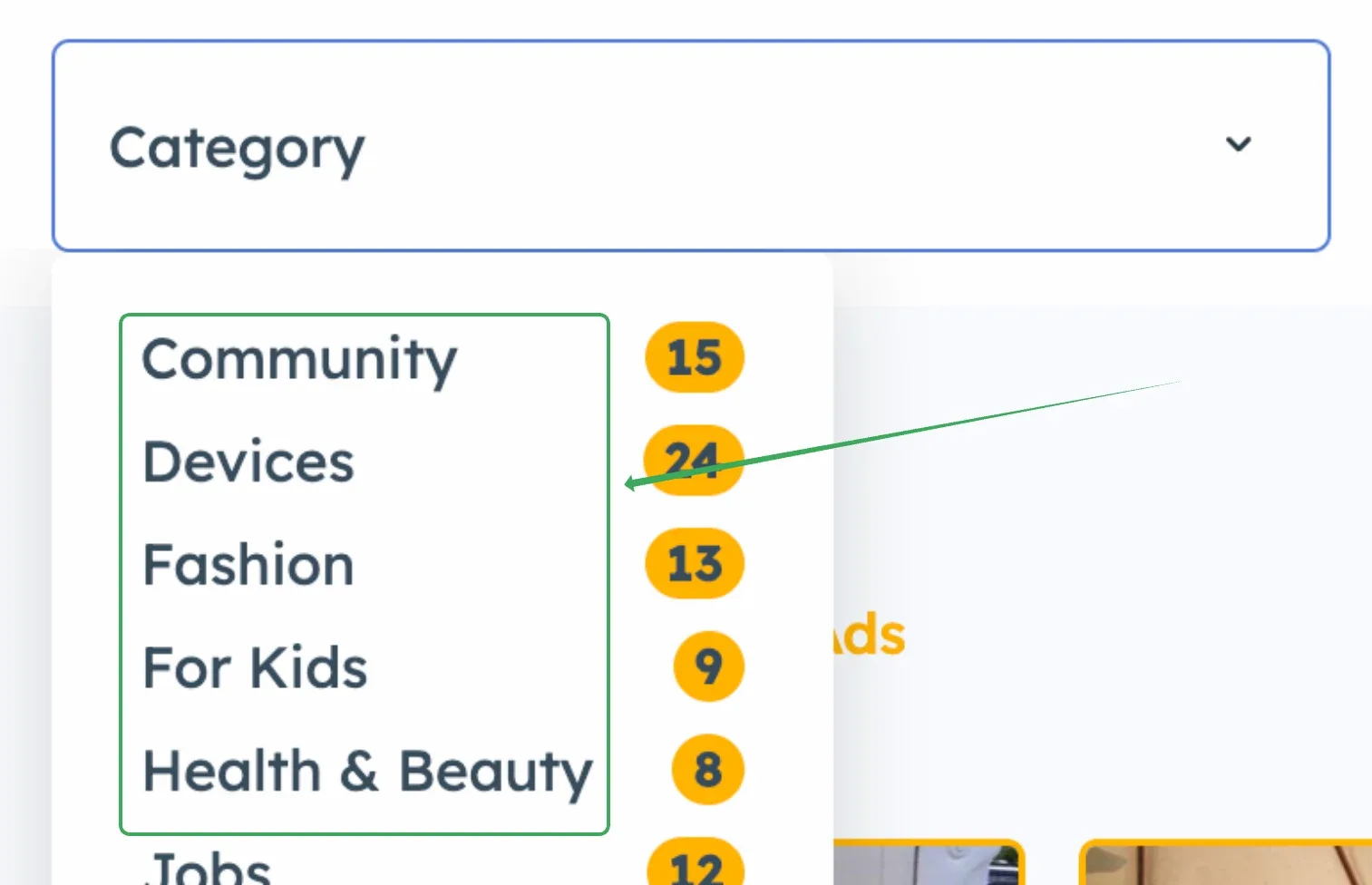
To change options, e.g., Category options:
-
1
Open the taxonomy
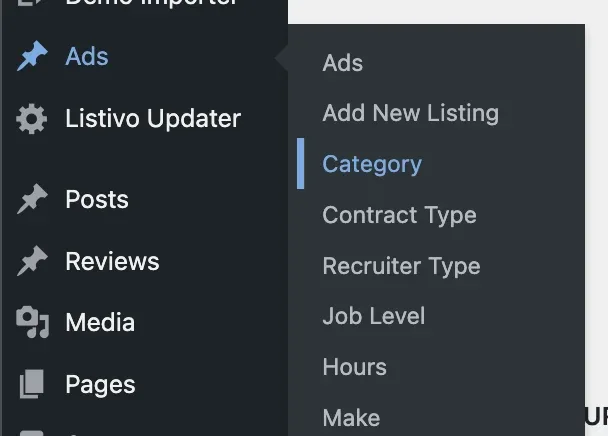
Visit wp-admin, hover over Ads, and select the field options you wish to change.
-
2
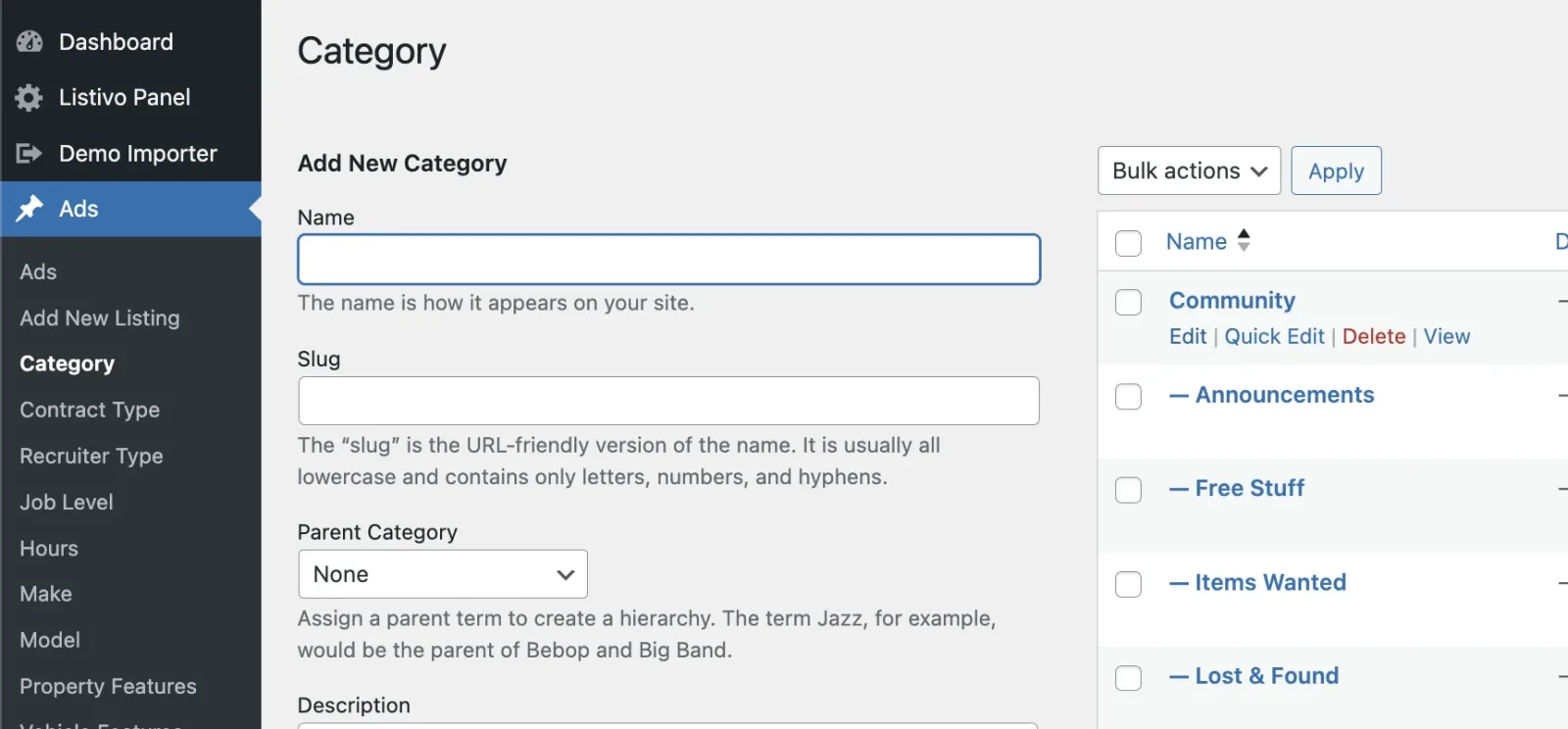
Edit each term
Then edit each term. You can also remove the old ones and create new ones.
Placeholders on the Add Ad form
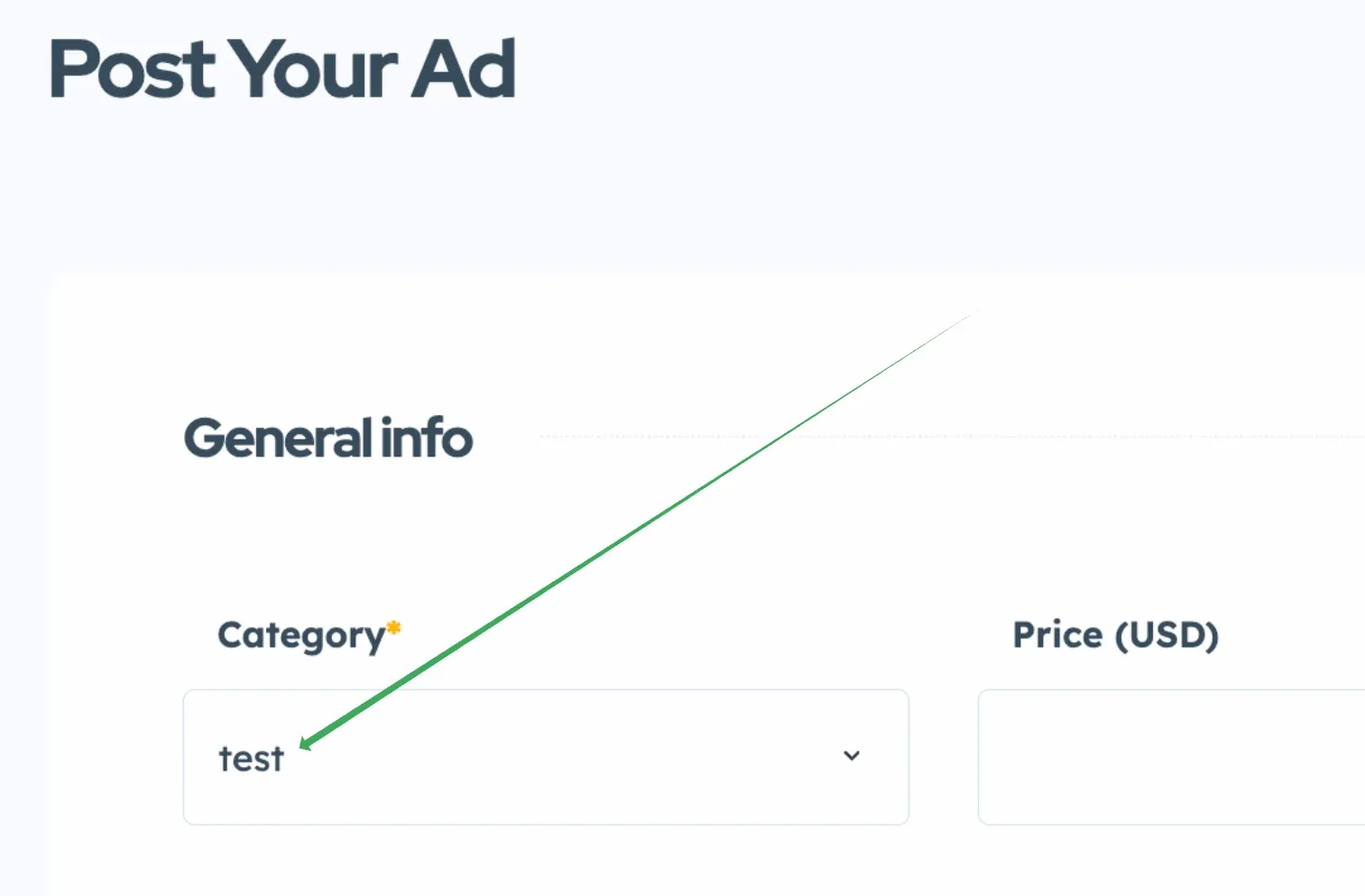
When you edit each field in Listivo Panel > Custom Fields, you will find the Input Placeholder option. For example, if you set it like this:

It will change the text when posting an ad for that particular field.
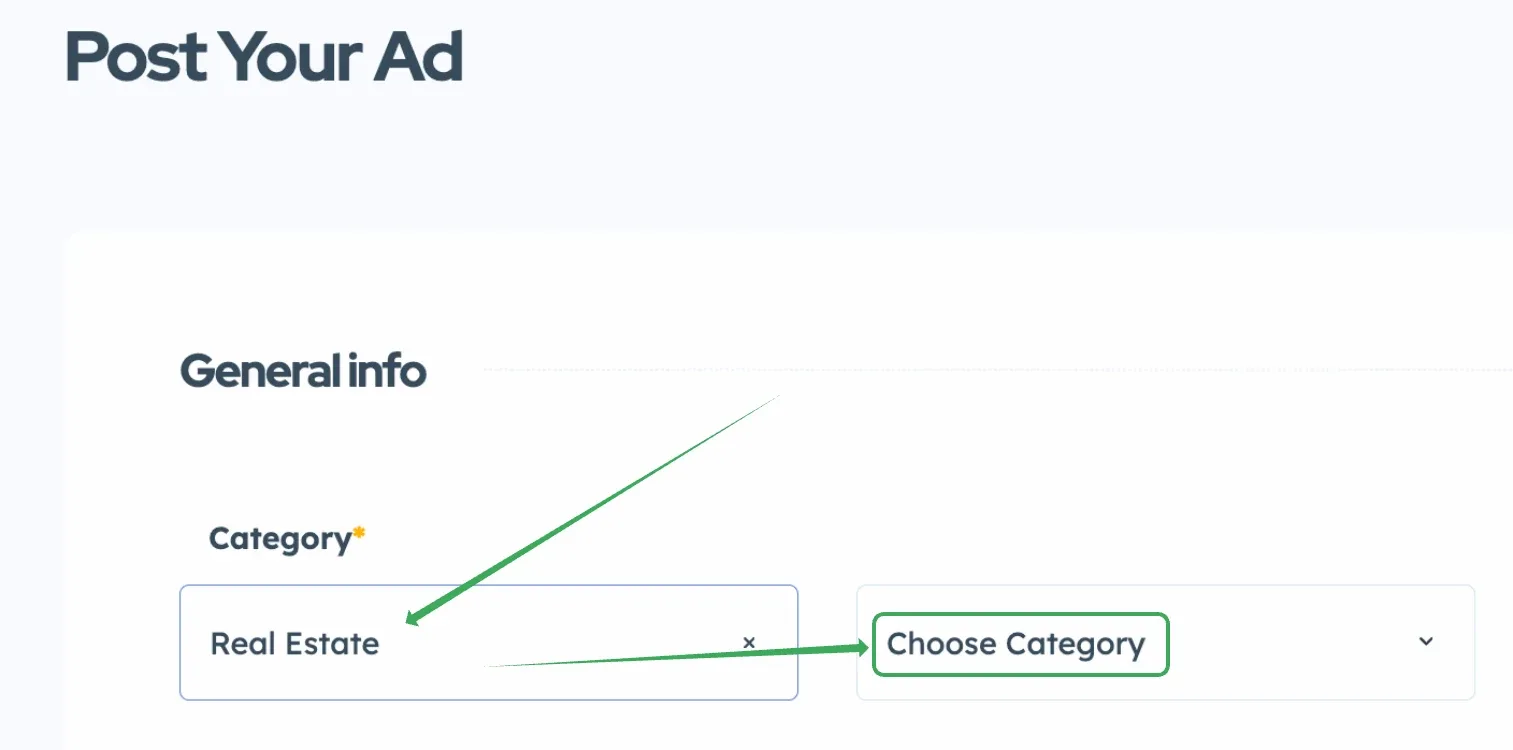
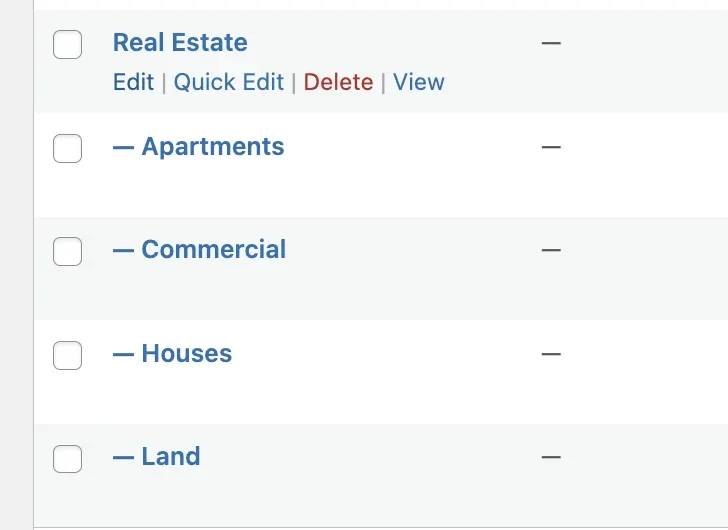
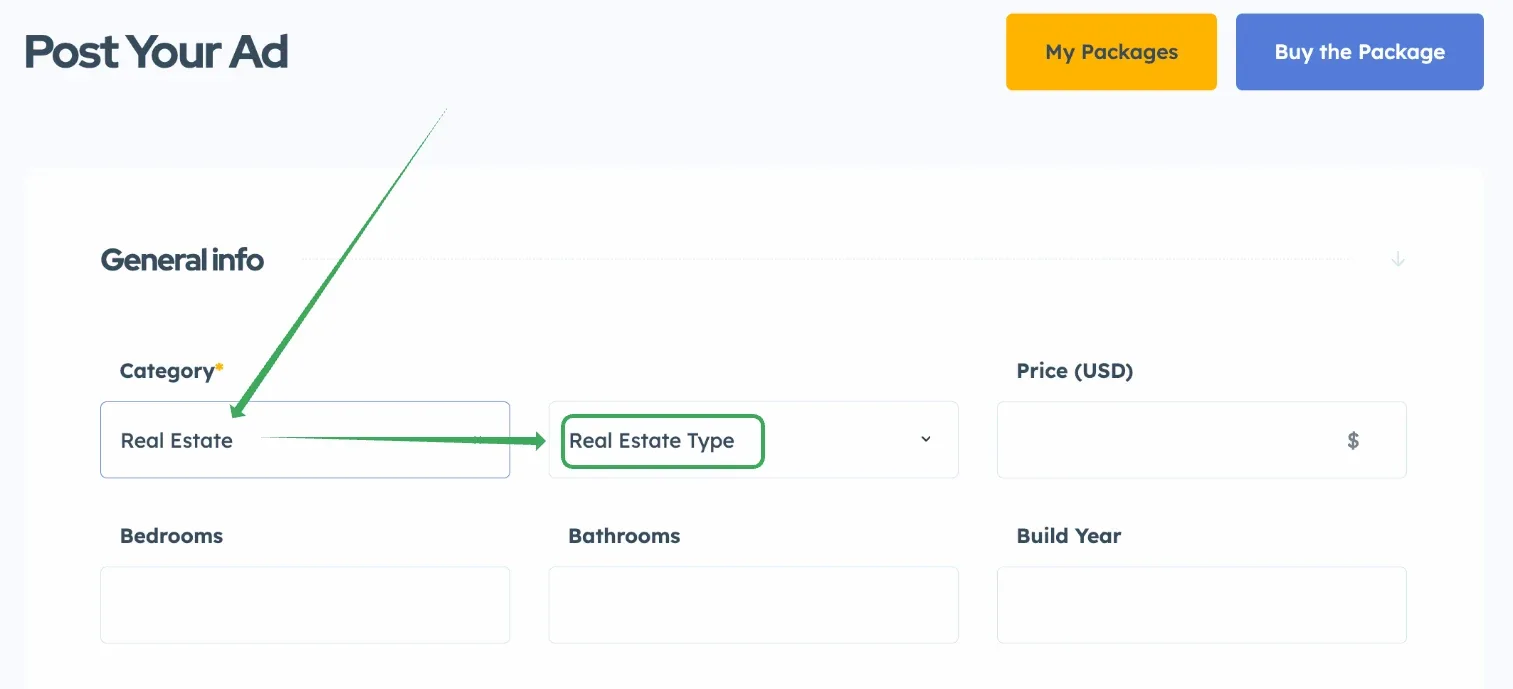
The subcategory placeholder for a multilevel taxonomy can also be customized. If you are on the front-end panel Add Ad form and you select Category: Real Estate, the next field will show options.
-
1
Open the Category terms
Visit wp-admin, hover over Ads and select Category.
-
2
Set a new placeholder
Then edit Real Estate and set a new placeholder.

This will be used on your front-end Add Ad page after selecting Real Estate.
Search form placeholders
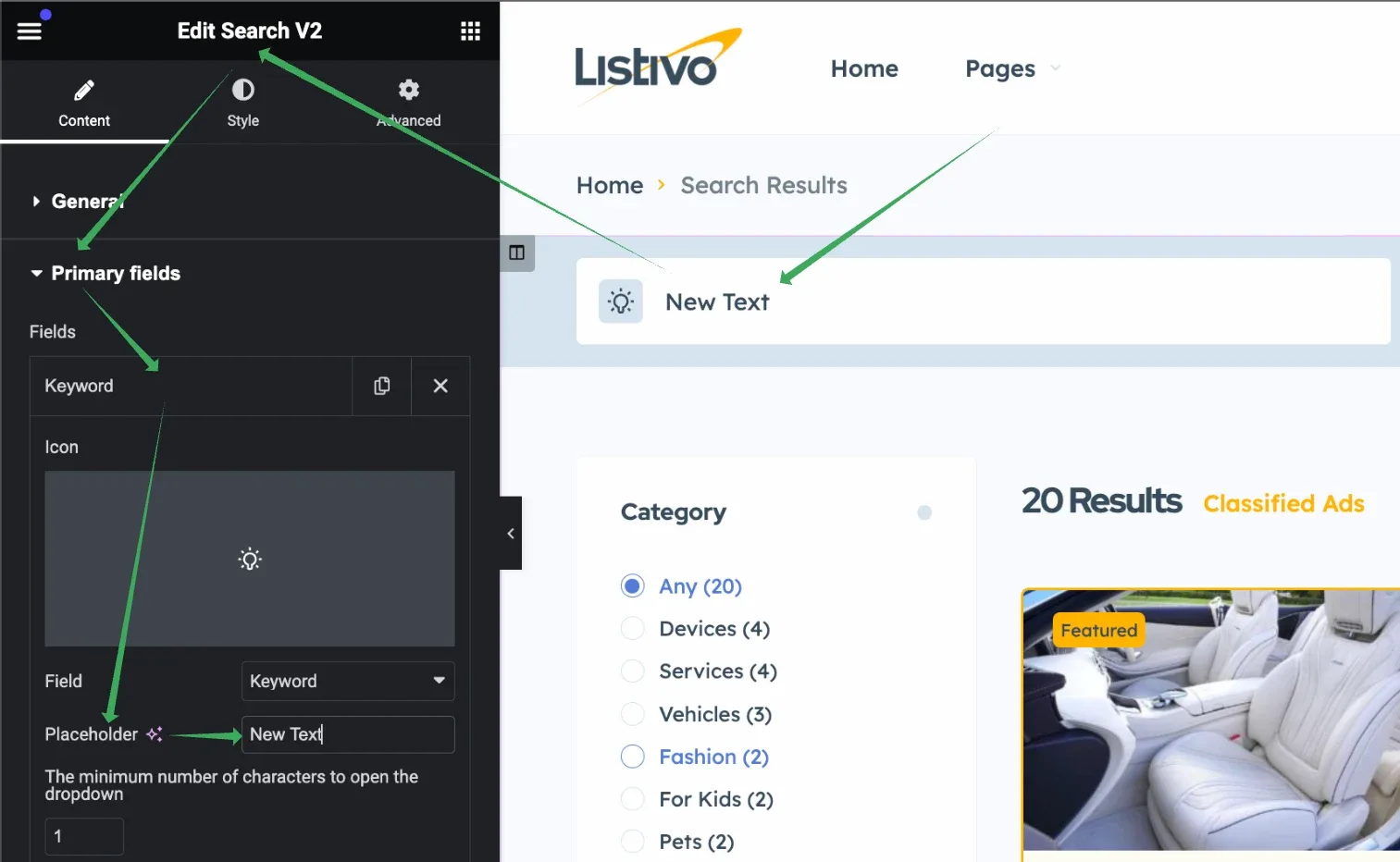
To change placeholders on the Search Form, visit the page via Elementor. You can do this for all fields.
Ask the people who build Listivo
We answer by email from support@tangiblewp.com. With Premium Support, we also fix your site when something breaks.
We can also run your site for you, or build a new one.
Was this guide helpful?