Compare Feature Overview and How to Customize the Compare Page
Learn how Listivo's Compare module lets visitors line up two or more ads side by side, where to switch it on, and how to edit the Compare page in Elementor to change its text and the fields it compares.
1 minute read
How the Compare feature works
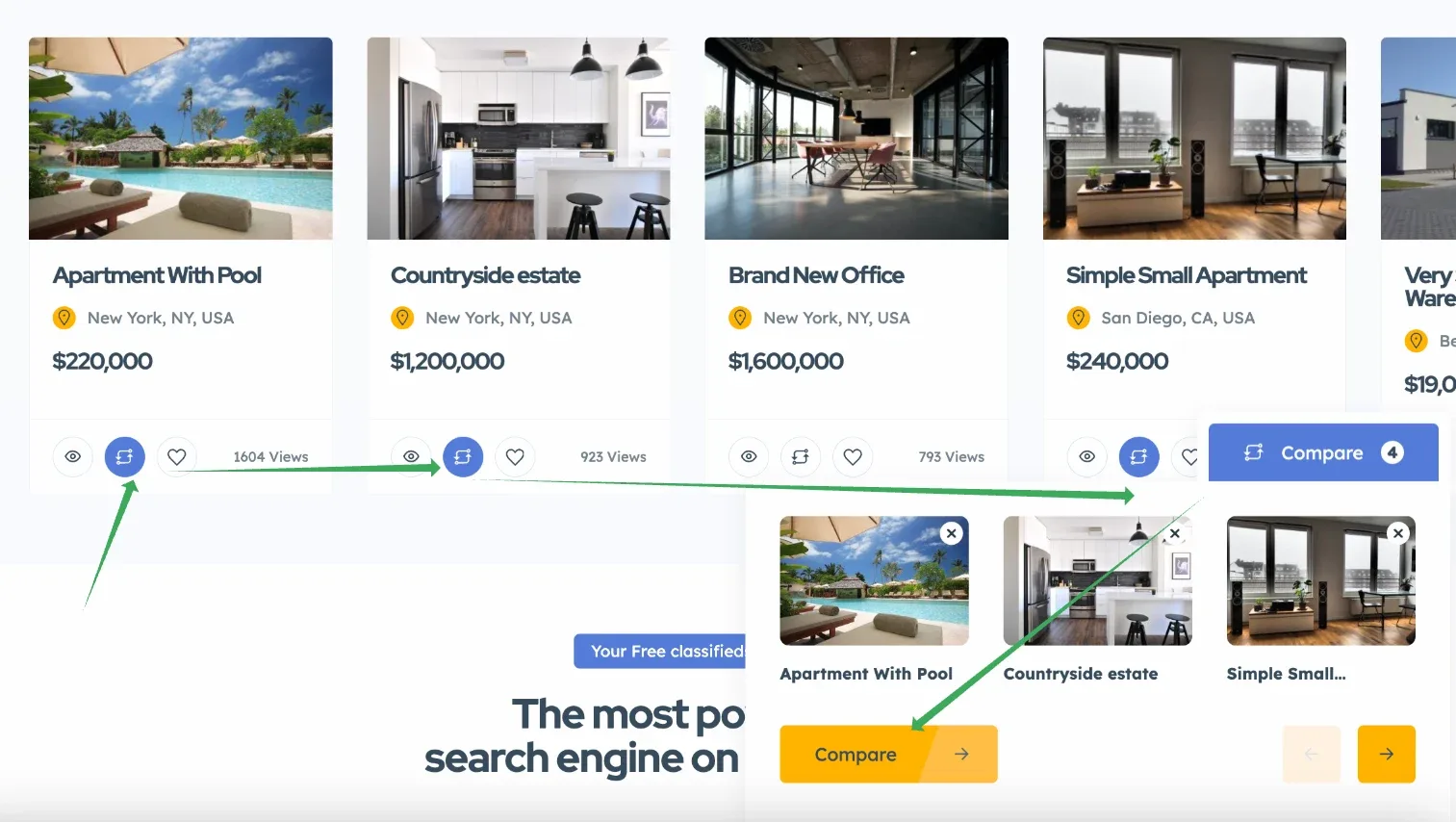
The Compare module adds Add to Compare buttons to Ad Cards and to the Single Ad Page. When a visitor selects at least 2 ads, a floating bar appears that takes them to the compare page.
You can turn the Compare option on or off in the Listivo Panel under Features > Compare.
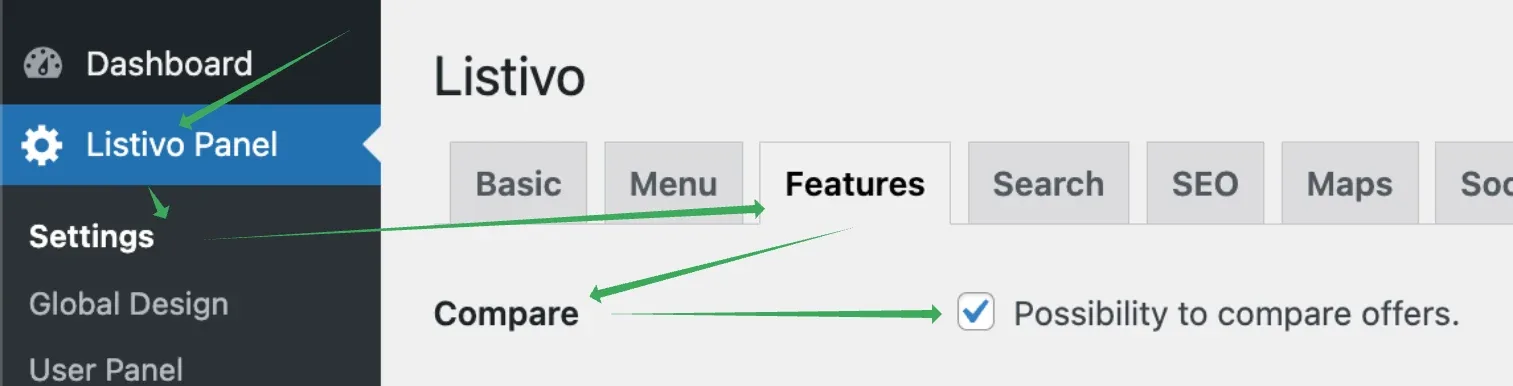
Customizing the Compare page
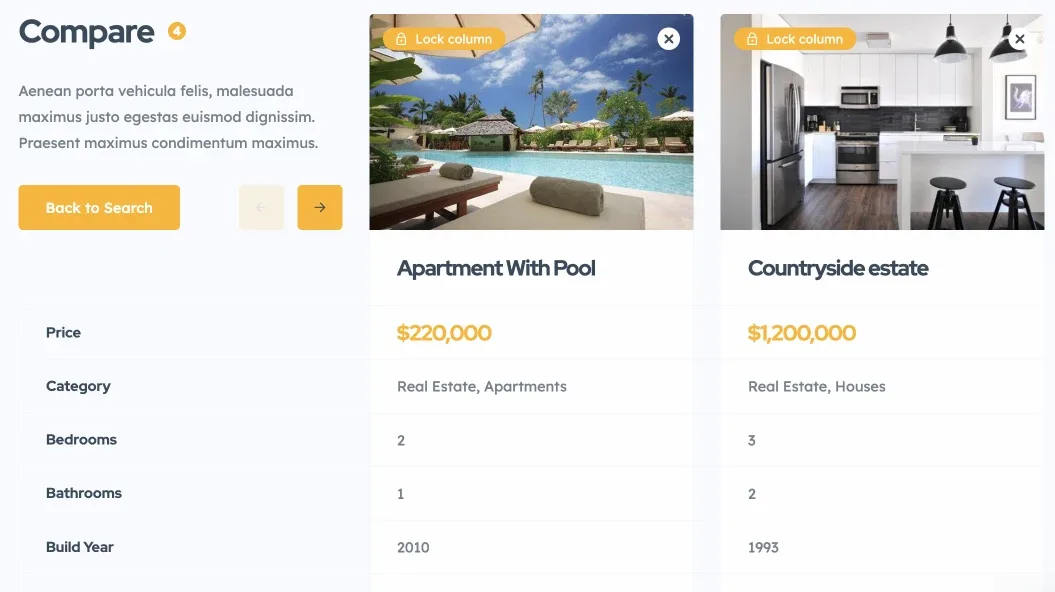
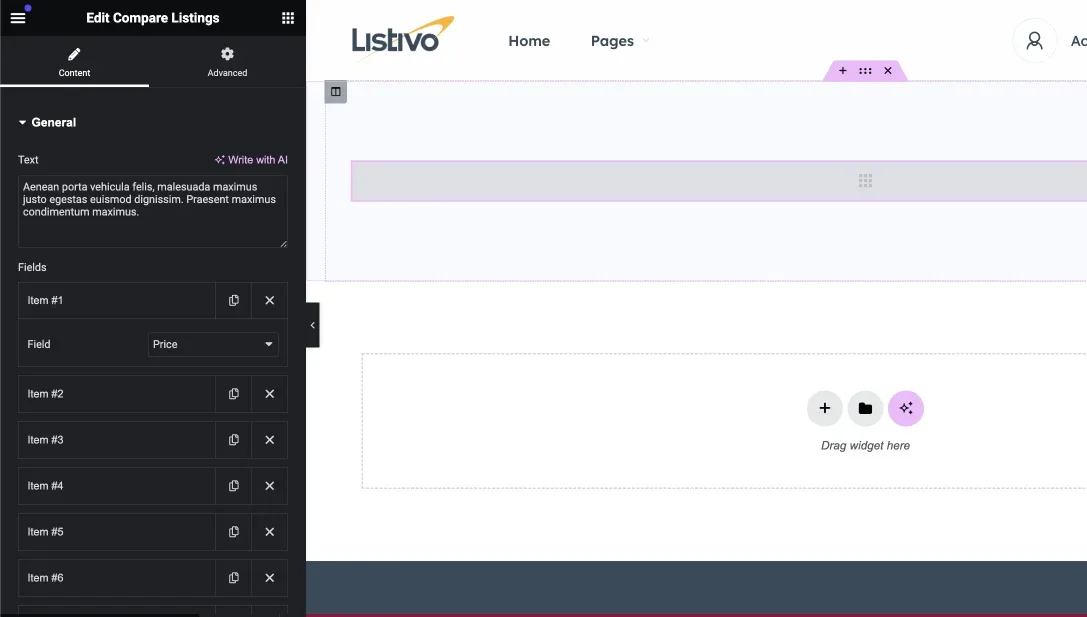
When enabled, the Compare feature automatically appears across your website. The Compare page itself — the text below its heading and the order of the fields — is edited with the Elementor Page Builder.
-
1
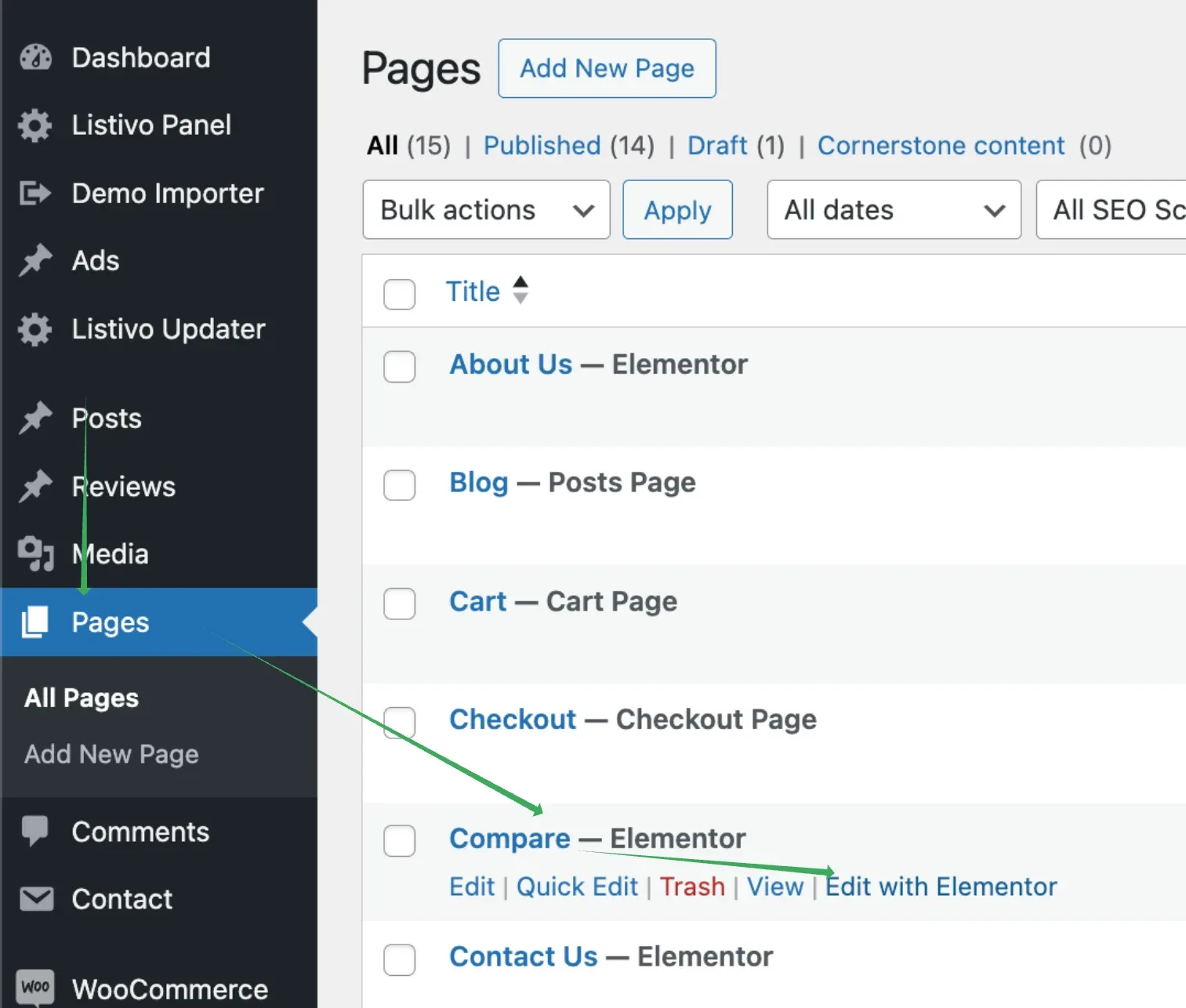
Open the Compare page in Elementor
Go to wp-admin > Pages > Compare > Edit with Elementor.
-
2
Set the text and fields
Select the grey placeholder box and configure the text and the fields you want to display.
Ask the people who build Listivo
We answer by email from support@tangiblewp.com. With Premium Support, we also fix your site when something breaks.
We can also run your site for you, or build a new one.
Was this guide helpful?