Speed Improvement – How to configure Cache (W3Total Cache)
Set up caching on your Vehica site with the free W3 Total Cache plugin: install it, keep the user panel and login pages out of the cache, and switch on the one extra browser-cache option we recommend.
2 minute read
Vehica is an ultra fast theme, and cache configuration makes it faster still. On a good quality shared server it is possible to load your website in less than 2 seconds on a visitor's first view. A second refresh can be much faster, often below 0.5s.
To configure cache we recommend the W3 Total Cache plugin. It has a free version and more than 1 million active installations. This article shows a sample configuration that will improve the speed of your website.
Install and configure the plugin
-
1
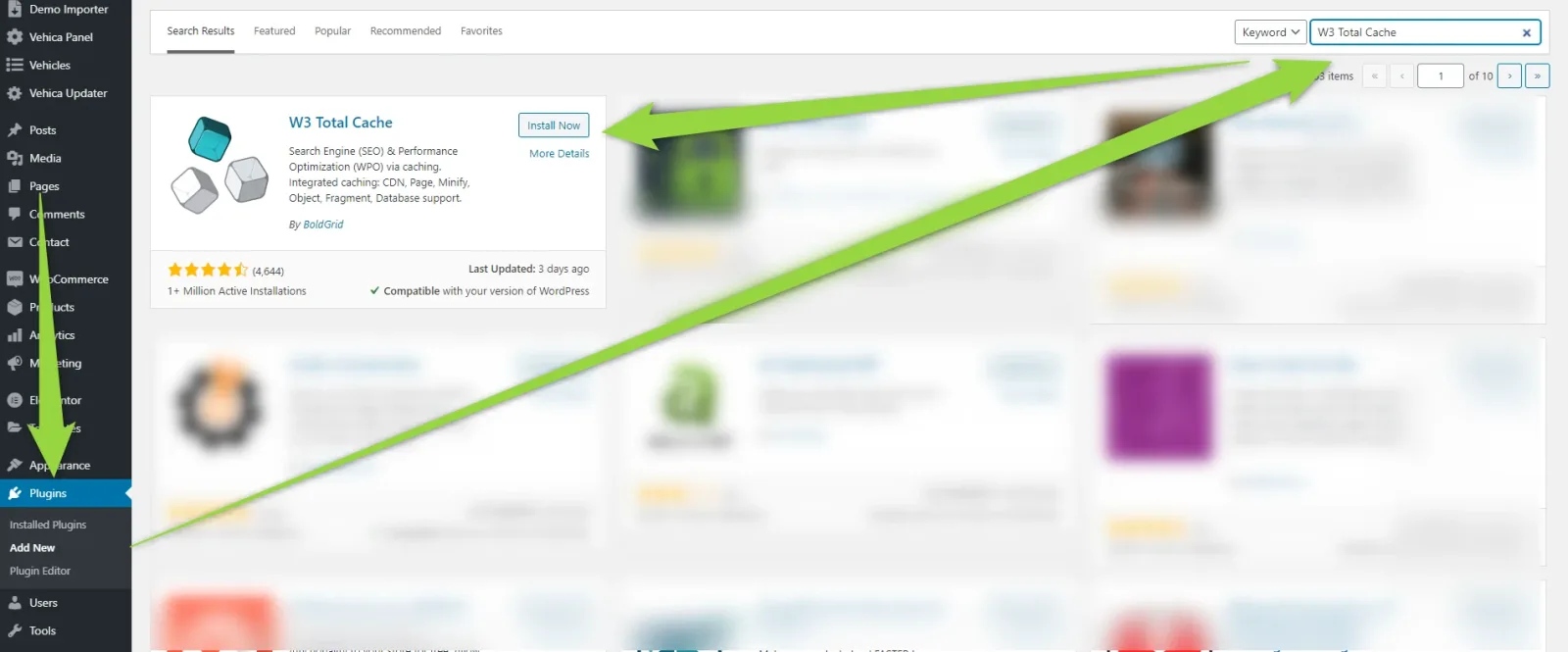
Install W3 Total Cache
Install and activate the plugin from Plugins > Add New, or download it from wordpress.org. Straight after activation some options are already enabled, so you get part of the speed improvement automatically — in General Settings you will find Page Cache, Minify, Database Cache and Browser Cache all set to Enable.
-
2
Exclude the panel and login pages
Visit Performance > Page Cache > Never cache the following pages and tell the plugin not to cache your panel and register pages. If you use the demo content and have not renamed the pages, add
/login-registerand/panel*. These two lines disable the cache on https://demo.vehicatheme.com/login-register/ and on https://demo.vehicatheme.com/panel/ together with all panel subpages.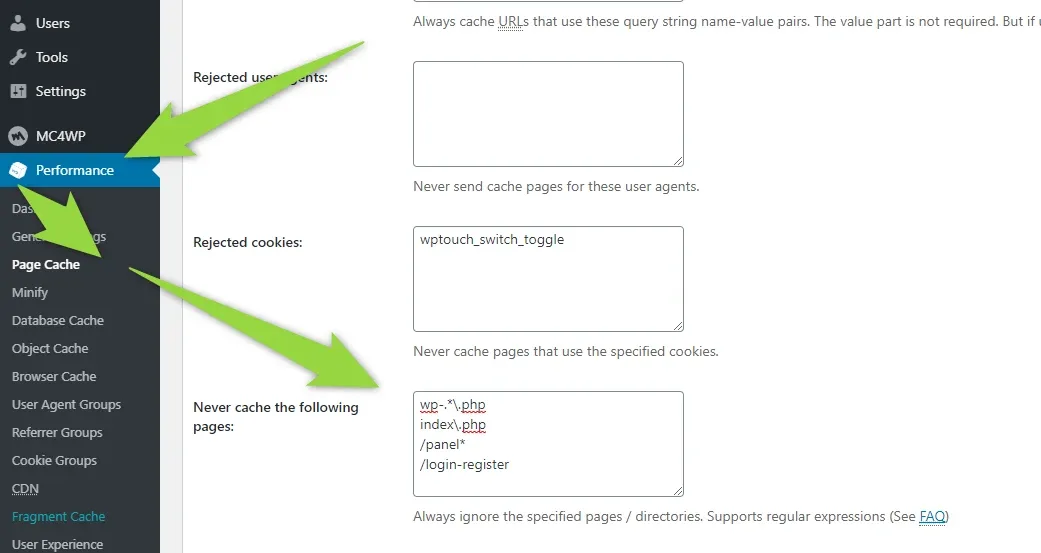
-
3
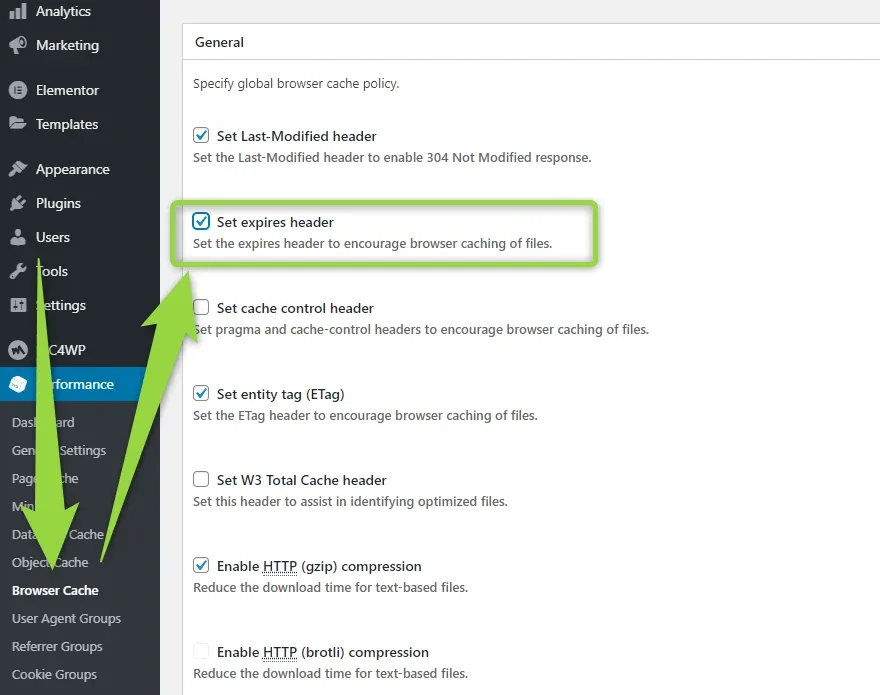
Set the expires header
Open Performance > Browser Cache and check this one extra box, Set expires header.
* at the end of /panel* — that is what keeps all of the panel subpages out of the cache as well.Check the result
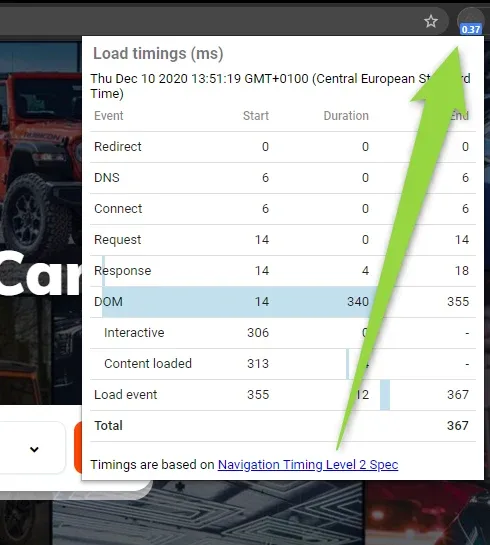
It's done. Your website will work faster now. You can check how fast your website is with, for example, the Chrome Page Load Timer.
If you have any problems related to cache configuration, please contact our developers and we will help you — Submit a ticket.
Ask the people who build Vehica
We answer by email from support@tangiblewp.com. With Premium Support, we also fix your site when something breaks.
We can also run your site for you, or build a new one.
Was this guide helpful?