Regenerate thumbnails on your website
Create the newly defined image sizes for pictures that were uploaded earlier, with the free Regenerate Thumbnails plugin — from installing it to running it over every attachment on your site.
1 minute read
Regenerating thumbnails creates new sizes of previously uploaded images, by producing copies of them in the newly defined sizes.
Install the plugin
-
1
Open Plugins > Add New
Visit
/wp-admin/> Plugins > Add New.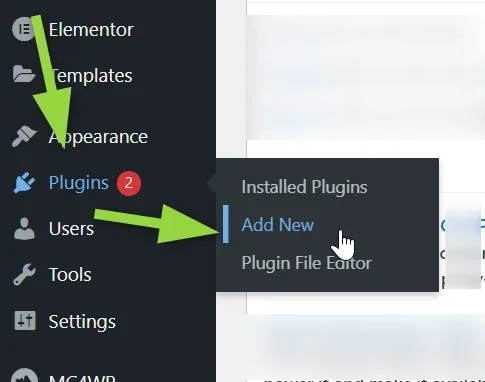
-
2
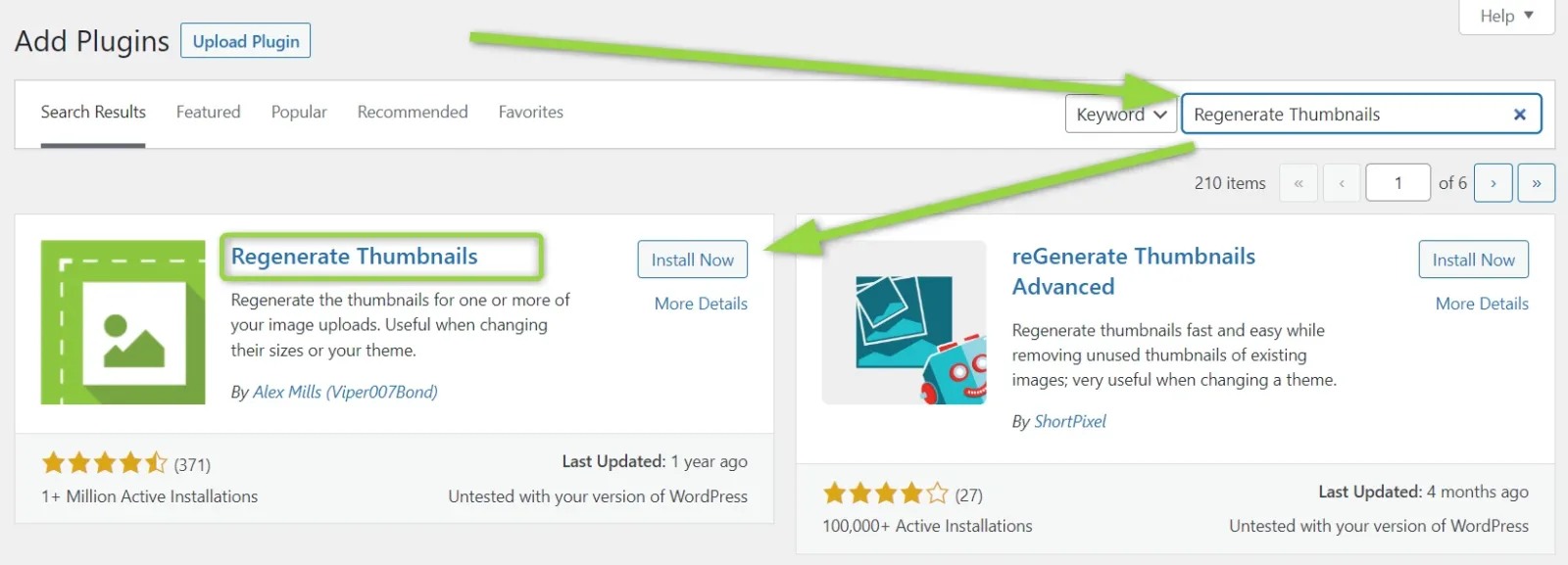
Search for Regenerate Thumbnails
Type the plugin name into the keyword search and click Install Now on the first result.
-
3
Let the plugin install

-
4
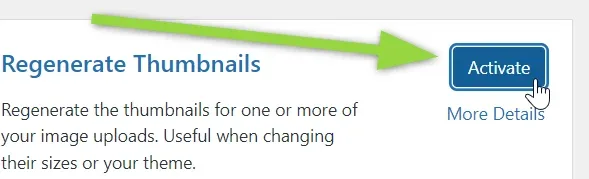
Click Activate
Regenerate the thumbnails
-
1
Open Tools > Regenerate Thumbnails
Visit
/wp-admin/> Tools > Regenerate Thumbnails.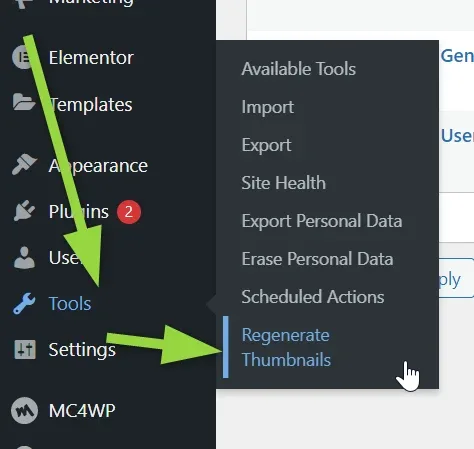
-
2
Set the two checkboxes
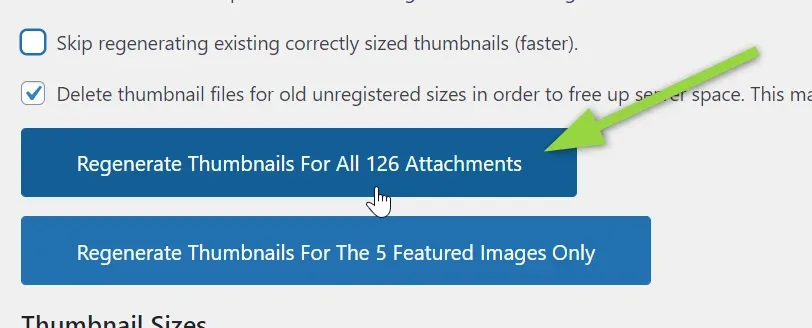
Please make sure you selected them this way: deselect "Skip regenerating existing correctly sized thumbnails (faster)" and select "Delete thumbnail files for old unregistered sizes in order to free up server space".

-
3
Start the regeneration
Click the Regenerate Thumbnails For All XX Attachments button, where XX is the number of attachments on your site.
-
4
Wait for it to finish
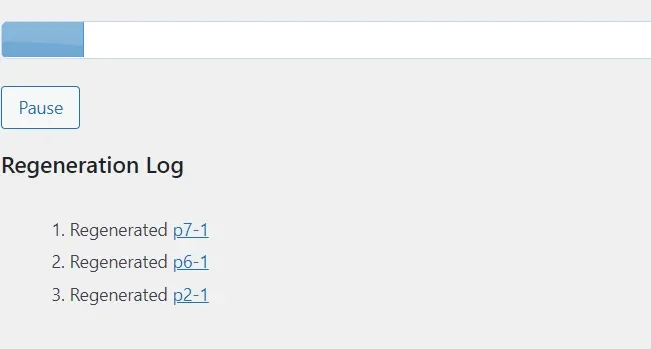
Regeneration will start — please wait. The Regeneration Log lists each image as it is processed.
-
5
Check that it reached 100%

Keep reading
Ask the people who build Vehica
We answer by email from support@tangiblewp.com. With Premium Support, we also fix your site when something breaks.
We can also run your site for you, or build a new one.
Was this guide helpful?