How to use fonts other than Google Fonts?
Use a typeface that is not in Vehica's Google Fonts library: upload the font file to your server, then load it across the site with a short CSS rule.
1 minute read
Vehica comes with 800+ Google Fonts, which you can simply choose in your Vehica Panel > Typography. If you need to use a custom font, you will need a custom solution. It has two steps:
- Upload your font file on the server
- Load the new file via CSS
We will show it on the example of Malgun Gothic, downloaded from fontzone.net.
Upload the font file to your server
-
1
Download the font
Let's download the font here – https://fontzone.net/download/malgun-gothic
-
2
Find the downloaded file
You will see the
malgun.ttffile.
-
3
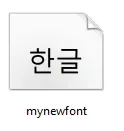
Rename the file to mynewfont
-
4
Install a File Manager plugin
Add this font to your WordPress
/wp-content/folder. You can do it e.g. via a File Manager plugin.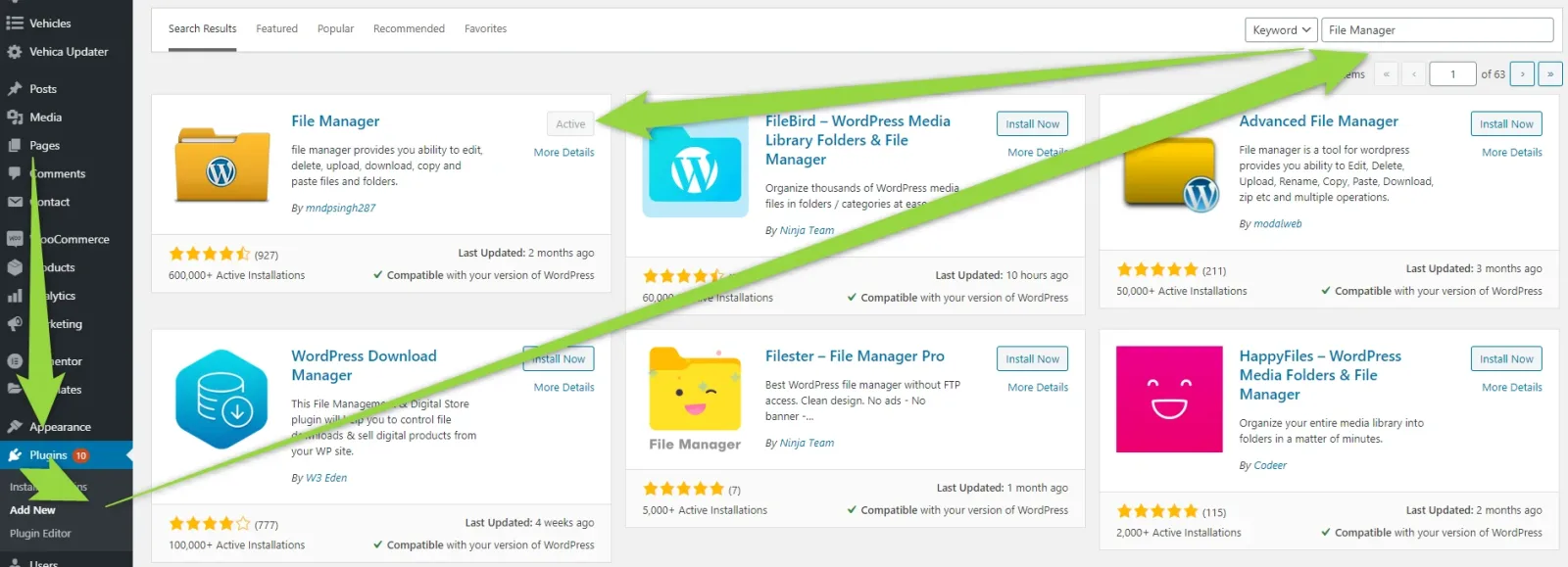
-
5
Copy the font into /wp-content/
Open the plugin and add the file to
/wp-content/.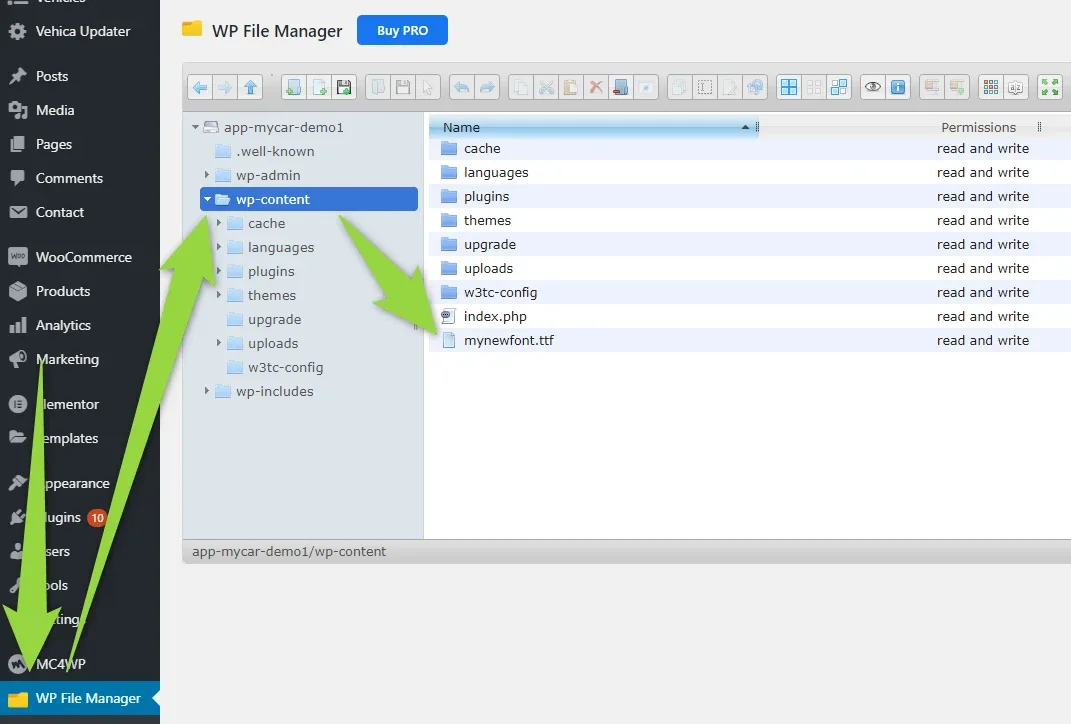
/wp-content/.Load the font via CSS
Now you are ready to add this font via CSS to your website. You can do it this way: How to add CSS code that is future update compatible.
@font-face {
  font-family: 'mynewfont';
  src: url('/wp-content/mynewfont.ttf') format('truetype');
}

body, button, input, optgroup, select, textarea, h1, h2, h3, h4, h5, h6 {
  font-family: mynewfont !important;
}
Your new font should now be loaded across the website:

Ask the people who build Vehica
We answer by email from support@tangiblewp.com. With Premium Support, we also fix your site when something breaks.
We can also run your site for you, or build a new one.
Was this guide helpful?