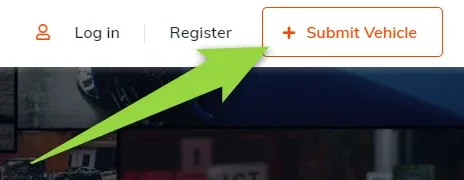
How to change + plus icon on the “Submit Vehicle” button (CTA Button Menu Icon)
The plus sign on the “Submit Vehicle” button is an image you can swap for your own. It is set in the menu widget of your layout, separately for desktop and for mobile.
1 minute read
This article explains how to customize the + plus icon on the “Submit Vehicle” button in the menu (CTA Button Menu Icon).
-
1
Open the layout in Elementor
The button belongs to the header, so you edit it inside the layout (header + footer) — see How to customize header (menu colors, font-size etc.).
-
2
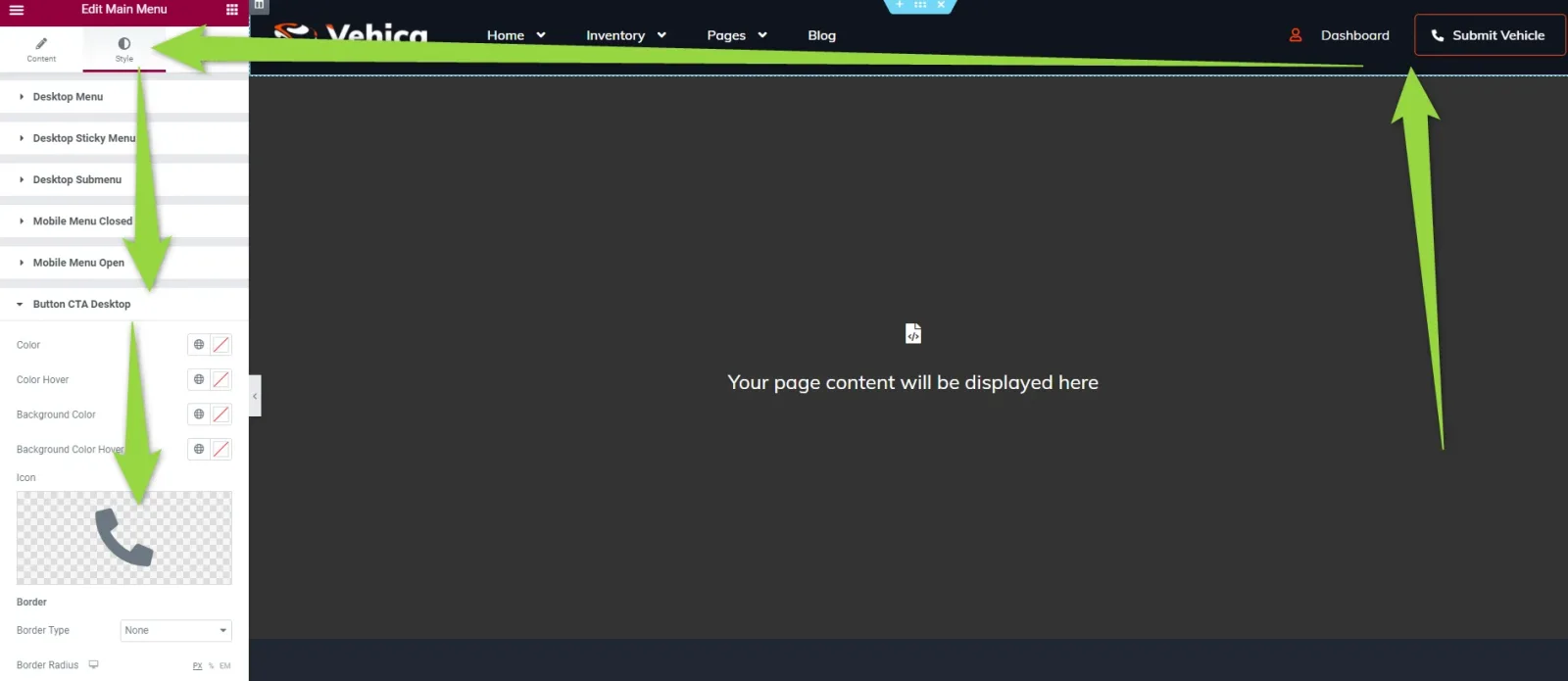
Change the desktop icon
In the menu widget go to Style > “Button CTA Desktop” and upload your image in the Icon field.
-
3
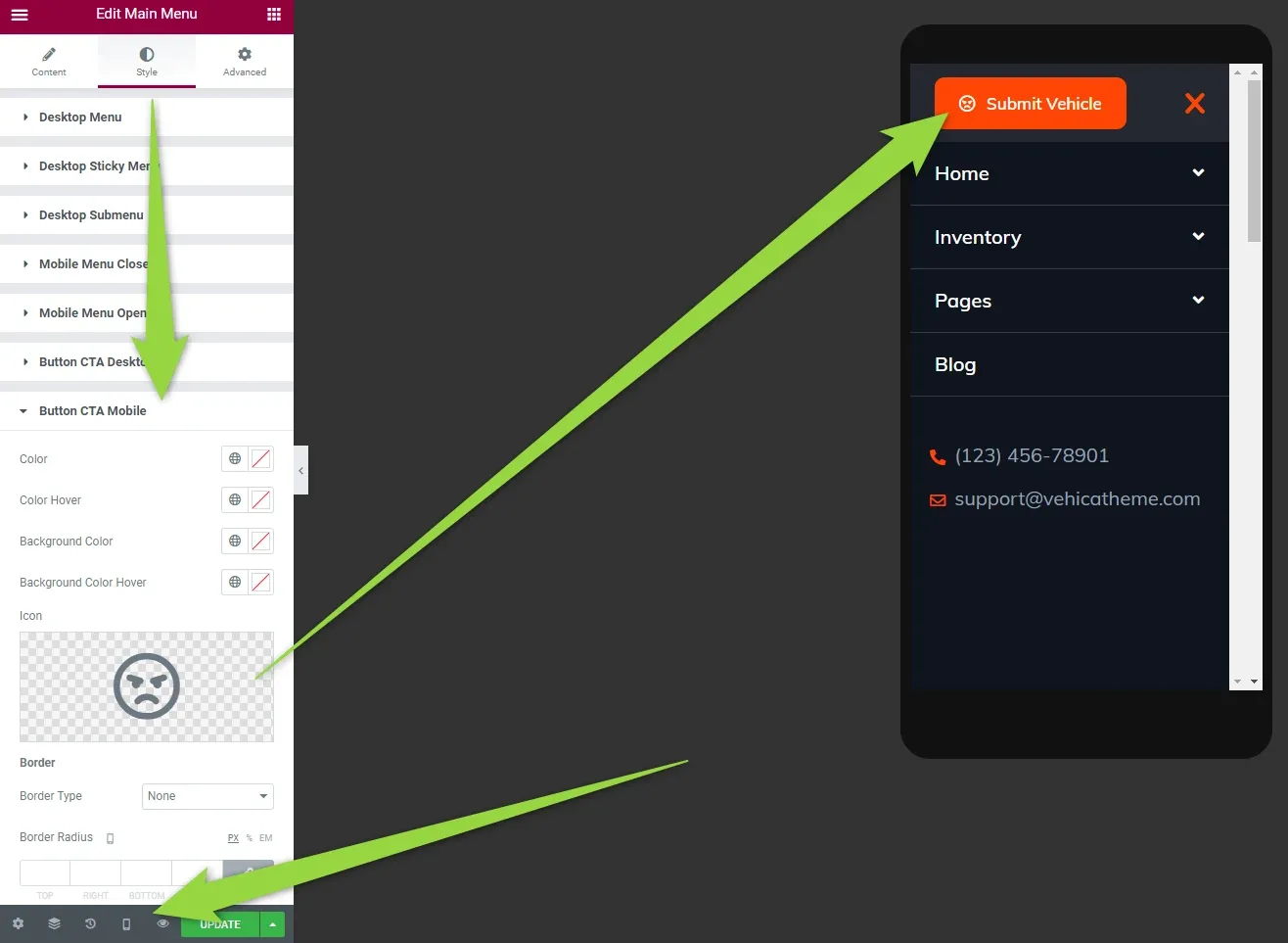
Change the mobile icon
Then repeat it under Style > “Button CTA Mobile”.
Ask the people who build Vehica
We answer by email from support@tangiblewp.com. With Premium Support, we also fix your site when something breaks.
We can also run your site for you, or build a new one.
Was this guide helpful?