Taxonomy - Parent Field – how to build relation Region > Subregion
Link two taxonomy fields so that picking a value in the parent narrows the options in the child — Region and Subregion, or Make and Model. This guide shows how to set the parent field, assign terms to it, and hide the child field until the parent is chosen.
1 minute read
This option is available only for the “Taxonomy” type of field. We will show how to do it for Make and Model (e.g. BMW > M4).
Build the relation
-
1
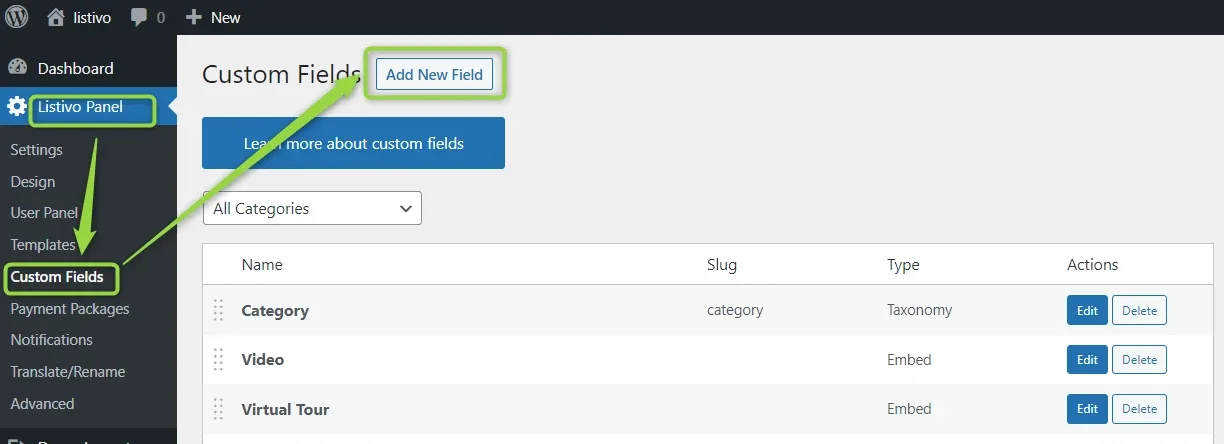
Open Custom Fields
Both the parent and the child have to be taxonomy fields. Create the ones you are missing from the Custom Fields screen.
-
2
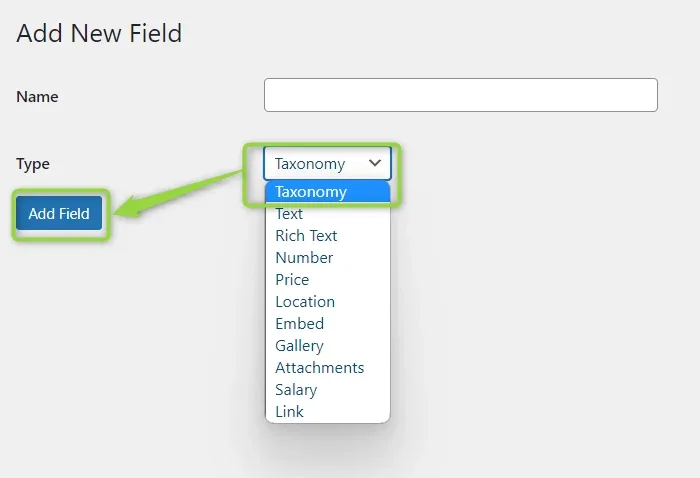
Add the field as a Taxonomy
Give the field a name, set Type to Taxonomy, and click Add Field.
-
3
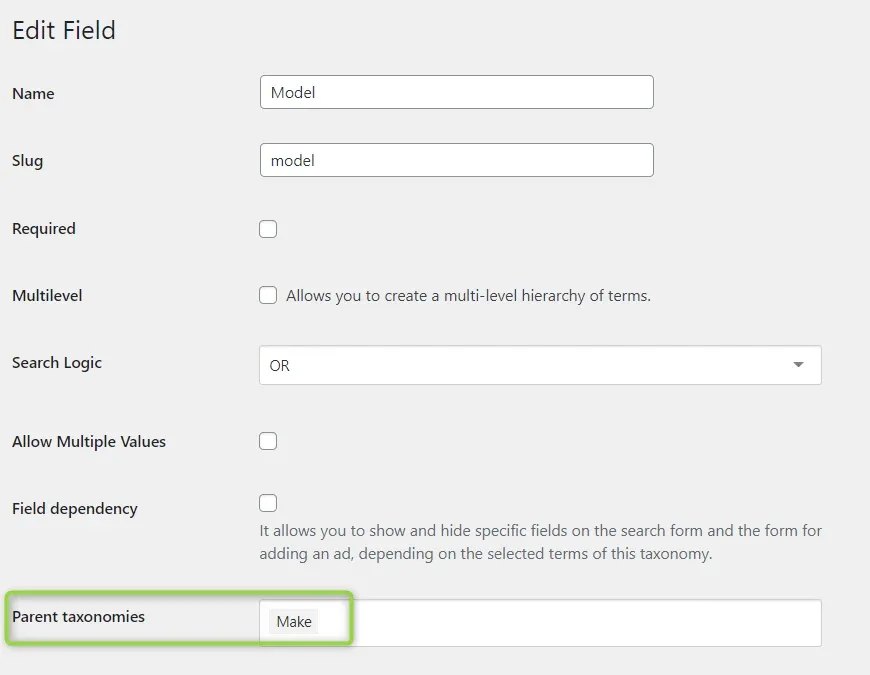
Point the child field at its parent
Edit the field that will be the child — in this example Model — and set Parent taxonomies to the parent field.
-
4
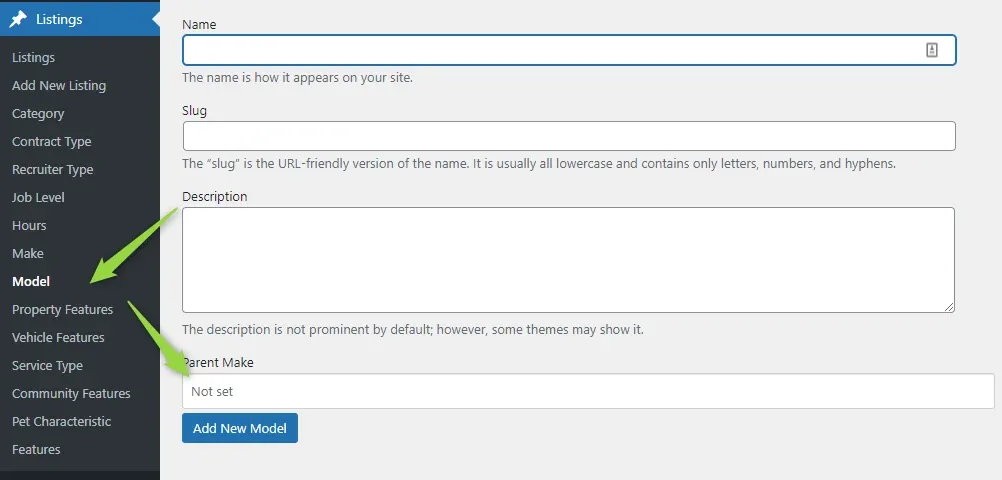
Assign terms while adding them
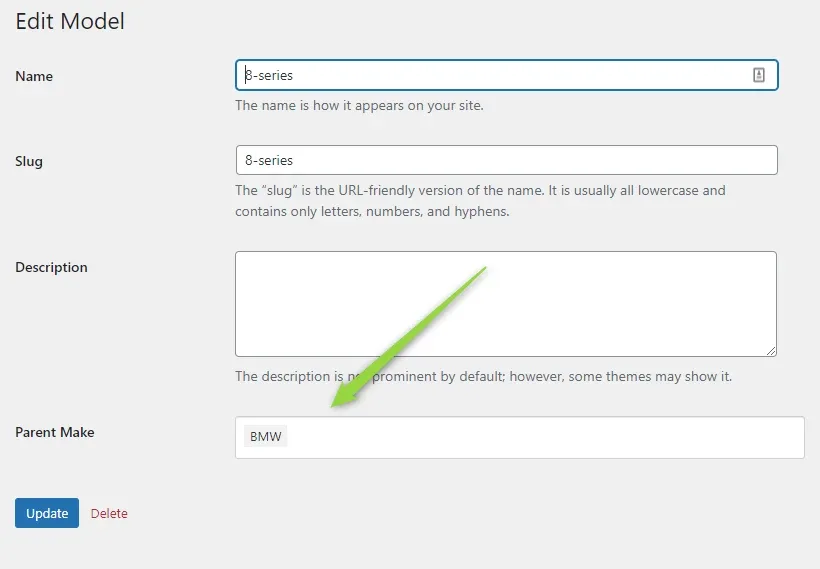
Now you can assign Models to Makes. When you add a new term, choose its parent from the Parent Make dropdown.
-
5
Or assign them later
You can also set the parent when you edit an existing option.
How it works on the front end
This is how the connection between Makes and Models behaves on the Submit Listing page of your front-end panel.

And on the search forms:


Keep reading
Ask the people who build MyHome
We answer by email from support@tangiblewp.com. With Premium Support, we also fix your site when something breaks.
We can also run your site for you, or build a new one.
Was this guide helpful?