How to Translate or Rename All Texts
Find where every piece of MyHome wording lives — the WordPress site language, the theme's Translate/Rename strings and slugs, Elementor widgets, Contact Form 7 and the search results heading — so you can rename or translate any of it.
2 minute read
This guide will help you translate or rename elements within your MyHome theme.
1. Set the correct site language
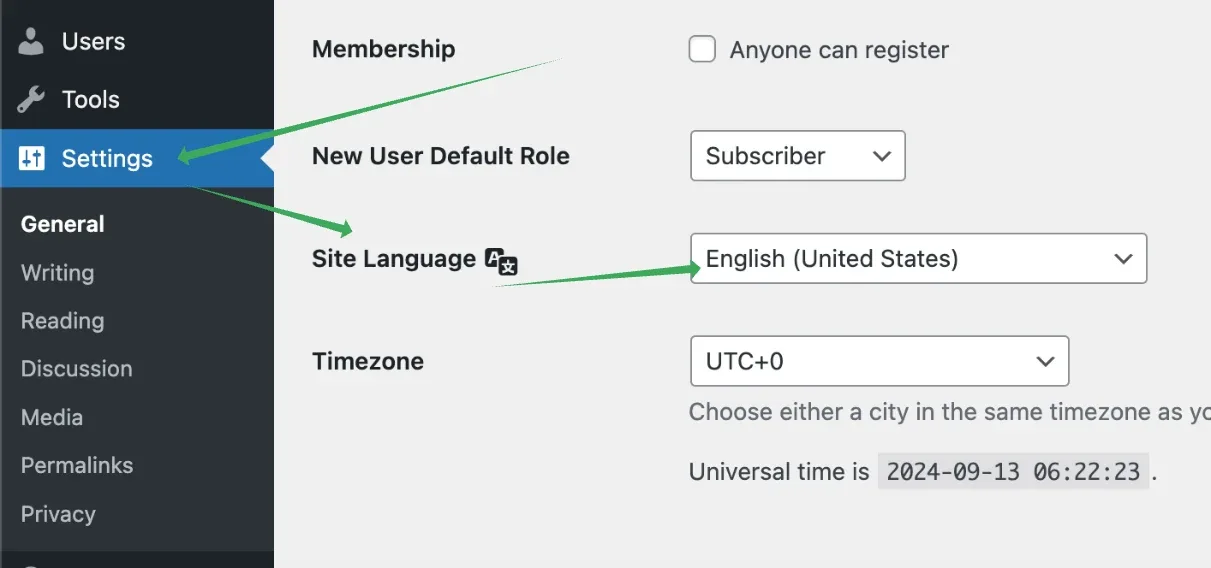
Go to wp-admin > Settings > General > Site Language and choose the correct language for your site, whether it's English or any other language.
2. Customize static texts
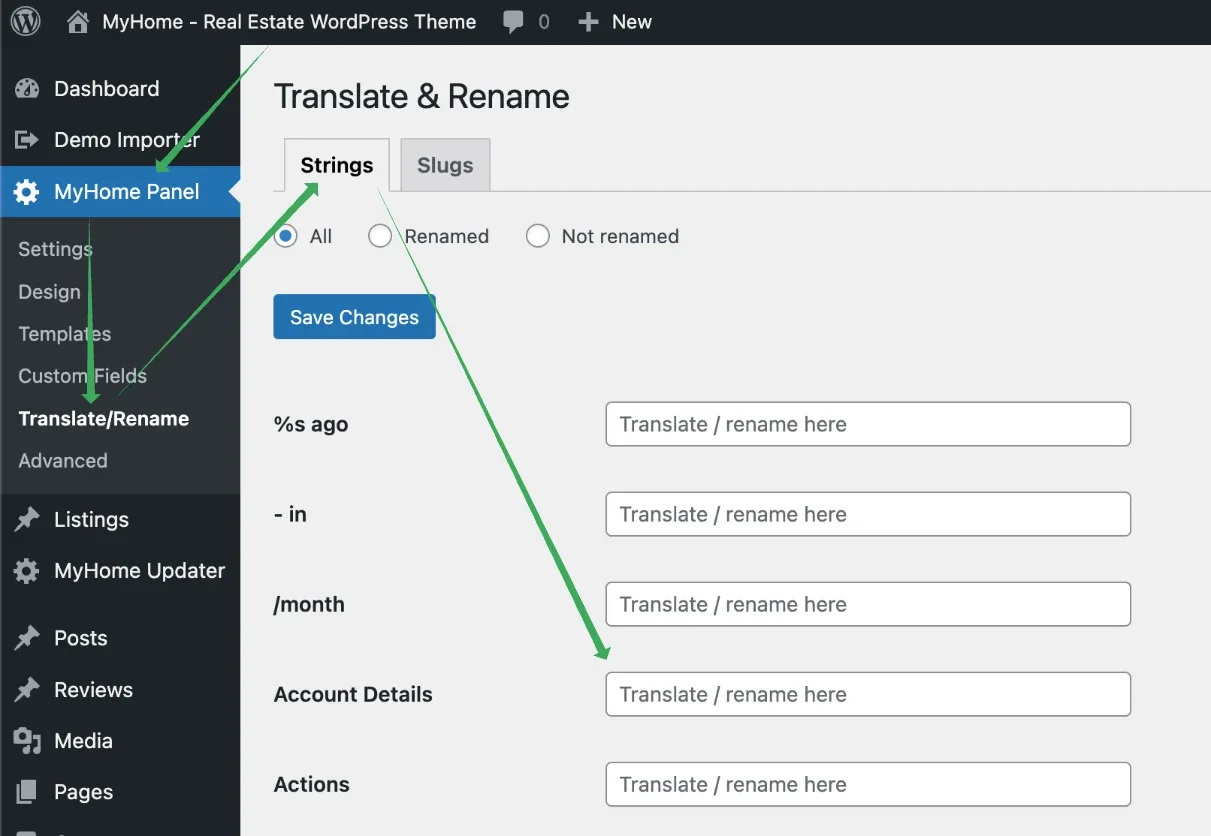
Go to MyHome Panel > Translate/Rename. Here you can translate or rename all static texts to your desired language.
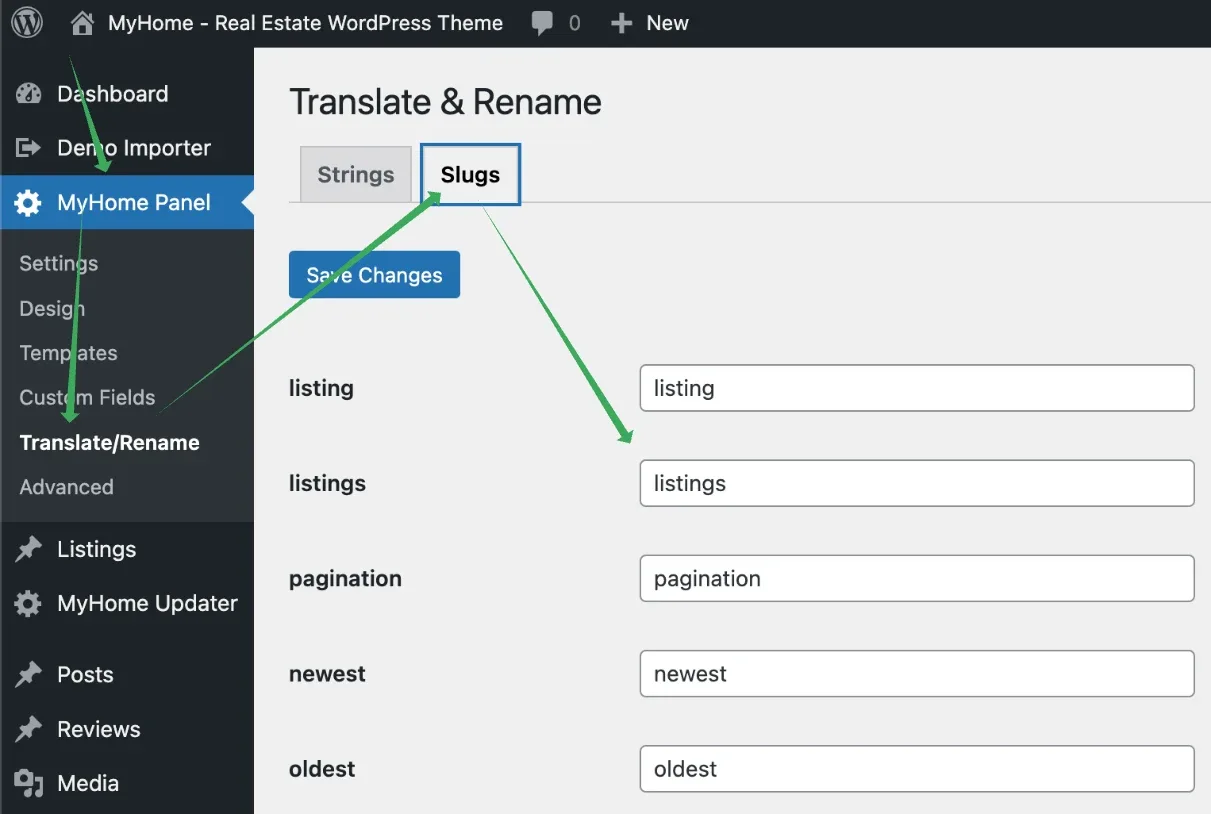
This module also allows you to rename slugs, which are important for your URL structure.
3. Customize texts for custom fields, their options, and placeholders
For detailed instructions on how to translate or rename fields, options, and placeholders on search forms, ad forms, and more, refer to this article: How to Customize Texts for Custom Fields and Placeholders
4. Change texts on Elementor widgets
Editing these texts directly in Elementor offers greater design flexibility, allowing you to see changes live without needing to search for them in the backend.
4.1. Customize texts on pages
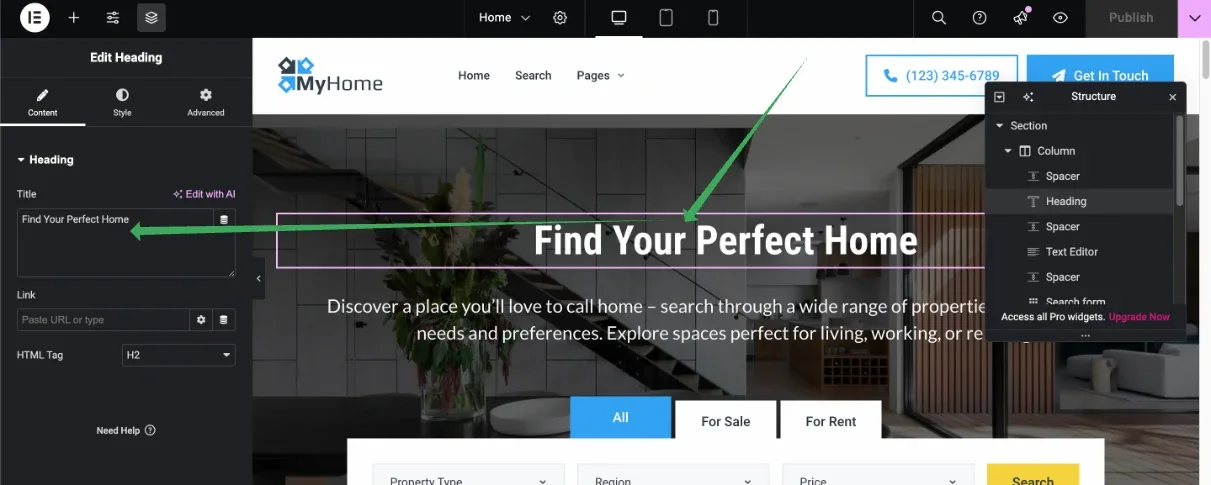
Find the page you want to modify (e.g. the homepage) and click the Edit with Elementor button.
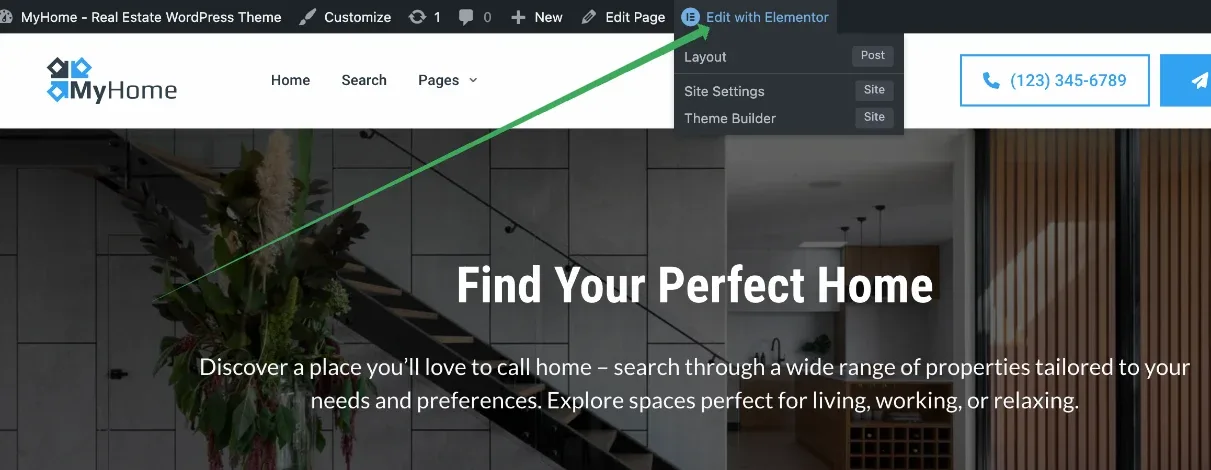
The Elementor page builder will open, where you can edit any content as needed.
4.2. Customize text on the single ad template and other templates
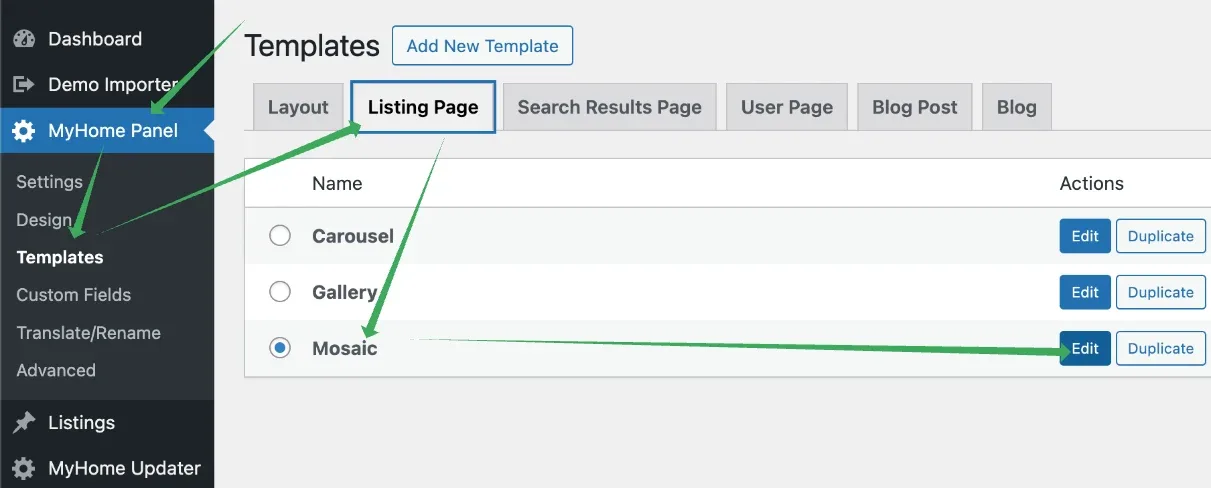
Go to MyHome Panel > Templates > Listing Page and edit the active template.
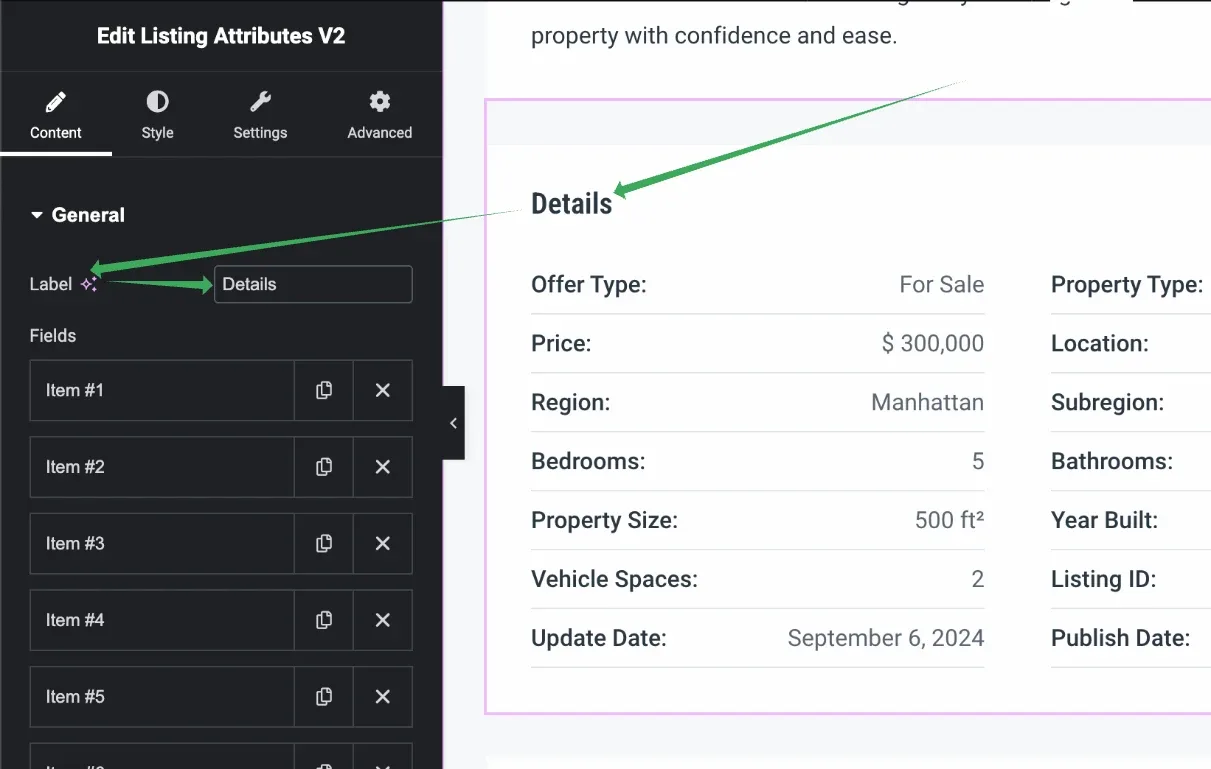
Change texts that are part of widgets, such as the label above the listing attributes.
5. Contact Form 7 text customization
Please check this separate article about customizing contact form texts: Customizing Texts in Contact Form 7
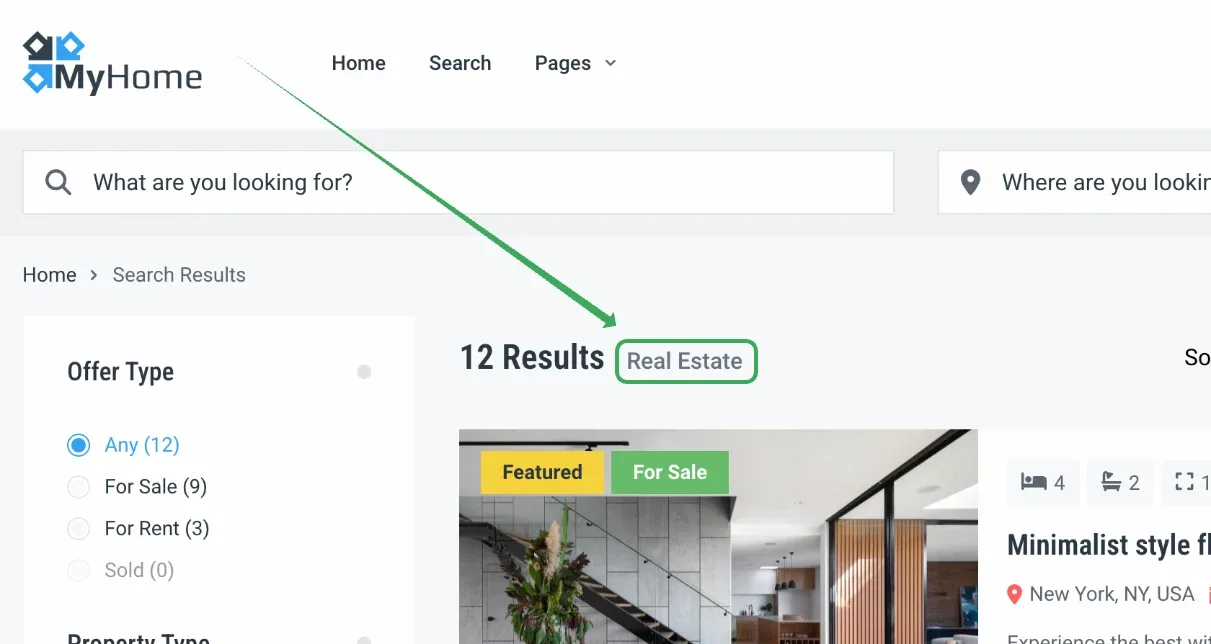
6. Translate the search form H1
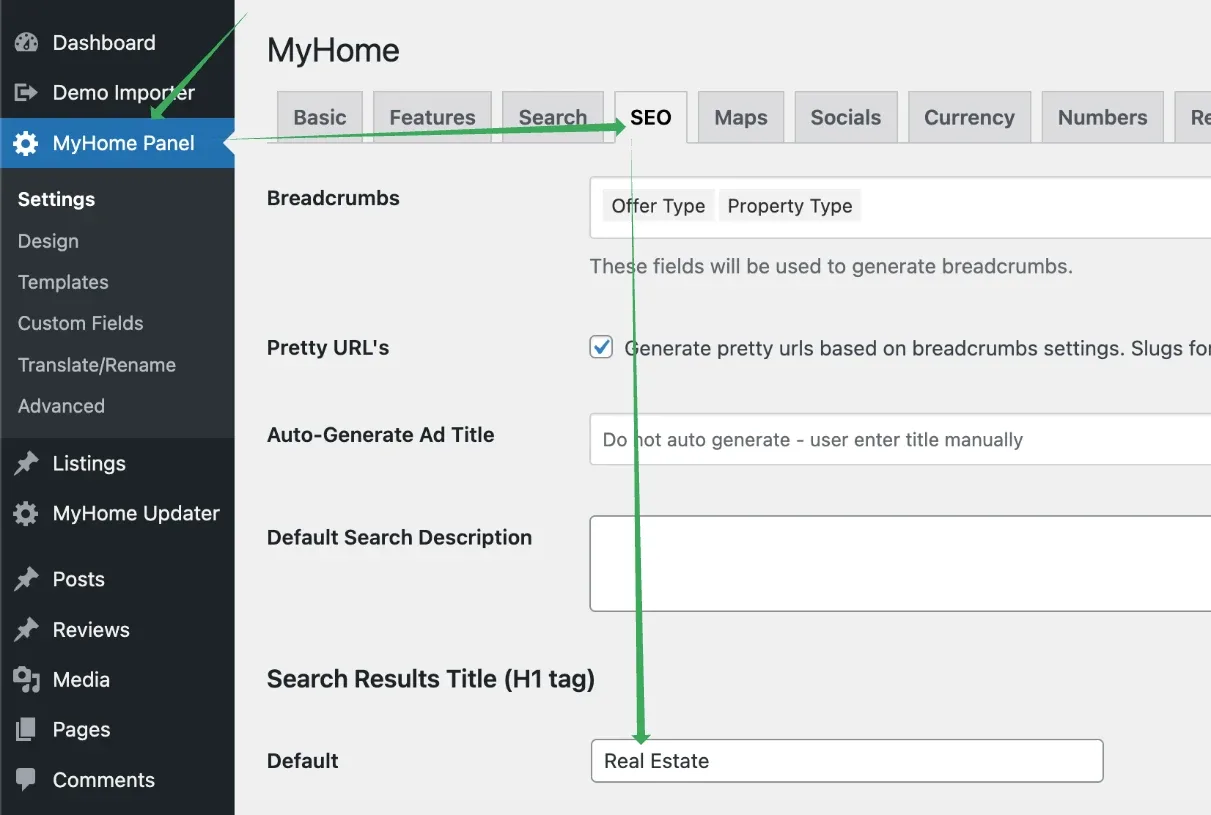
To change the H1 text of the search form, go to MyHome Panel > SEO > Search Results Title (H1 tag), where you can update this specific heading.
Ask the people who build MyHome
We answer by email from support@tangiblewp.com. With Premium Support, we also fix your site when something breaks.
We can also run your site for you, or build a new one.
Was this guide helpful?