Monetization - Bump Up (Manual and Automatic)
See exactly what a bump up does to an ad's place in Listivo search results, then set it up both ways: as a package users buy whenever they want, and as automatic bumps built into a regular ad package.
3 minute read
1. Introduction: Understanding the Bump-Up Feature in Classified Ads
The Bump Up feature in classified ads is a way to promote an advertisement by moving it to the top of the list. This not only makes the ad more visible to potential buyers, enhancing the likelihood of a quick sale, but also generates higher profits for Listivo owners by monetizing older ads.
2. Effect of Bump-Up on Listivo Search Results
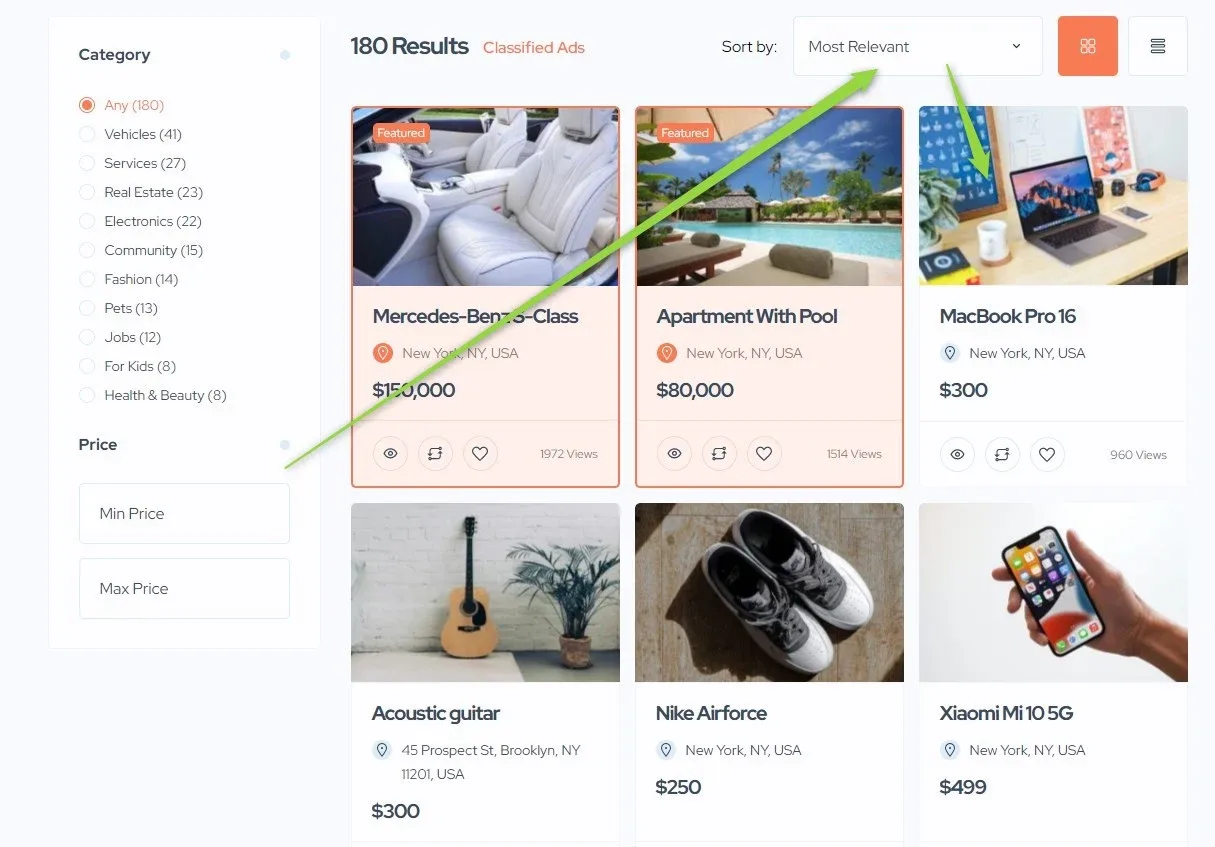
When an ad is bumped up, the system updates the ad's date. If the default Search Results Sort by option is set to "Most Relevant" and the ad is regular (not featured), it will appear at the top of the regular ads. If the ad is featured, it will be displayed at the top of the featured listings. For example, if we bump up a "MacBook Pro 16" ad and the Sort by option is set to "Most Relevant", the ad will appear at the top of the regular search results.
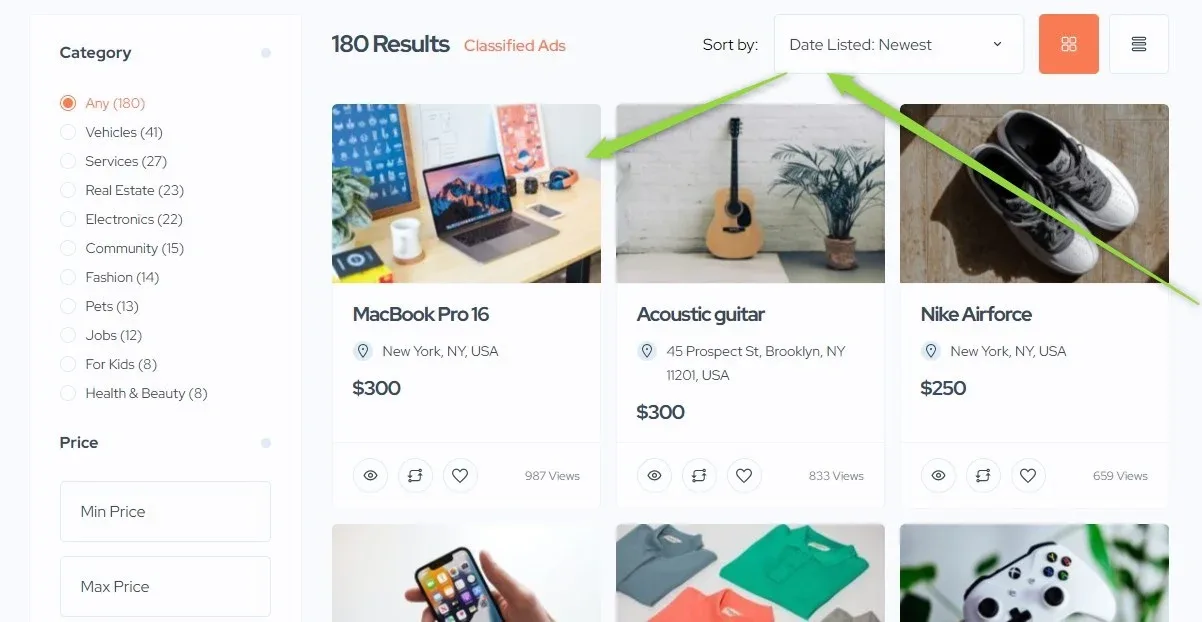
If the sort by option is set to "Newest", the bumped-up ad will appear at the top of the search results.
3. Exploring Listivo's Bump-Up Capabilities
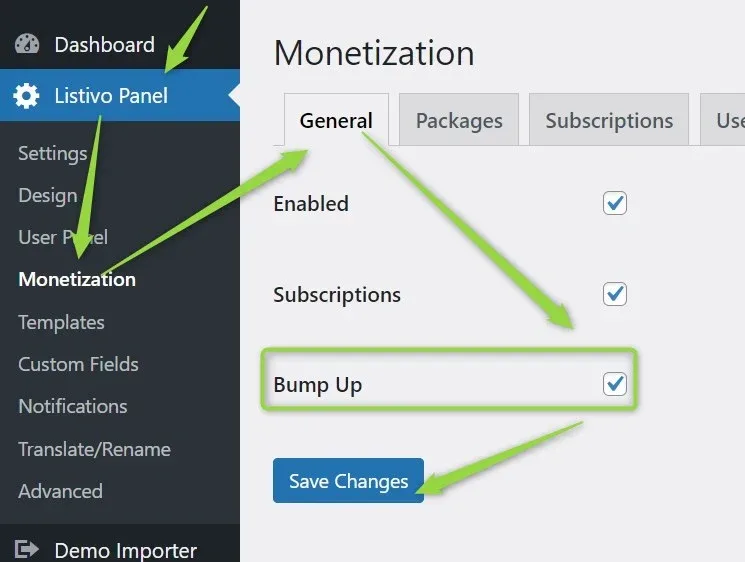
Enable this feature by navigating to Listivo Panel > Monetization > General > Bump Up.
3.1. Manual Bump-Up Option
To configure manual Bump Up packages, which require users to click Bump Up on the My Listings page of their panel, follow these steps:
-
1
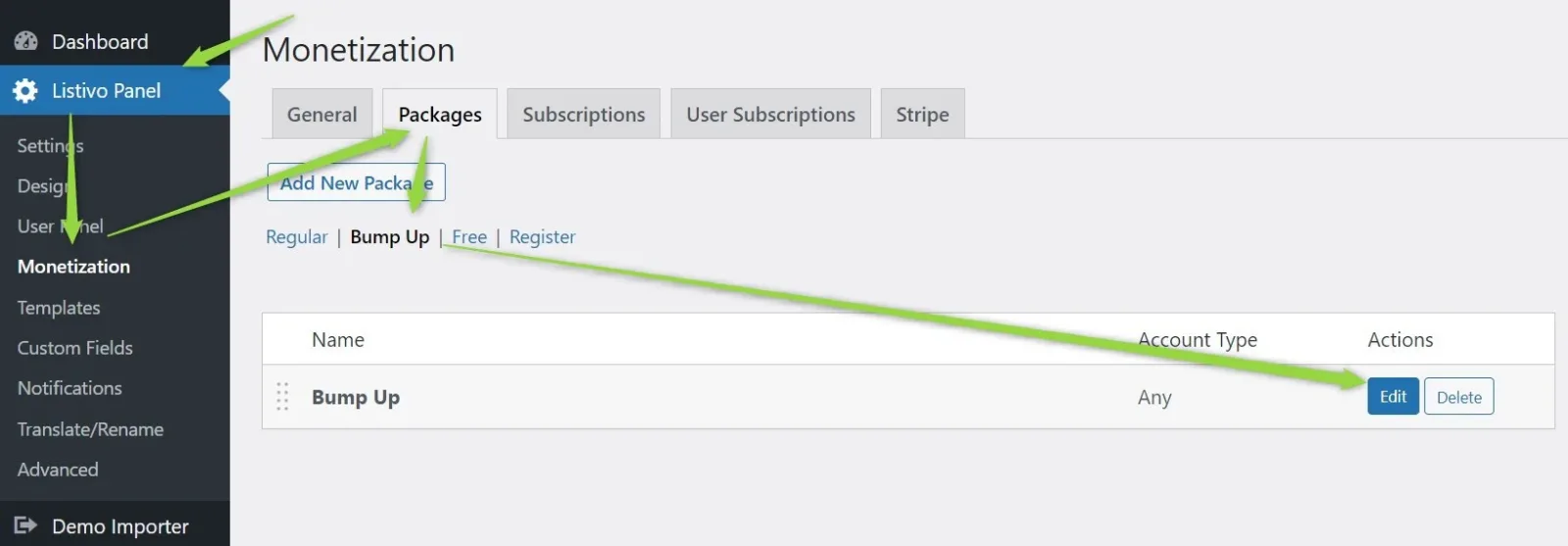
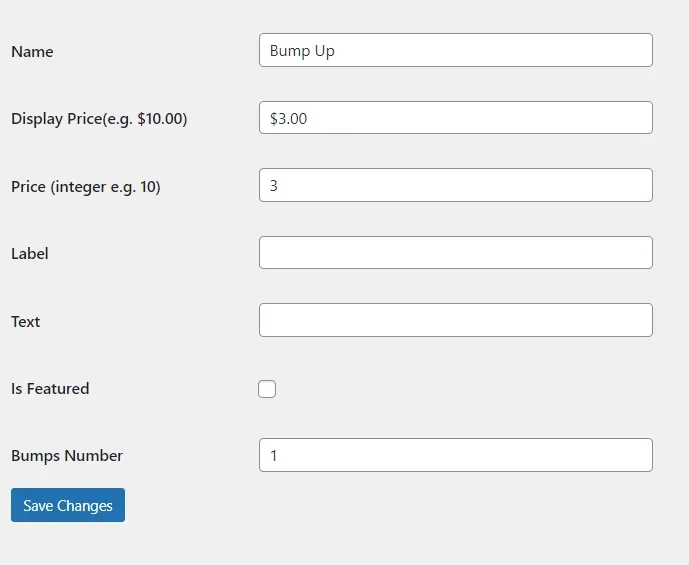
Edit the demo Bump Up package
Go to Listivo Panel > Monetization > Packages > Bump Up and modify the demo Bump Up package as needed.
-
2
Set the price
By default, users can refresh their ads once for a fee of $3. You can adjust this price as desired.
-
3
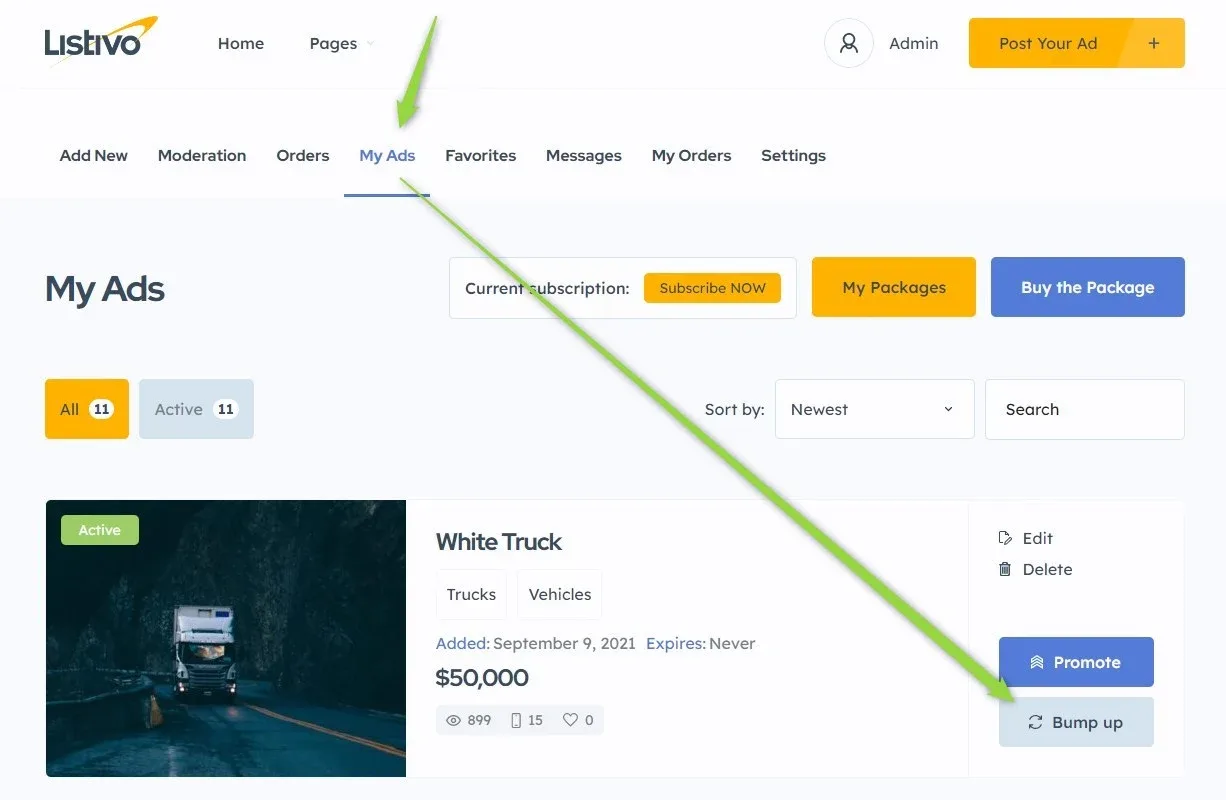
Let users bump from My Listings
Users can then visit the User Panel, select My Listings, and click the Bump Up button.
-
4
The ad goes back to the top
Upon payment, the system will update the ad's date, and the ad will appear at the top of the search results.
3.2. Automatic Bump-Up Option (Integrated with Regular Packages)
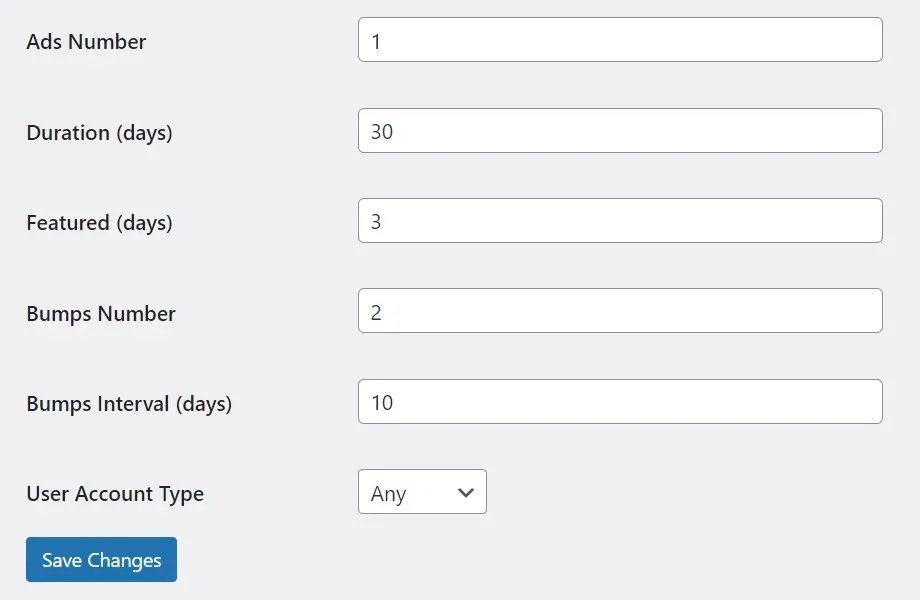
The Bump Up feature can also be incorporated into regular advertising packages.
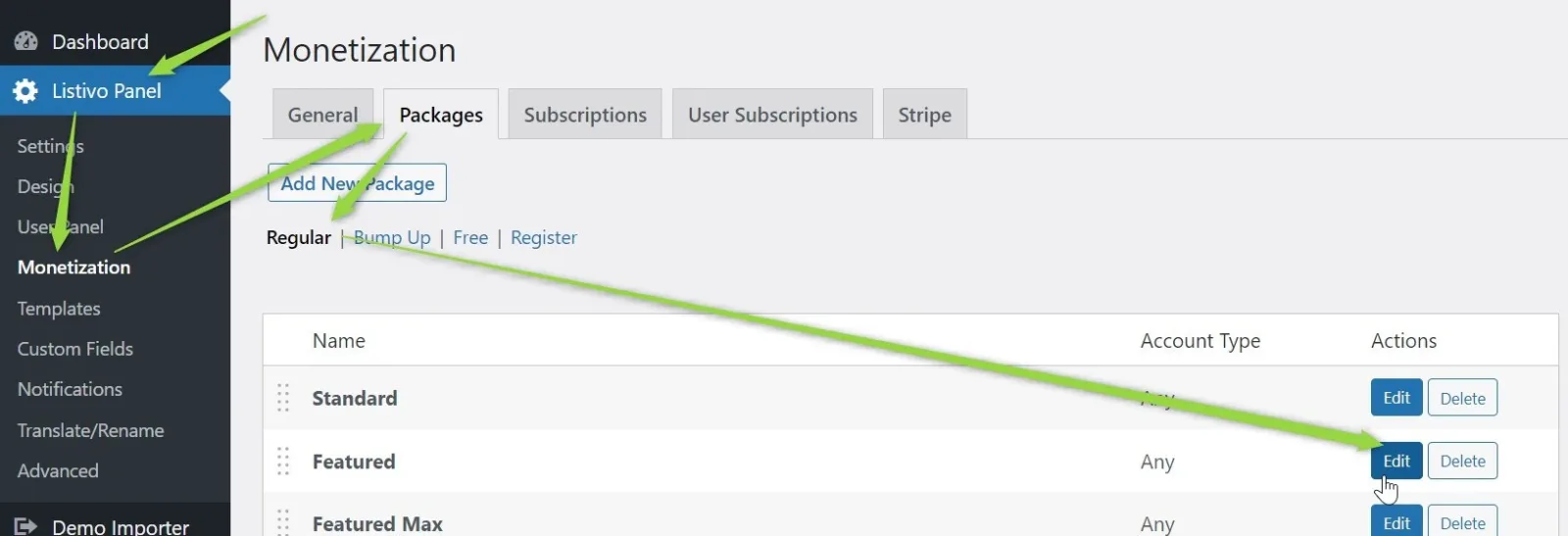
In this example, the ad will be active for 30 days, featured for 7 days, refreshed twice, and bumped every 10 days (i.e., after 10 and 20 days).
4. Manual Bump Up System with Multiple Packages and Bumps
This section provides additional information on configuring the manual Bump Up system to offer multiple packages and bumps for users, allowing them to purchase a single Bump Up package and apply it to their ads multiple times.
-
1
Add a new package
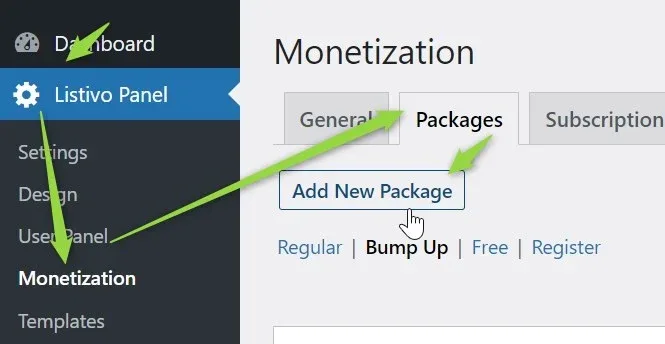
Visit Listivo Panel > Monetization > Packages and click "Add New Package".
-
2
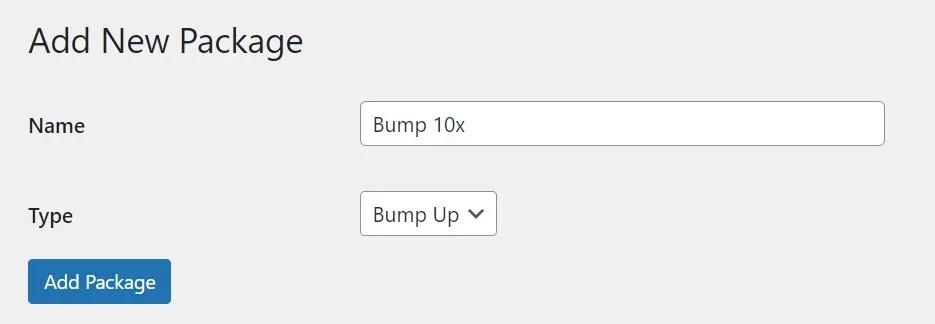
Name it and select the Bump-Up option
-
3
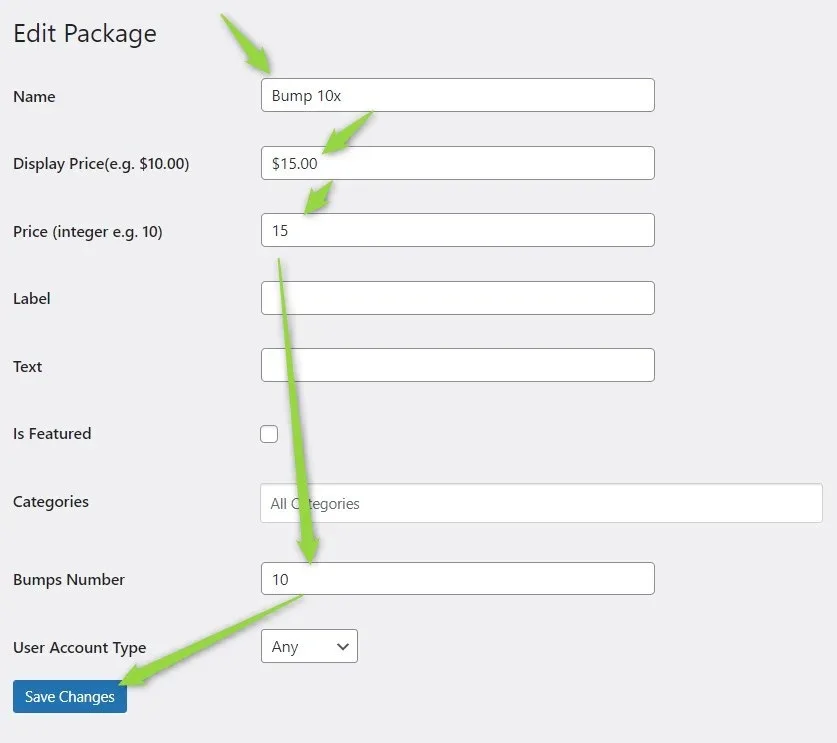
Customize the package settings
Set the package up according to your preferences.
-
4
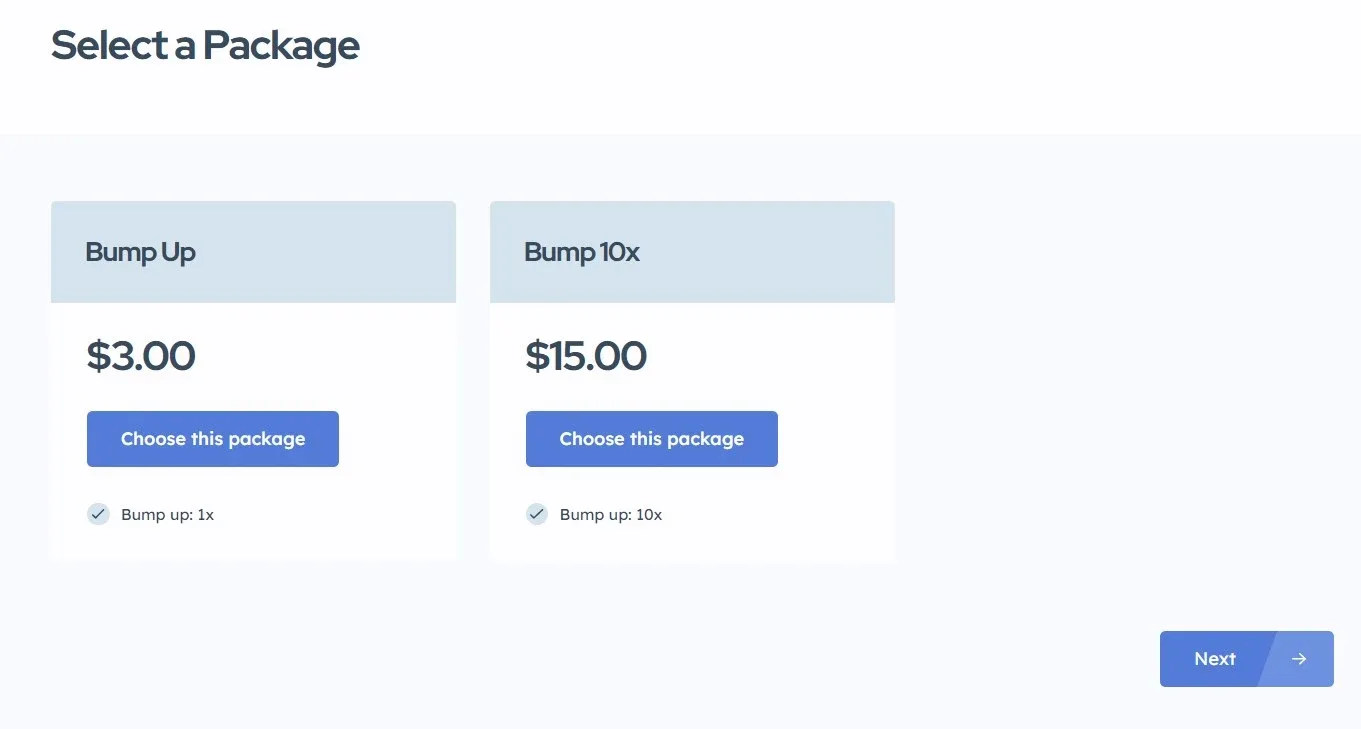
Users are sent to the pricing table
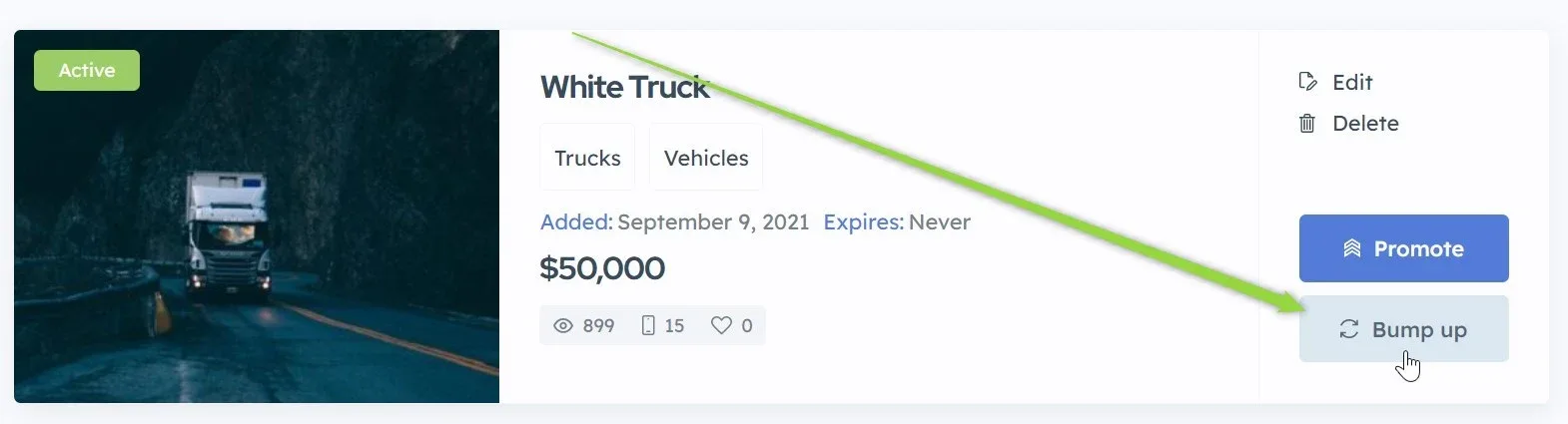
Now, when users click Bump Up in the User Panel > My Ads, they will be redirected to the pricing table, which displays the available Bump Up packages.
-
1
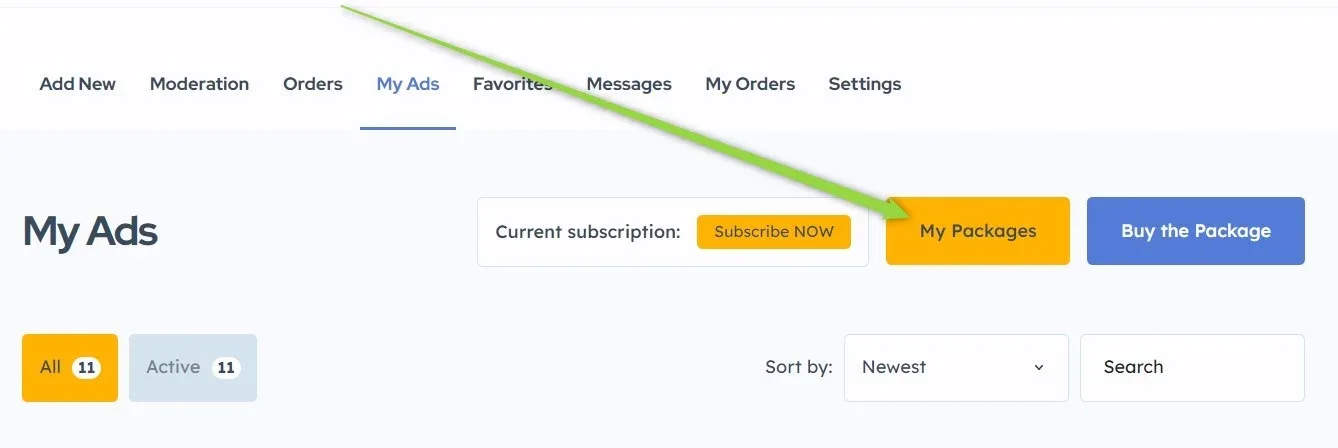
Unused bumps stay on the account
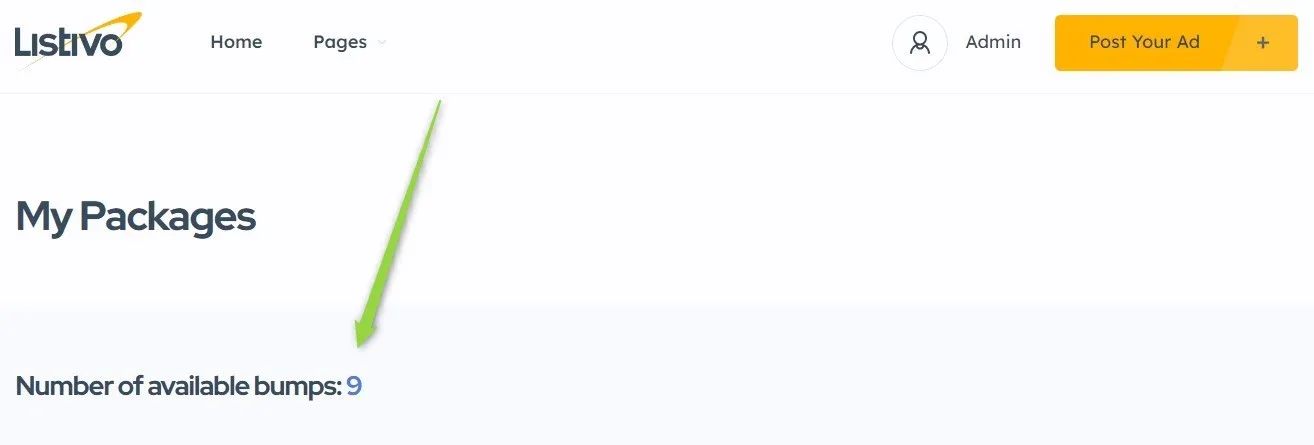
If users purchase a Bump 10x package, the remaining 9 Bump Ups (after using one for the ad that was bumped) will be saved to their account.
-
2
Users see the balance in My Packages
-
3
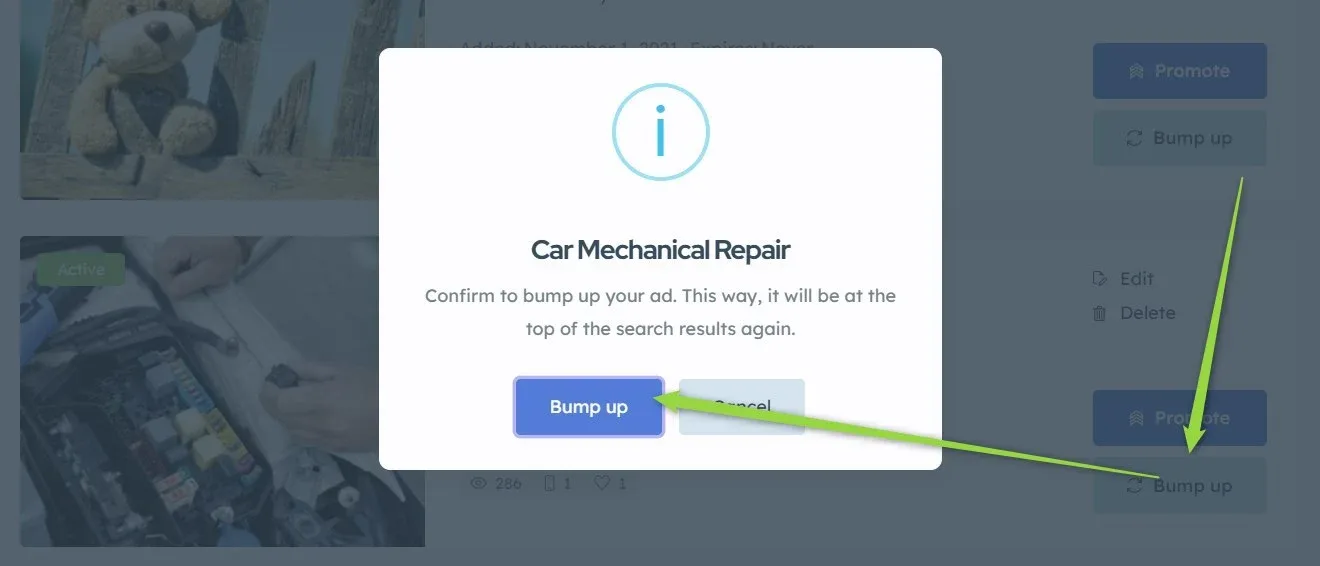
Spend a bump on another ad
If users want to bump up another ad, they can click on "My Ads". A popup will appear, allowing them to use one of the remaining Bump Ups from their package.
In short
- A bump up updates the ad's date, which moves it back to the top of its group in the search results.
- Manual bump ups are sold as Bump Up packages that users buy when they want them.
- Automatic bumps are set on a regular package with Bumps Number and Bumps Interval.
- Bumps from a multi-bump package stay on the user's account until they are spent.
Ask the people who build Listivo
We answer by email from support@tangiblewp.com. With Premium Support, we also fix your site when something breaks.
We can also run your site for you, or build a new one.
Was this guide helpful?