Menu CTA Button Customization: Options and Flexibility
Configure the Listivo menu's call-to-action button: show or hide it, change its link, text, icon and style, or turn it into a clickable phone number.
2 minute read
The Menu CTA (Call to Action) button is a feature in the Listivo theme's menu that encourages user interaction. Here are the key options available for configuring the CTA button:
- Display or hide the CTA button
- Change the link
- Set custom text
- Change the icon
- Modify the style (choose from 2 global styles)
- Convert the CTA button to display a phone number

How to Configure the CTA Button
To configure the basic settings of the CTA button, navigate to the Listivo Panel and then to Menu. There, you can:
-
1
Show or hide the button
The CTA Button checkbox displays or hides it.
-
2
Set the link
CTA Button Link sets the page the button redirects to.
-
3
Set the button text
Custom CTA Button Text specifies the text shown on the button.
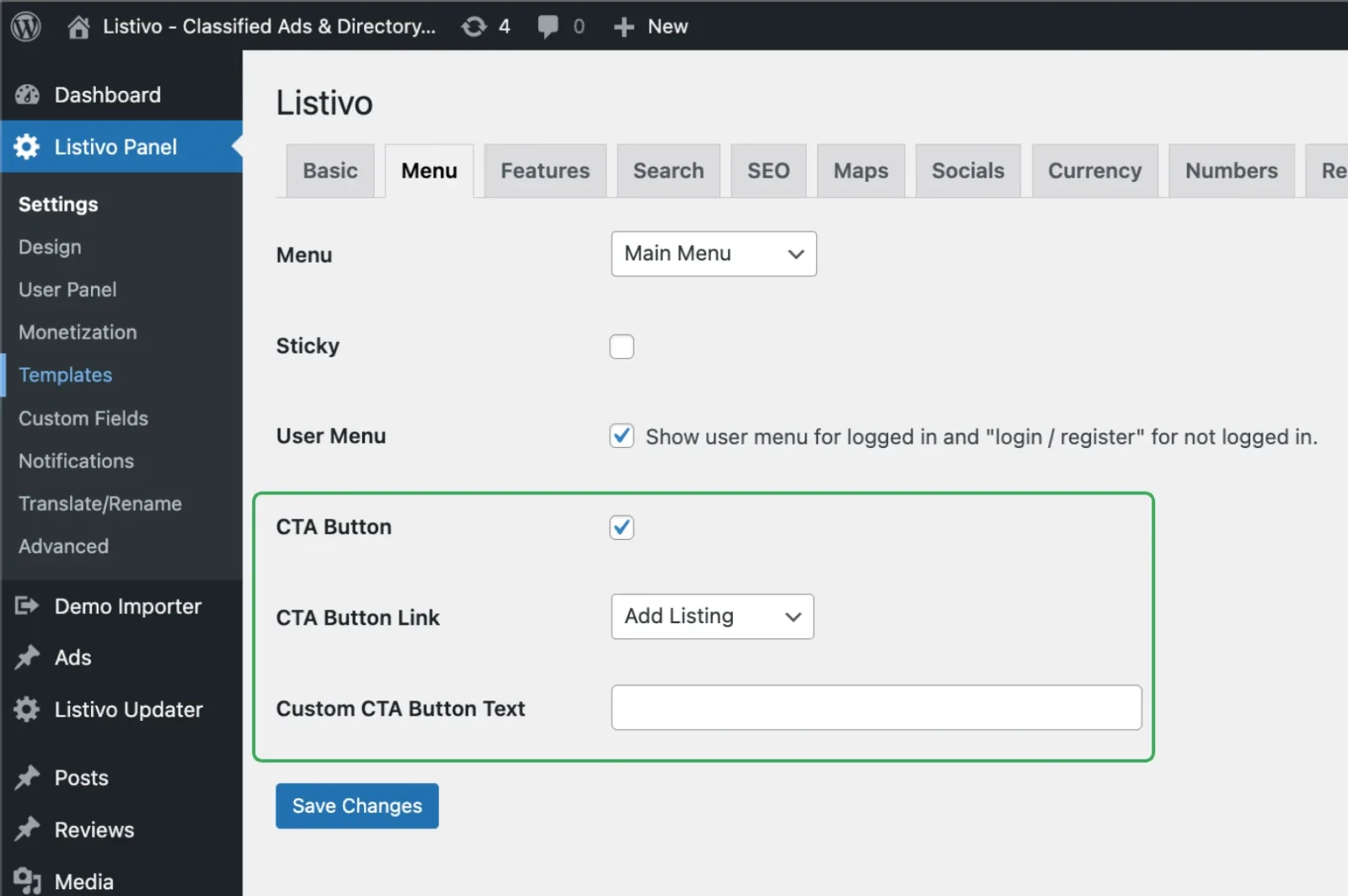
More options in the menu widget
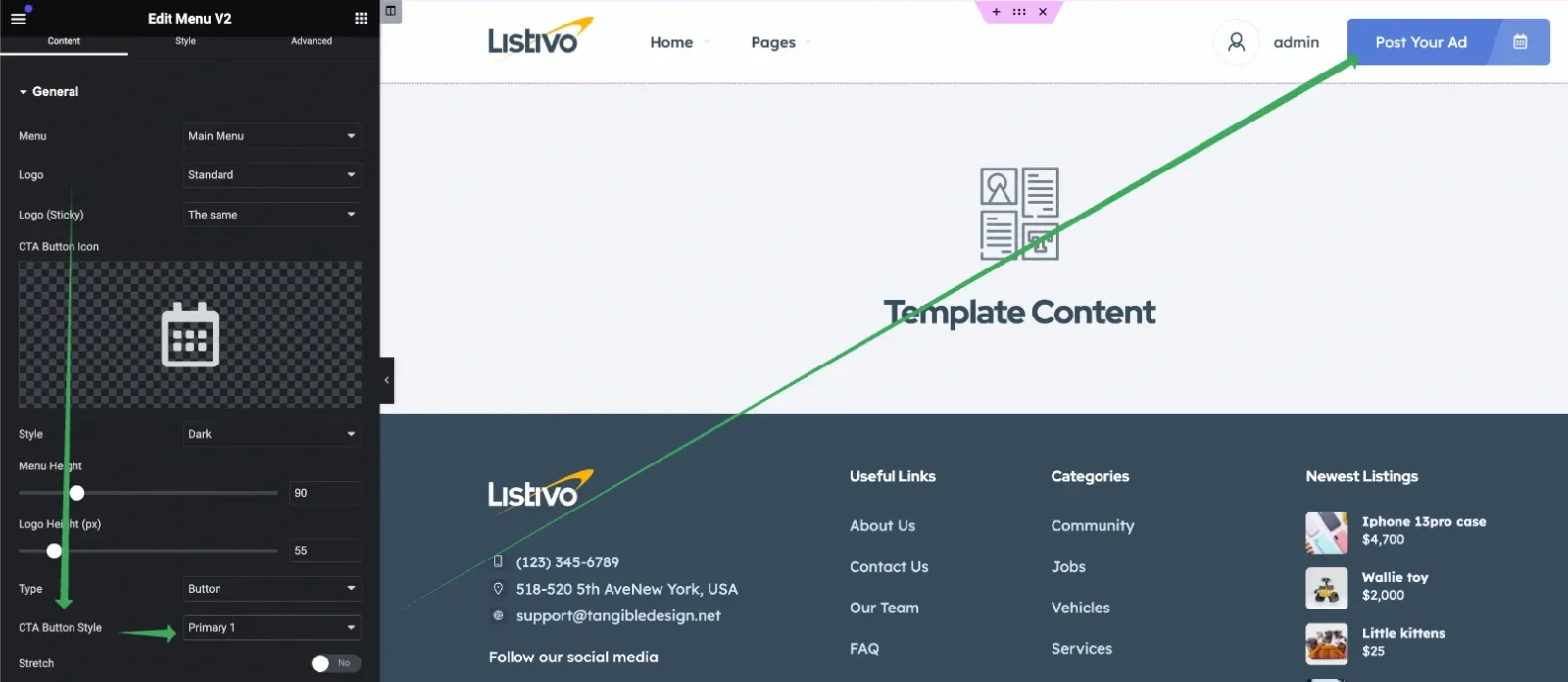
For more detailed customizations, go to the Listivo Panel and select Templates. Choose the Layout you want to modify, and edit the menu widget.
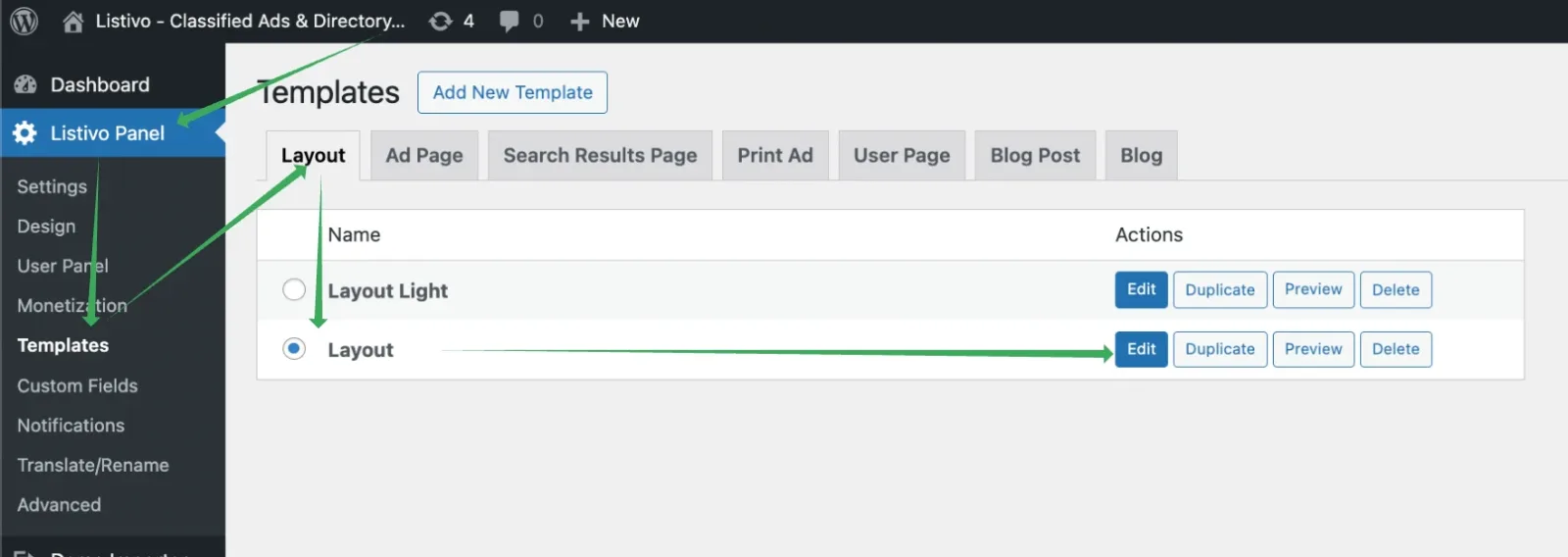
Here, you will find additional options:
-
1
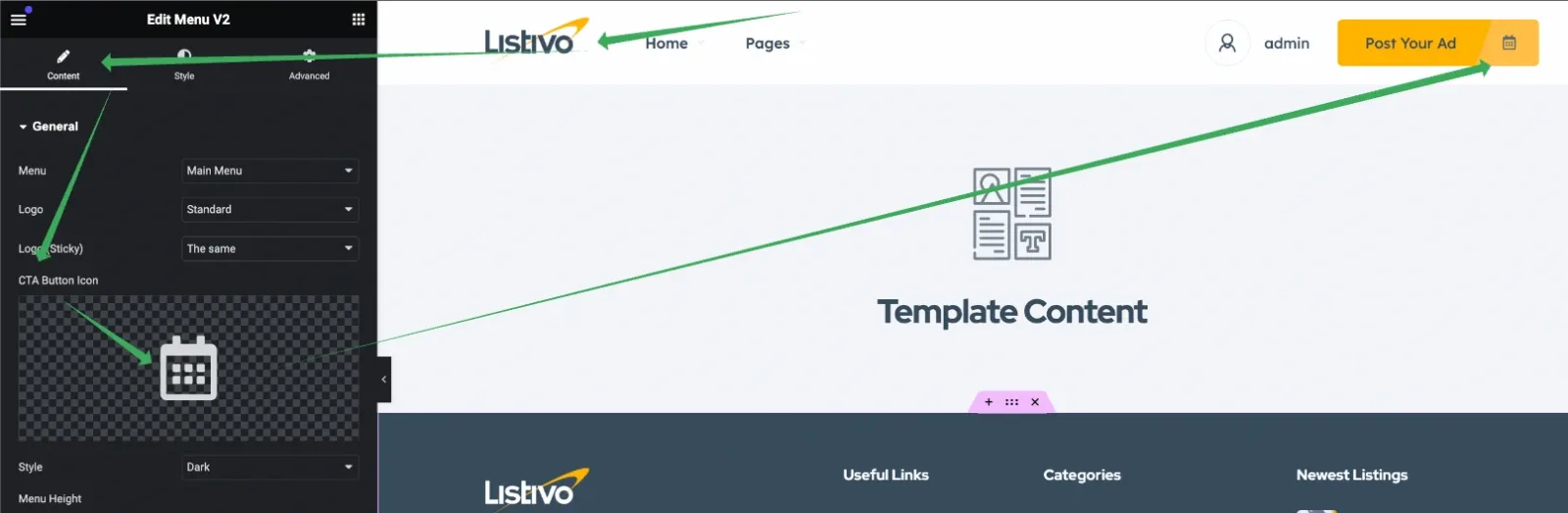
Change the icon
CTA Button Icon customizes the icon shown on the button.
-
2
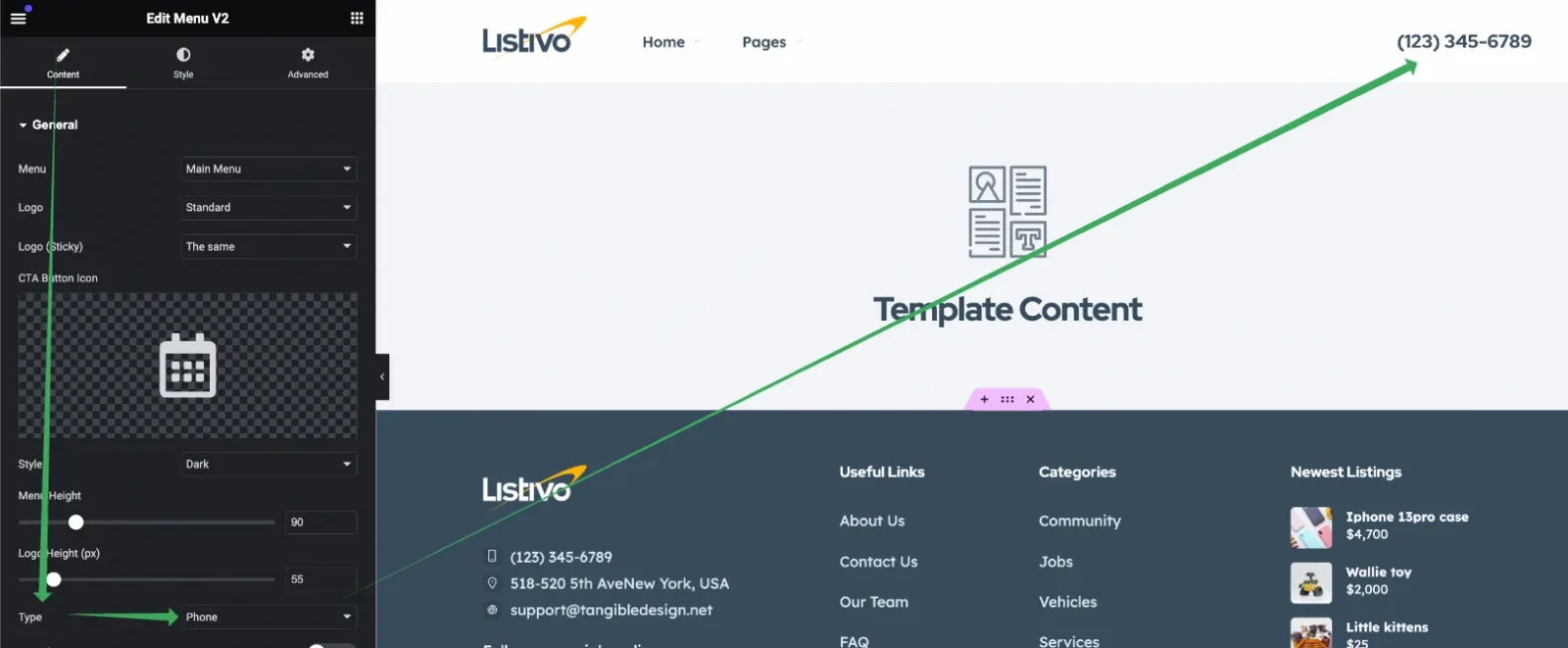
Switch to a phone number
Type switches between a button and a text phone number.
-
3
Change the style
CTA Button Style switches to your second predefined style in the Site Settings, for example blue with white text.
What is not included
For additional customizations, such as changing the button style to something other than one of the global options, or altering its position on mobile devices, custom coding that goes beyond the scope of the theme will be required. You may also consider using a different menu widget by another author if you find suitable solutions. This theme covers the above options, and the menu is just one of its elements. We strive to add as much flexibility as possible and will consider more options in the future. However, it is technically not possible to cover all possible menu scenarios, and we appreciate your understanding.
Ask the people who build Listivo
We answer by email from support@tangiblewp.com. With Premium Support, we also fix your site when something breaks.
We can also run your site for you, or build a new one.
Was this guide helpful?