Adding CSS code to the admin dashboard using a child theme
Restyle the WordPress admin dashboard with your own CSS, loaded from your child theme so the change survives theme updates.
1 minute read
You can style the WordPress admin dashboard with your own CSS by loading it from your child theme — for example, to change the H1 heading marked below.
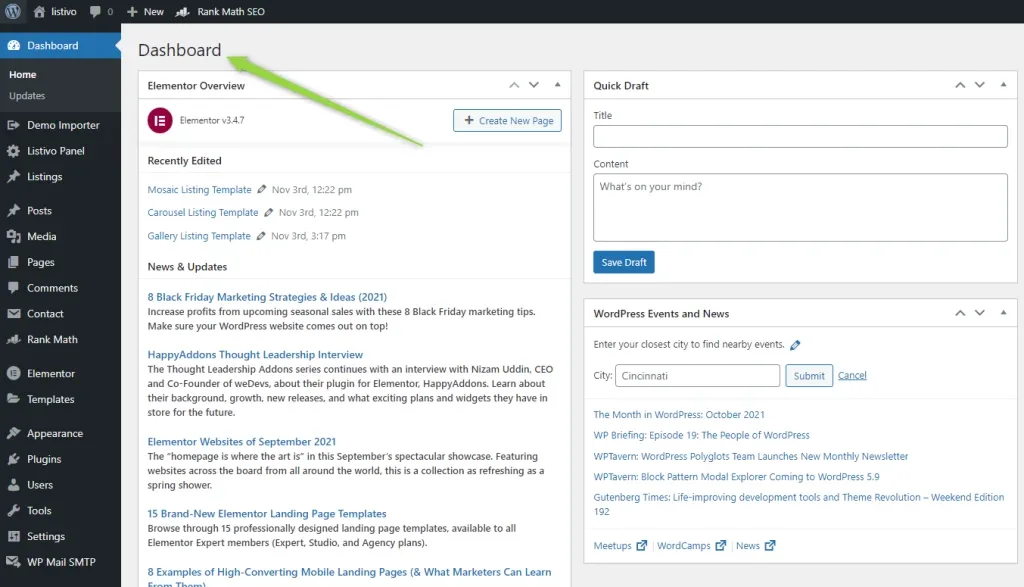
Add the function below to your child theme's functions.php file. You can put your own custom CSS inside the <style> tags — the example changes the h1 (main heading) font size to 100px.
functions.php file lives.function admin_style() {echo '
<style>
h1 {
font-size:100px!important;
}
</style>
';
}
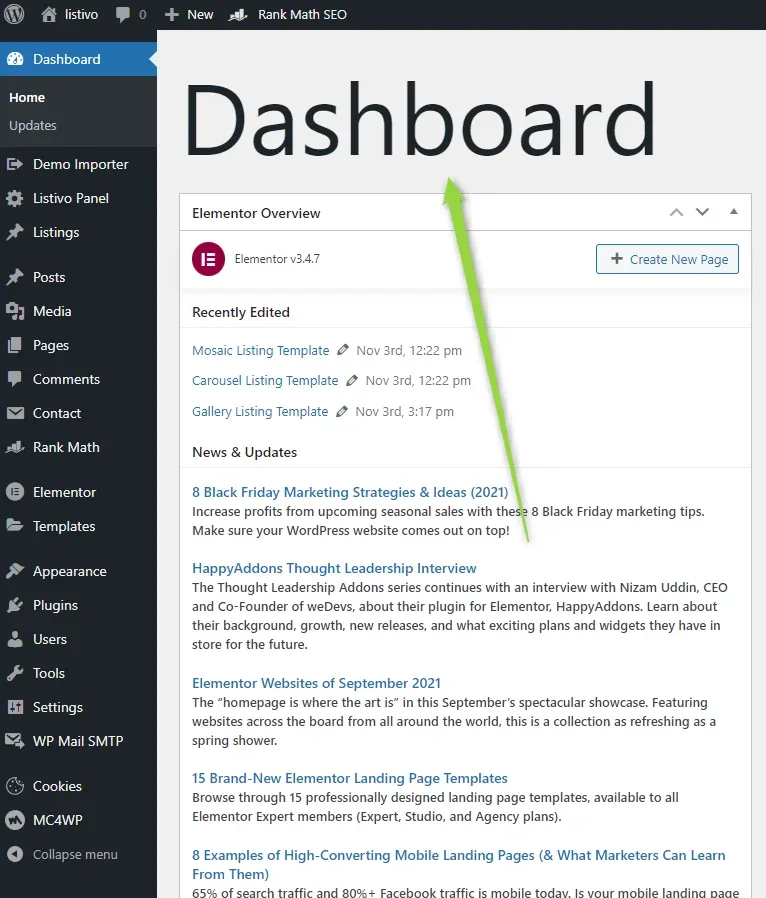
add_action( 'admin_head', 'admin_style' );The final effect:
Ask the people who build Listivo
We answer by email from support@tangiblewp.com. With Premium Support, we also fix your site when something breaks.
We can also run your site for you, or build a new one.
Was this guide helpful?