Favicon / Site Icon
Add a favicon to your site — the small icon browsers show in the tab, in bookmarks and in the WordPress mobile apps — using the standard WordPress Customizer.
1 minute read
The favicon is fully based on WordPress functionality, so you set it in the Customizer rather than in the theme options.
-
1
Open the Customizer
In
/wp-admin/, go to Appearance > Customize.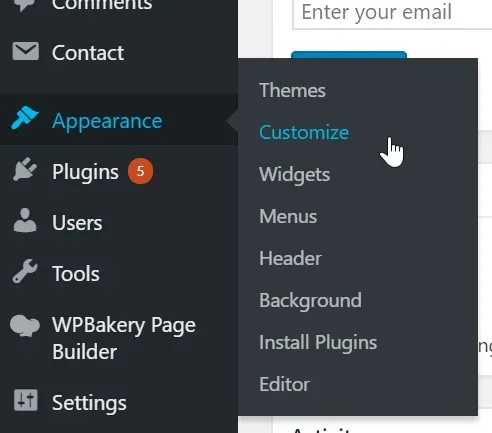
-
2
Choose Site Identity
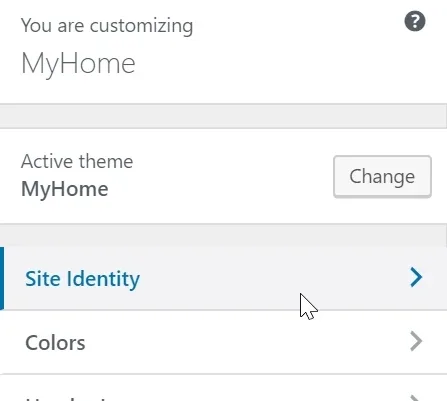
-
3
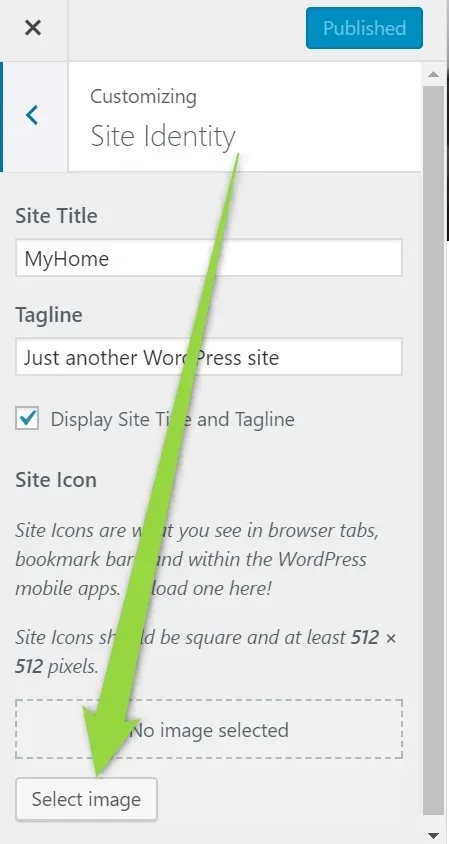
Select an image and upload it
In the Site Icon section, click Select image and upload your icon.
-
4
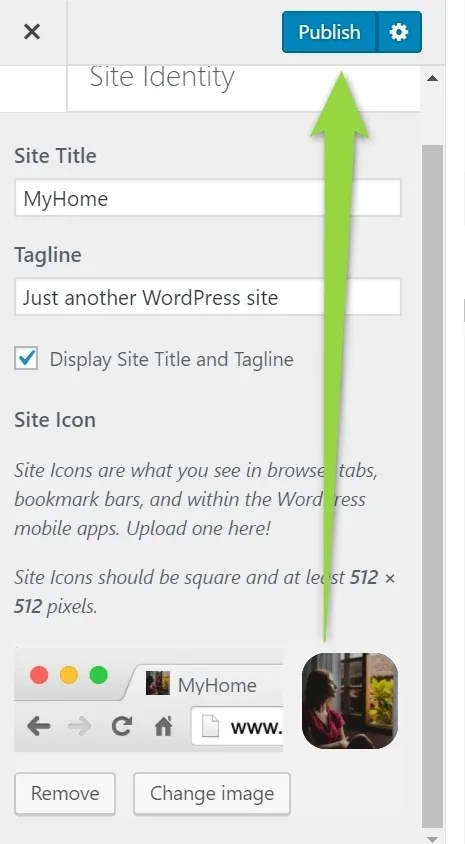
Click Publish
Prepare the file first
WordPress asks for a square site icon of at least 512 × 512 pixels, so crop your image before you upload it.
Keep reading
Ask the people who build Vehica
We answer by email from support@tangiblewp.com. With Premium Support, we also fix your site when something breaks.
We can also run your site for you, or build a new one.
Was this guide helpful?