How to Select the Recommended IDX Broker Template
Activate the IDX Broker layout template that MyHome recommends for each IDX page, so your MLS search and listing pages pick up your own brand colors and typography.
2 minute read
Each IDX Broker page needs a specific template to display correctly with MyHome. This guide walks you through activating the recommended template for every page.
-
1
Log in to IDX Broker
Sign in to your IDX Broker account at idxbroker.com.
- 2 Open the Pages screen
-
3
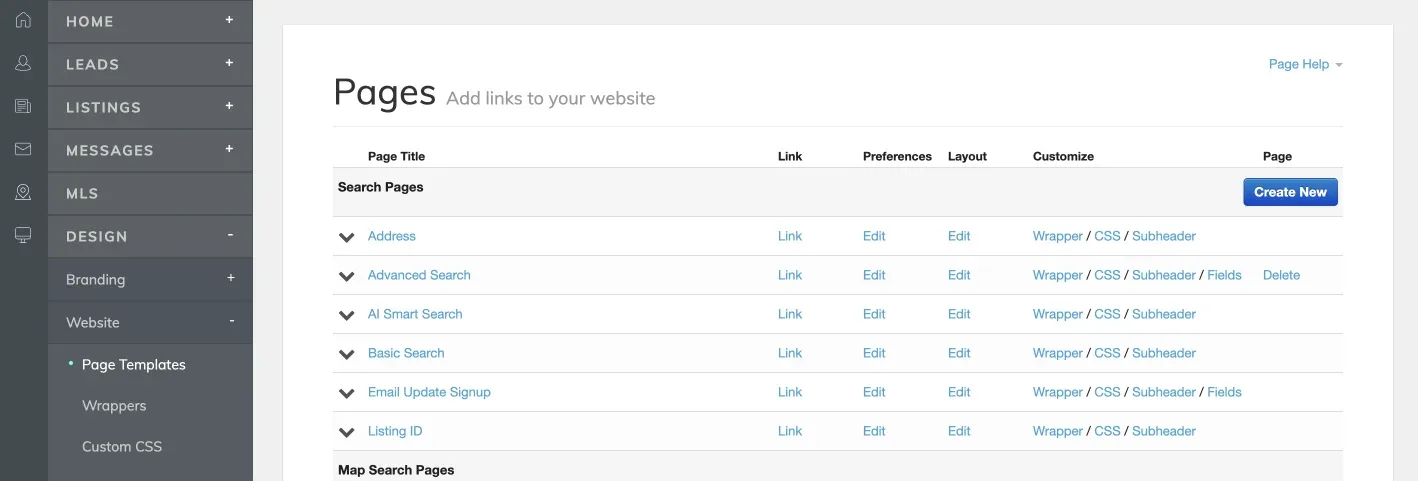
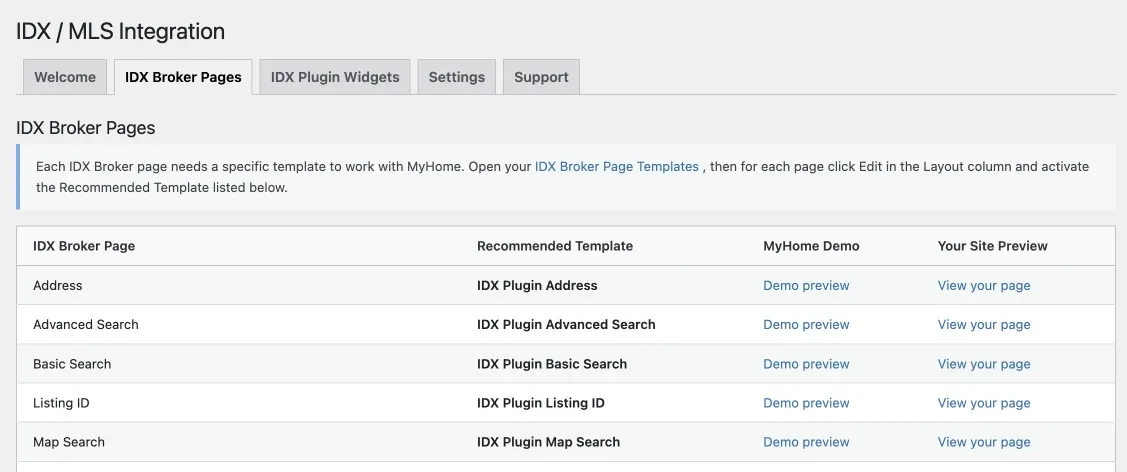
Find the page in the table
You will see a table like the one below.
-
4
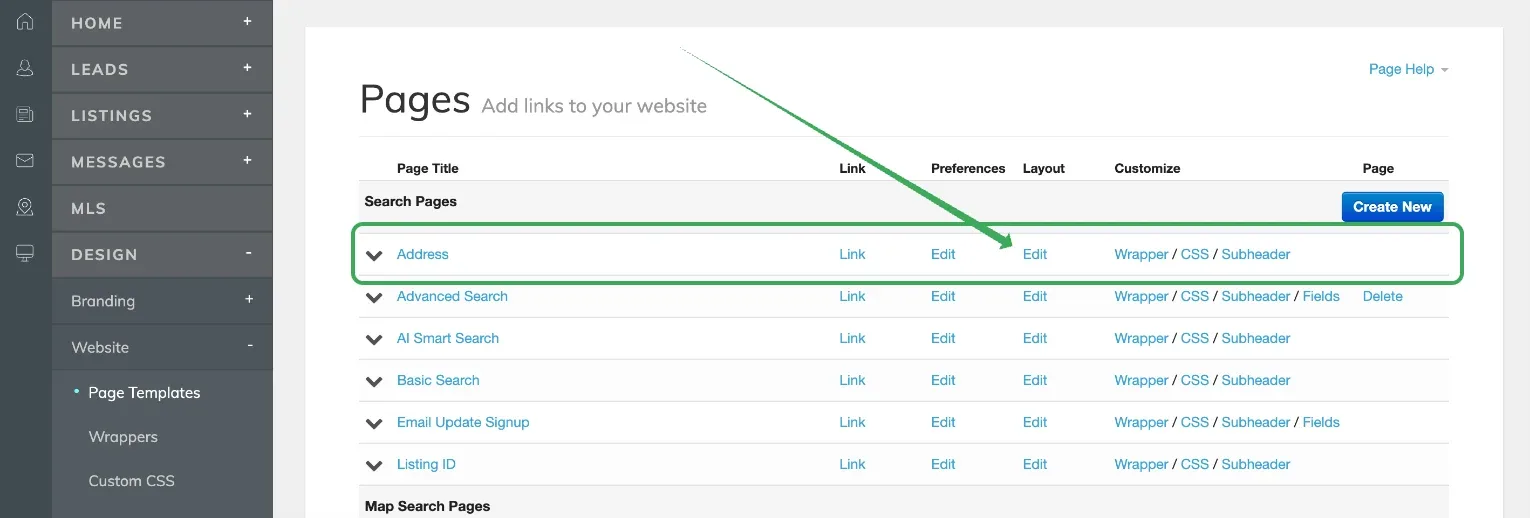
Edit the Address layout
Edit the "Address" layout by clicking "Edit" in the "Layout" column — not the one in "Preferences".
-
5
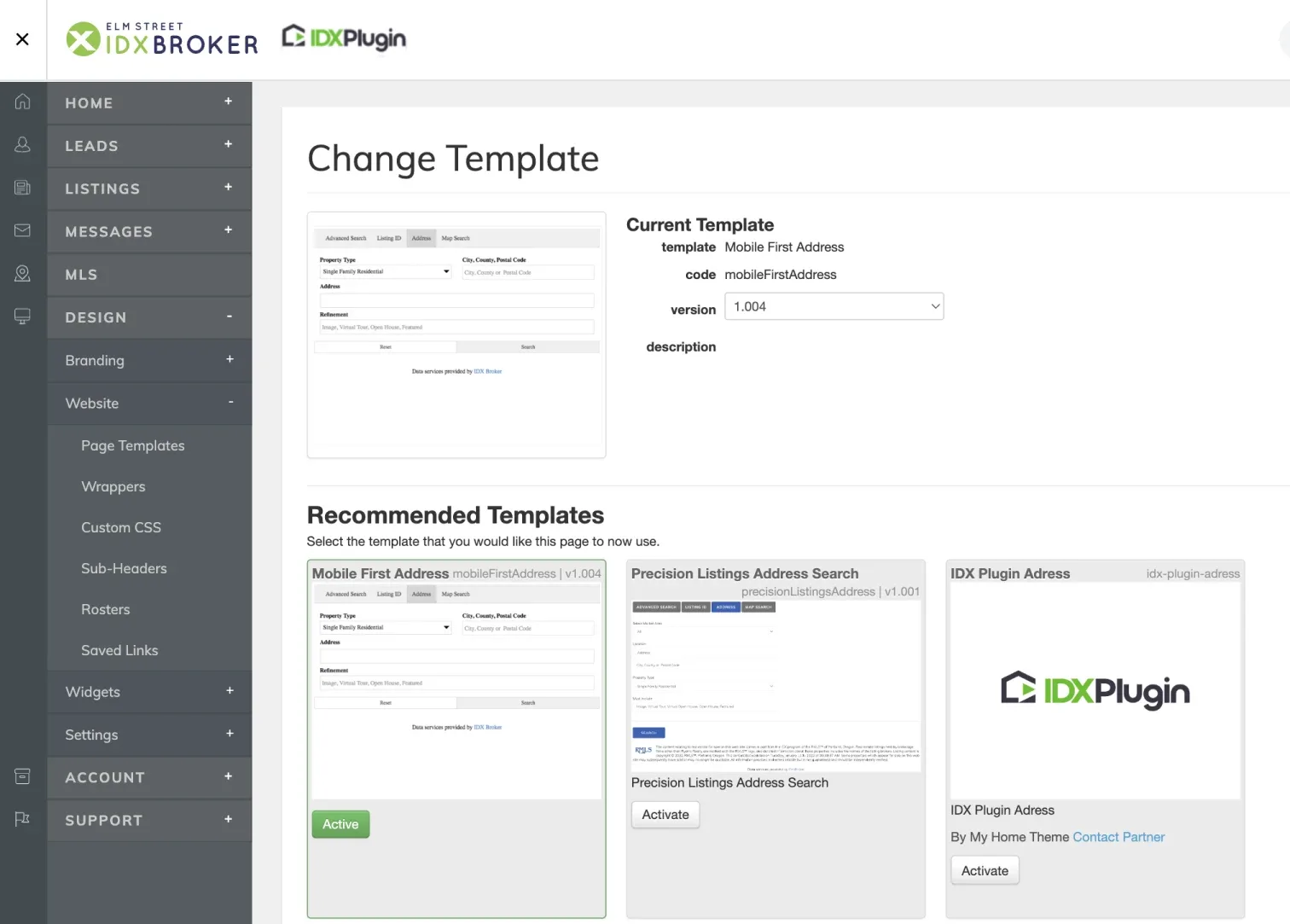
Look through the available templates
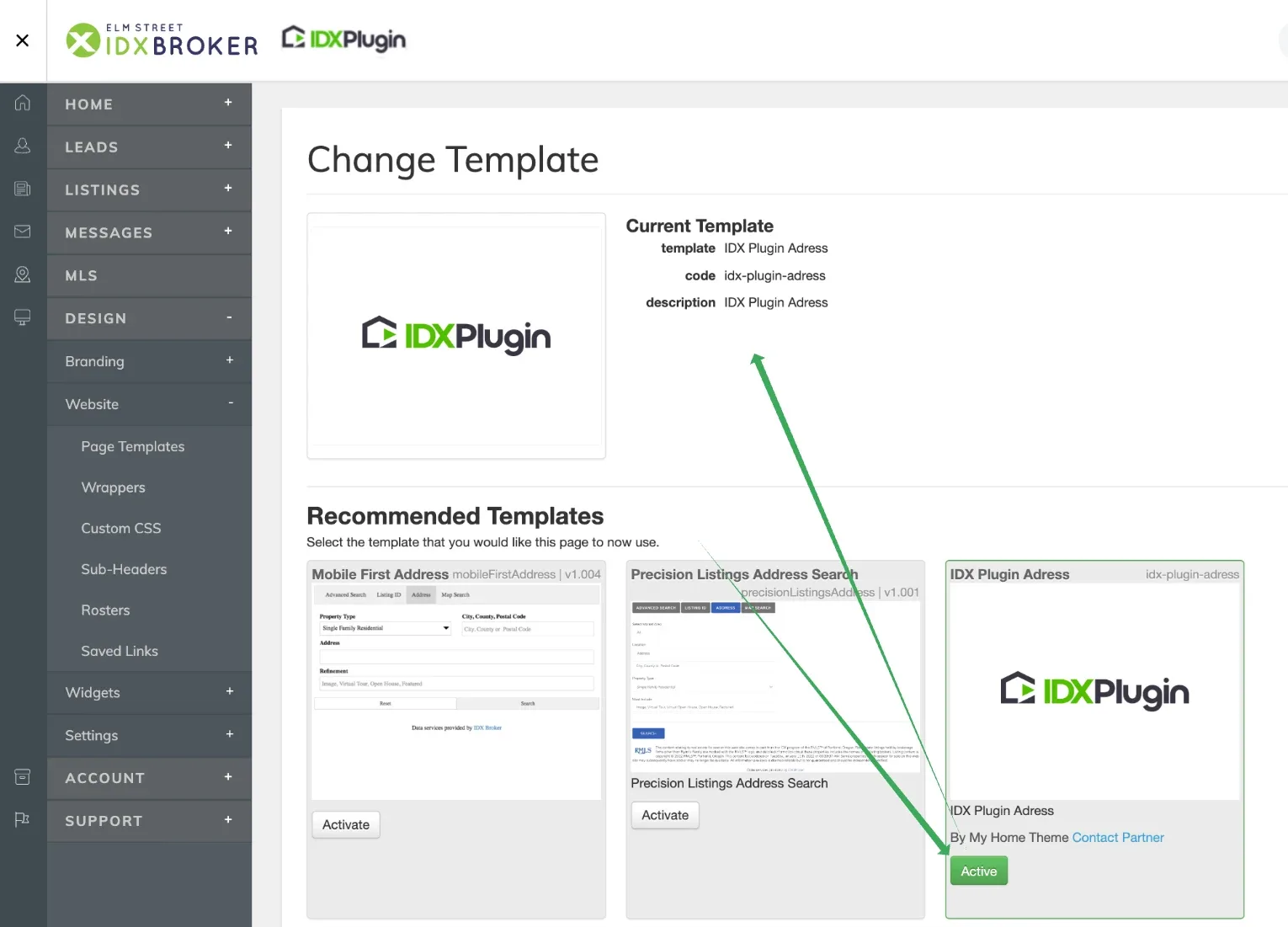
You will see the current template and a set of recommended templates to choose from.
-
6
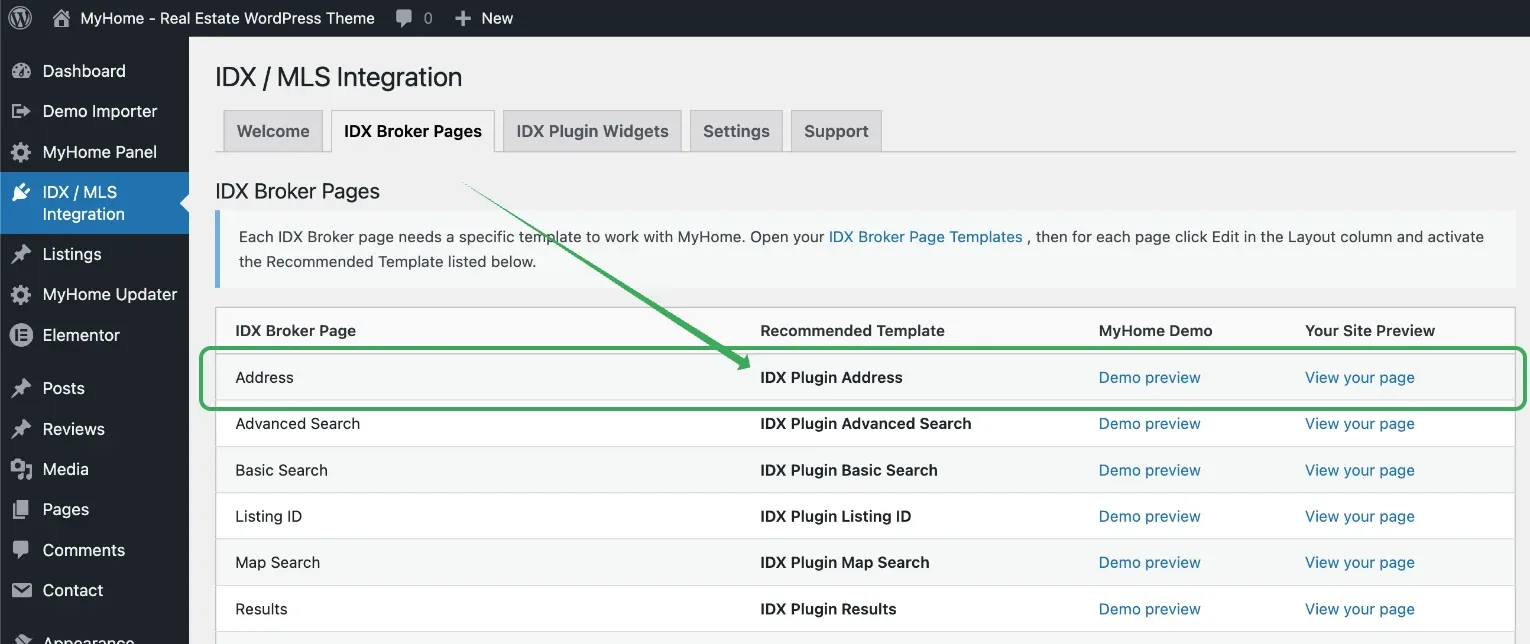
Check which template MyHome recommends
Check the recommended template in MyHome. Here it is "IDX Plugin Address".
-
7
Activate the recommended template
Click the "Activate" button on the recommended template card. Once activated, the button changes to "Active" and the card is highlighted in green, showing as your "Current Template".
-
8
Repeat for the remaining pages
Repeat the process manually for the other pages. Go back to middleware.idxbroker.com/mgmt/pages, edit the layout of Basic Search, set the recommended template, then move to the next page, and so on.
-
9
Check the result against the demo
When you finish, verify everything is set correctly by comparing our demo design with your site. It should look the same, with the brand colors and typography you set in MyHome.
If you have any problems or questions related to IDX integration, please write to support@tangiblewp.com and we will be happy to help.
Ask the people who build MyHome
We answer by email from support@tangiblewp.com. With Premium Support, we also fix your site when something breaks.
We can also run your site for you, or build a new one.
Was this guide helpful?