Skip to content

Changing the background image on any page

Track down where a page's background image actually lives in Elementor — sometimes an inner section, sometimes the first section — so you can replace it with your own.

1 minute read

  1. 1 Open the page in Elementor

    Open the desired page and edit it using the Elementor Page Builder.
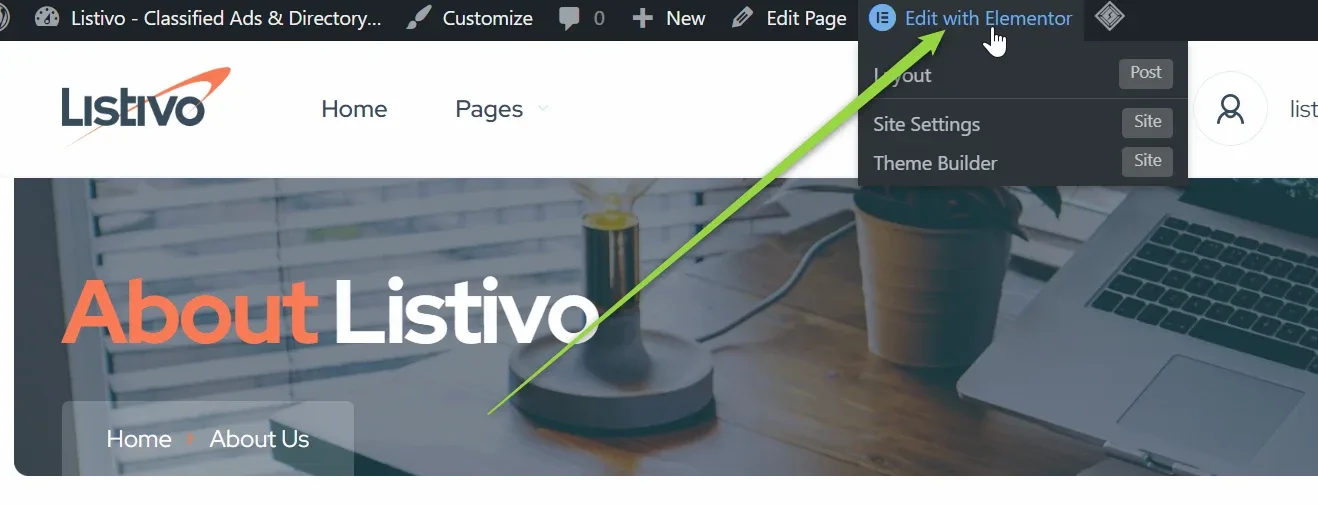
    The "About Listivo" page on the front end, with the admin bar's Edit with Elementor dropdown open above it showing Site Settings and Theme Builder, and an arrow pointing up to Edit with Elementor.
  2. 2 Open the Navigator

    Right-click anywhere on the page and select Navigator from the context menu.
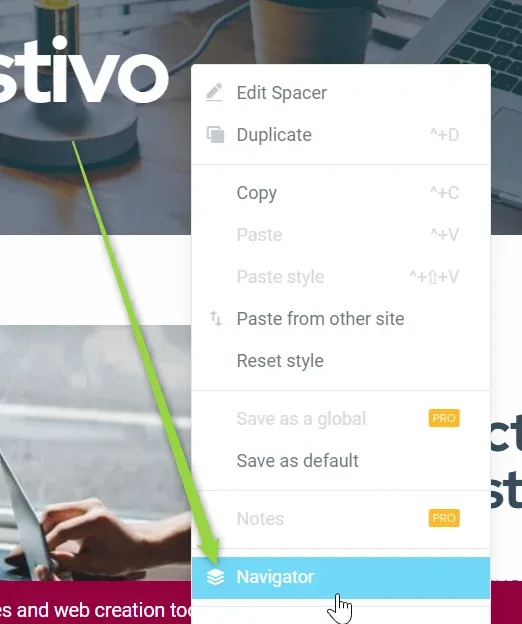
    The Elementor right-click menu over the page header, listing Edit Spacer, Duplicate, Copy, Paste, Paste style, Reset style, Save as a global, Save as default and Notes, with Navigator highlighted at the bottom under the cursor.
  3. 3 Find the section that carries the image

    Locate the section that uses the image as its background. Which section that is varies with the demo and its style. For example:
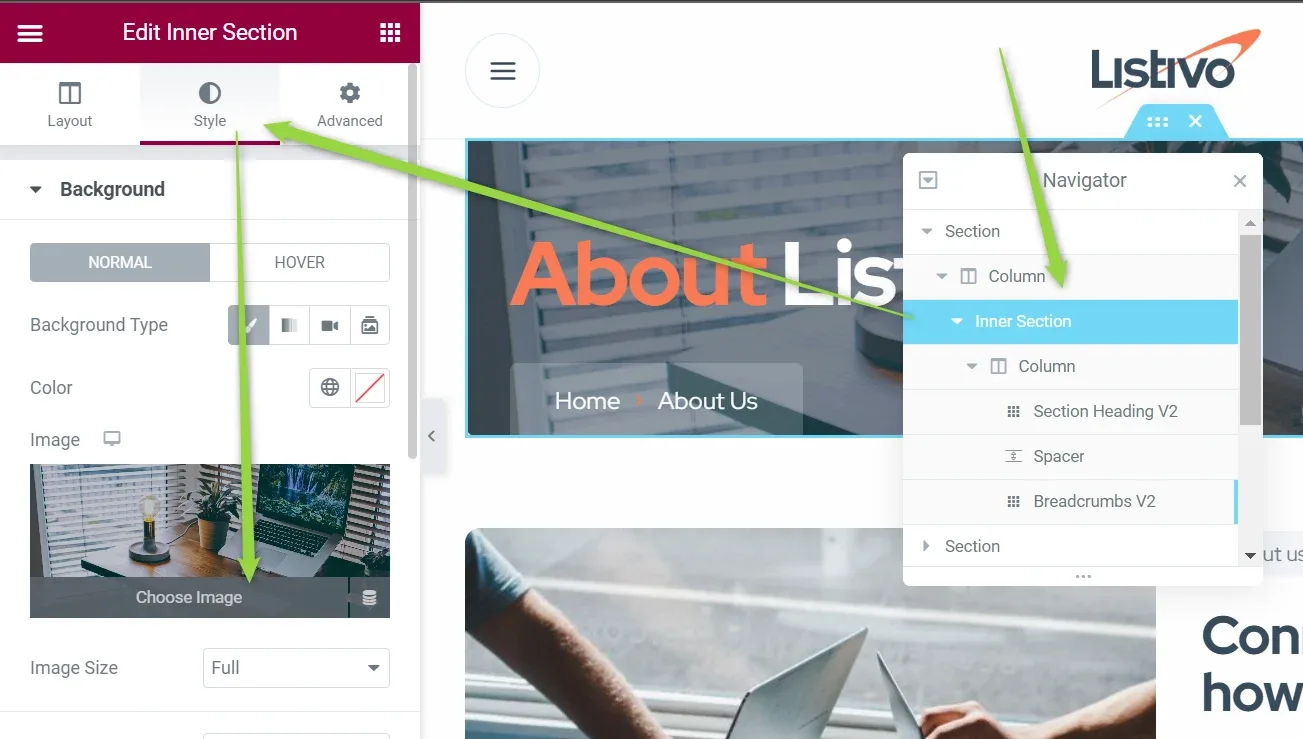
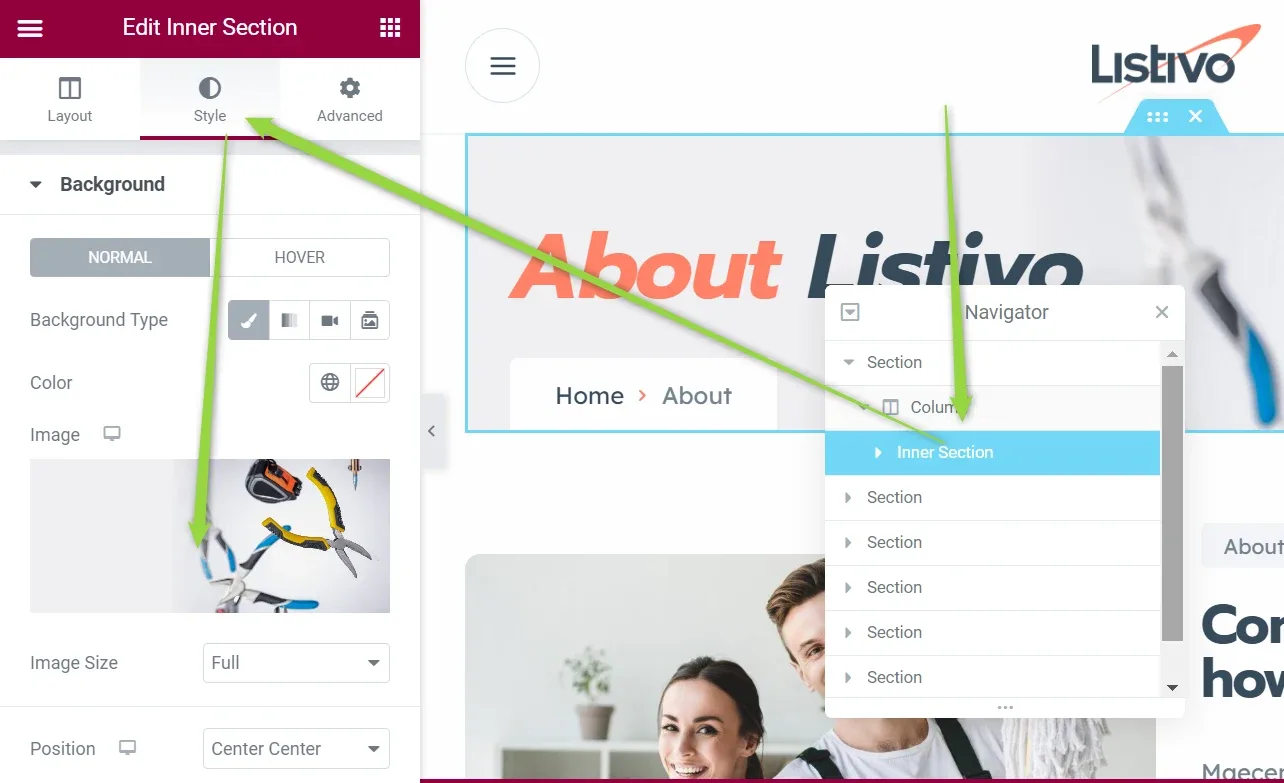
On the About pages of demo 3 and demo 6, the background image is set on an inner section.

The Edit Inner Section panel on its Style tab, showing Background Type, Color, a Choose Image thumbnail of a desk and Image Size Full; the Navigator on the right has Inner Section selected inside Section > Column.
The same Edit Inner Section panel on another About page, with a different background image thumbnail, Image Size Full and Position Center Center; the Navigator lists several sections with one Inner Section highlighted.

On some pages, though, the background image is on the first section instead — for instance on the login and register page of demo 6.
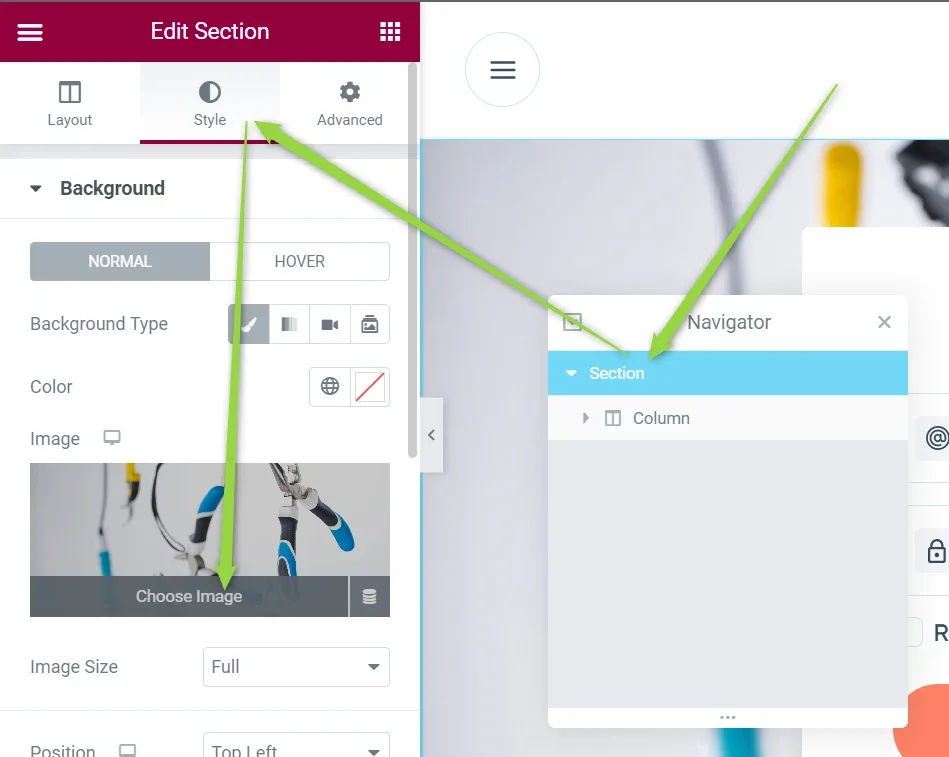
The Edit Section panel — a section, not an inner section — on its Style tab with a background image thumbnail, Image Size Full and Position Top Left; the Navigator beside it shows a single top-level Section containing one Column.
Cannot find it?
If you have difficulty locating the background image on a page, open a support ticket. We will gladly update this article with more examples.

Ask the people who build Listivo

We answer by email from support@tangiblewp.com. With Premium Support, we also fix your site when something breaks.

Was this guide helpful?