Customizing File Limits and Sizes for Gallery and Attachments Modules
Change how many files your users may upload through the Gallery and Attachments modules, and how large each file can be, from the Listivo Panel.
1 minute read
The Gallery and Attachments modules have limits on the number of files and their size. You can customize these limits in the Listivo Panel > Custom Fields, by clicking Edit for either Gallery or Attachments.
-
1
Open Custom Fields
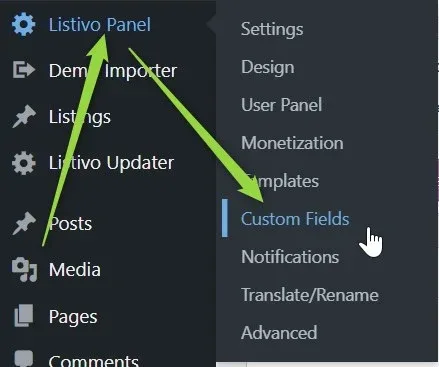
In wp-admin, hover over Listivo Panel and choose Custom Fields.
-
2
Edit Gallery or Attachments
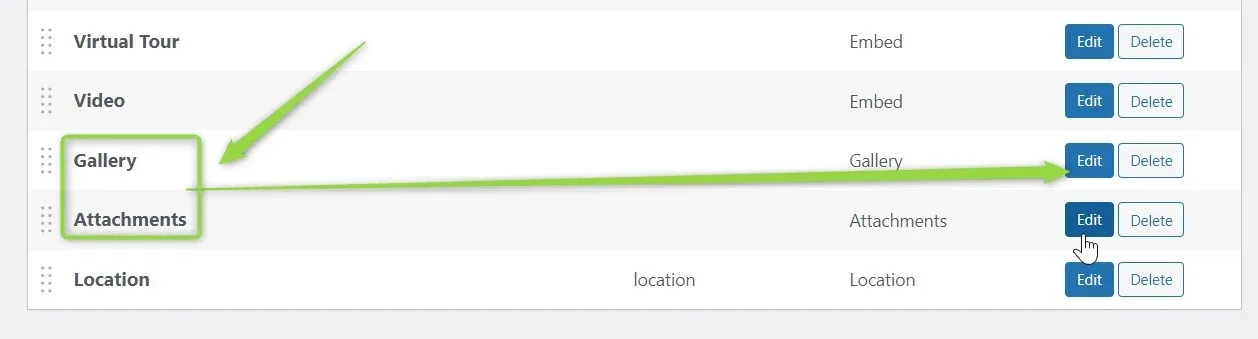
Find the Gallery or Attachments row in the field list and click its Edit button.
-
3
Customize the limits
Set Max Image Number and Max File Size (MB) to the values you need.

Ask the people who build Listivo
We answer by email from support@tangiblewp.com. With Premium Support, we also fix your site when something breaks.
We can also run your site for you, or build a new one.
Was this guide helpful?